Working with the Rich Text Editor in SuiteProjects Pro
Some features in SuiteProjects Pro such as Project Summary, Project Status News Feed, for example let you use rich text formatting to enhance text box content.
The rich text editor lets you:
-
Add emphasis to text using bold
 , italic
  , or underlined
  character styles
 -
Format text as a bullet list
 or a numbered list
-
Insert a link

You can insert a link to:
-
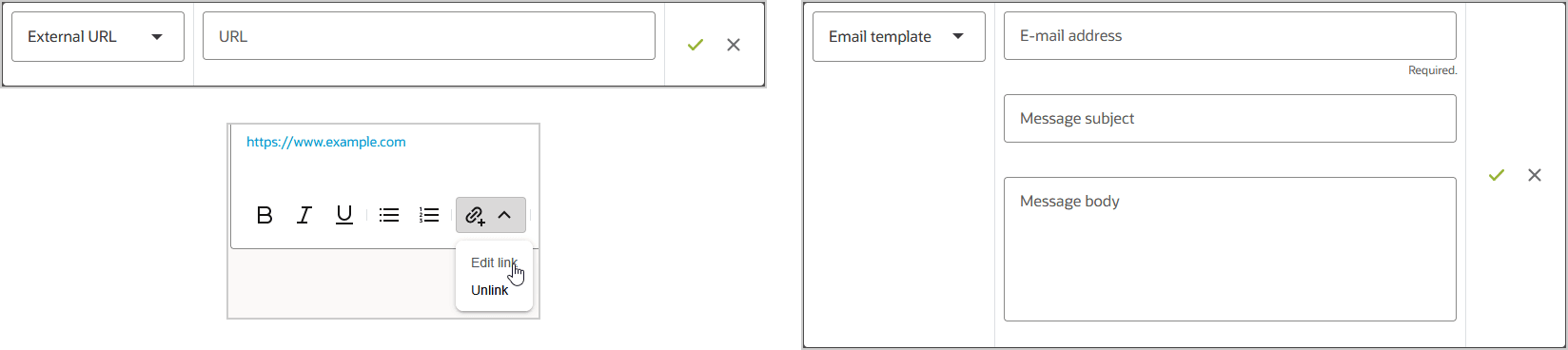
A URL - Select URL from the dropdown and enter a URL, then click the green tick mark. The URL must not include the
openair.comornetsuitesuiteprojectspro.comdomain. When clicked, the URL will open in a new browser tab. -
An Email address - Select Email from the dropdown and enter an email address, then click the green tick mark. You can also enter a subject line and a message body. When clicked, a new email will open in the user's default application for mailto links. The email is prepopulated with the email address, subject line and message body.
You can also select an existing link in the message and edit it or remove the link (unlink).
-
-
Insert an emoji

-
Change the text color

-
Change the paragraph style
 - Options include Header 1, Header 2, Header 3, Paragraph, and Small text.
 -
Press Enter to insert a paragraph break. Press Shift + Enter or Ctrl + Enter to insert a simple line break.
Note:Line breaks (
<br>HTML element) are inline elements. Style, bullet list and numbered list formatting applies to a whole paragraph (<p>HTML element) or other block-level elements (such as heading elements<h1>,<h2>and<h3>for example). If you change the style of a line separated to another line by a line break, the style applies to both lines. If you apply list formatting to two lines separated by a line break, the two lines will be part of the same list item or bullet point.