Defining a Custom Rule Target
After you have created a custom rule definition, edit the rule to define the target range for the custom calculation and the formula to execute for all cells in the target range.
To define a custom rule target:
-
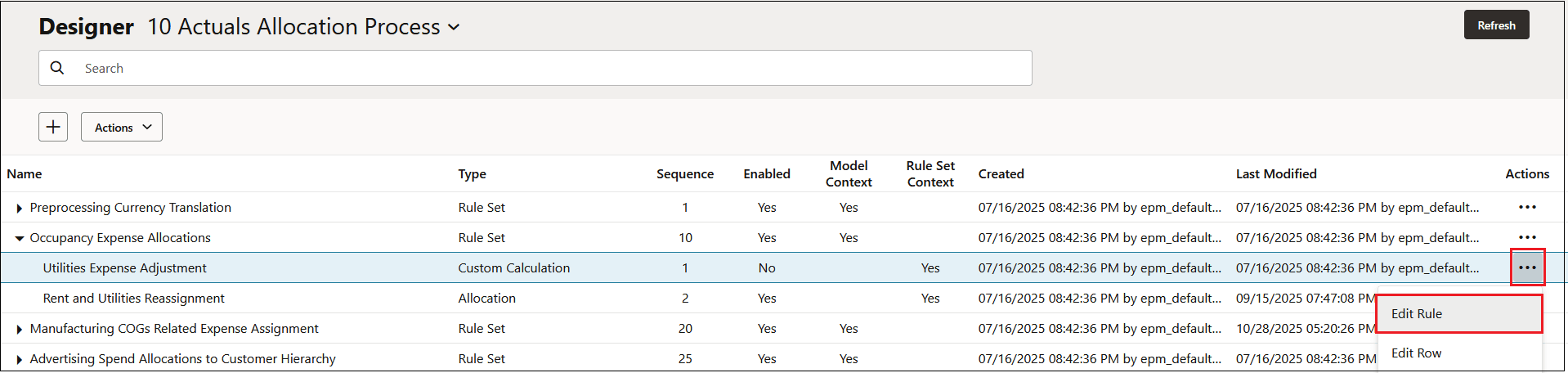
On the Waterfall Setup tab, click
 next to a custom rule, and then select Edit
Rule.
next to a custom rule, and then select Edit
Rule.
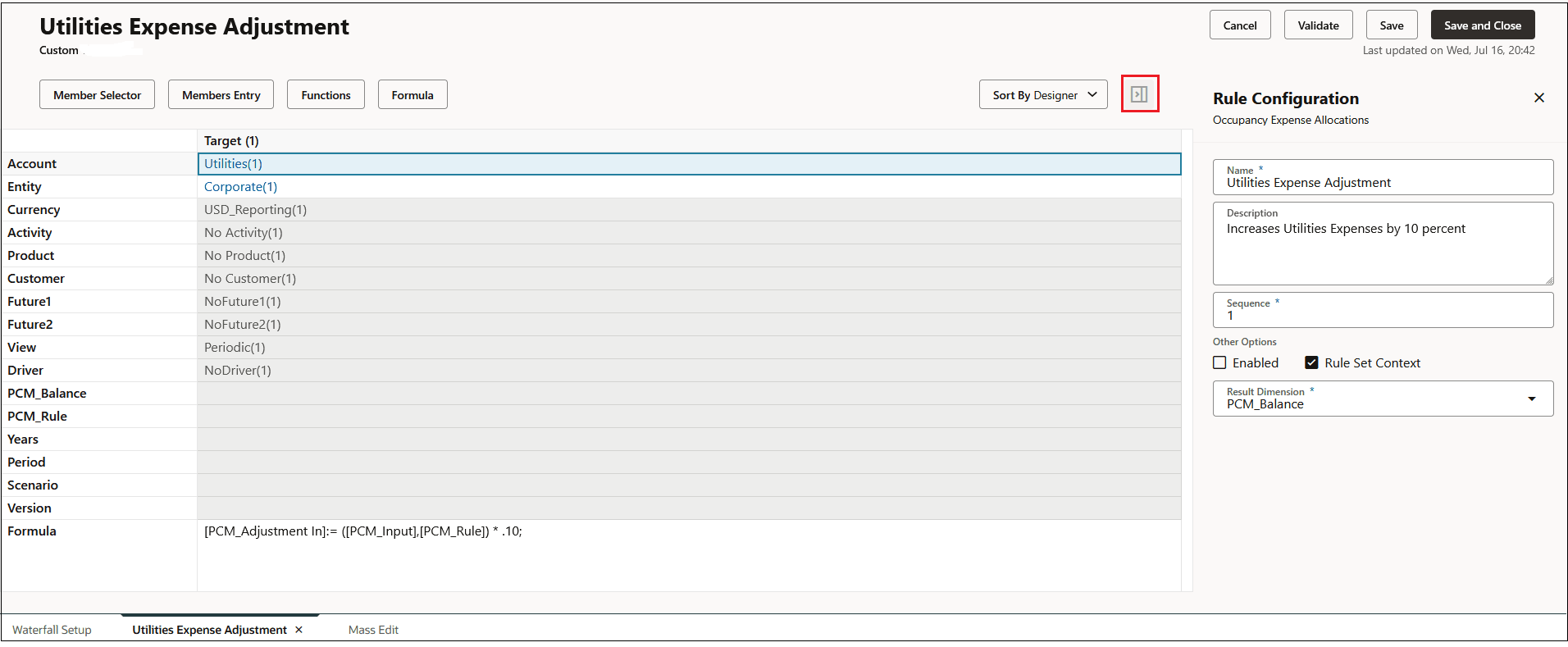
The rule is opened with the required Entity and Account dimensions, the optional Currency dimension if you have a multicurrency application, and any custom dimensions in your application are displayed. (If you have defined and enabled a Rule Set Context or a Model Context, any dimensions defined in the Rule Set Context or a Model Context are not displayed. See Understanding Model and Rule Set Context.)
-
Click
 to open the Rule Configuration panel where you
can see the information you defined in the rule definition.
to open the Rule Configuration panel where you
can see the information you defined in the rule definition.
-
Click Formula, and enter the MDX formula for the custom rule.
After you enter a formula, click Validate to ensure that the formula is valid, and then click Save.
See Formula Syntax for Custom Rules and Skipping Empty Tuples to Optimize Calculations for information on how to create the formula.
-
Select a member or members for each target dimension.
You must select a member for every dimension. If a dimension does not apply to the data in your rule, select the No<dimname> member. See Dimension and Member Requirements When Creating Rules.
Note:
The dimension you selected for the Result Dimension is not included as a target dimension since a member from the result dimension must appear in the left hand (results side) of the formula.
To select members for a target dimension:
-
Click in the Target column next to a dimension, to enable Member Selector, Members Entry, and Functions.

-
Click next to a dimension in the Target column, and then click an option to define the members for the dimension:
-
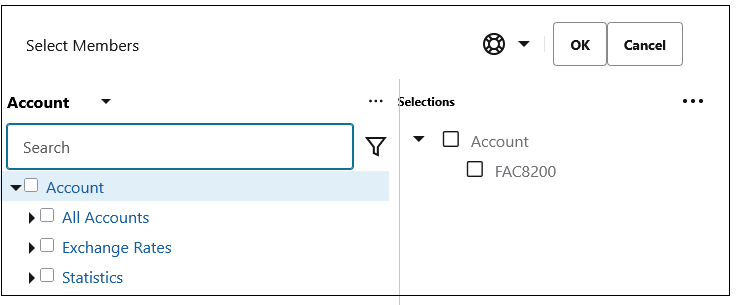
Member Selector:
Click Member Selector to open the Select Members dialog box, where you can select the members to add to the target dimension. See Using the Member Selector.
Tip:
Selecting an upper-level member selects all the descendants of that member. For example, if you choose "All Accounts", then your selection is really all the Level 0 descendants of "All Accounts". The rule will execute an allocation for each level-0 member. Selecting an upper-level member eliminates the need to pick each specific member individually.
-
Members Entry:
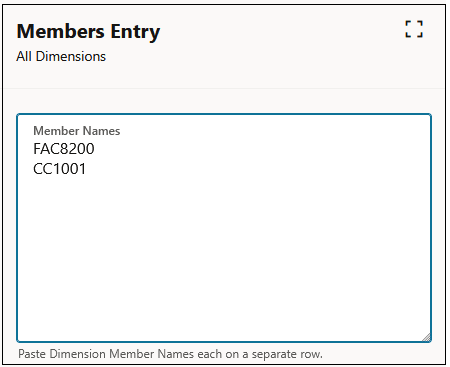
If you have several members to add to the target dimension and you know the member names, instead of adding each member one-by-one from the Select Members dialog box, click Members Entry and enter the dimension member names.
For example, if you have a list of members in an Excel spreadsheet, you can copy these members from Excel, and then paste them into the Members Entry dialog box. The members will be added to the dimensions in the source to which they were assigned when the dimensions were created. See Adding Members to a Dimension.
Tip:
To add members to all applicable dimensions in the source, click on the Target row, and then click Members Entry. To add multiple members to a specific dimension, click on the dimension row, and then click Members Entry.
-
-
-
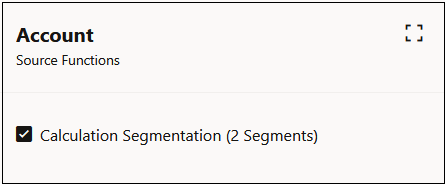
Optional: To segement rules into smaller rules to execute separately, select the row for a dimension in the Source column, and then click Functions. In the Source Functions dialog box, select Calculation Segementation.
-
Click Save to save the information you have added for the target.
Calculation segmentation enables the calculation to process rules with a very large data range, which would otherwise be too large for Oracle Essbase to process. Calculation segmentation is enabled for up to two dimensions in each rule.
Tip:
Use Calculation Segmentation only when your source range is extremely large and sparsely populated. As a best practice, you should call support before proceeding with this option.
Tip:
-
To view details about the rule configuration, click
to open the Rule Configuration panel.
-
The numbers in parenthesis to the right of each member indicates the number if level 0 descendants. This helps you identify the size of the range you are defining.
-
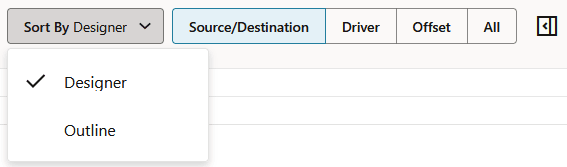
The default sort order for the dimensions is set to Designer. If you need to compare the data on this page to Smart View or another data output, change the sort order from Designer to Outline so that the sort order is the same as the sort order in Smart View or your other data output.
-
See Managing Filters for Target Members for information on how to filter the target members used in a rule.