Creating a Rule Set
To create a rule set:
-
From the Home page, select Modeling, and then Designer.
-
On the Waterfall Setup tab, click the Model drop-down, and select a model.
-
Click
 , and select Rule Set.
-
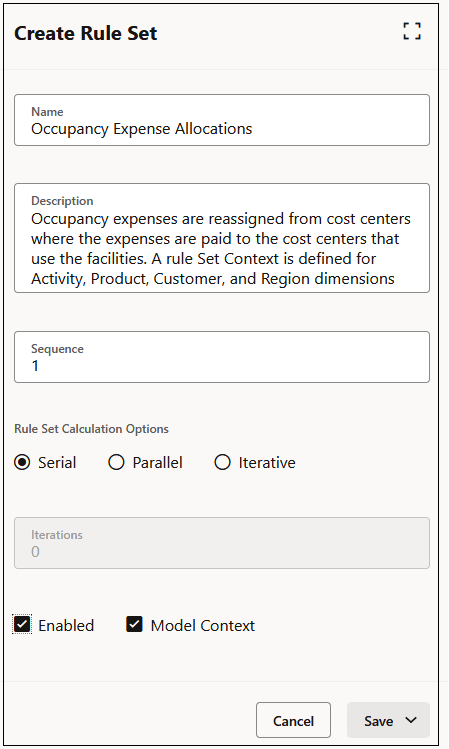
In the Create Rule Set panel, enter information about the rule set:
-
Name: Enter a name for the rule set.
For example, the BksML50 sample application provided with Enterprise Profitability and Cost Management has a rule set called "Occupancy Expense Allocations".
-
Description: Enter a description for the rule set.
The description you enter here will appear in the Model Documentation report. Enter a description that will make the information about the rule set informative for anyone reviewing the model logic in the future. See Generating a Model Documentation Report.
For example, a description for an Occupancy Expense Allocations rule set could be: "Occupancy expenses are reassigned from cost centers where the expenses are paid to the cost centers that use the facilities. A Rule Set Context is defined for Activity, Product, Customer, and Region dimensions to select the No<dimname> members as the dimensions are not used in these rules."
-
Sequence: Enter a number to determine the order in which the rule set will run. The sequence also determines the order in which the rule set is displayed on the Waterfall Setup tab. The sequence can be any whole number from 1 to 9999.
-
Select a Rule Set Calculation options:
-
Serial: Runs all rules in the rule set sequentially, depending on their sequence number.
-
Parallel: Runs rules with the same sequence number at the same time. The number of rules that can be executed in parallel is defined in the Calculation Threads setting in Application Settings. See About Managing Application and System Settings.
-
Iteratiave: Runs the rule set multiple times in sequence. If you select this option, enter the number of iterations to run. Iterative Calculations are used to resolve the impact of reciprocal allocation relationships in a model.
-
-
Enabled: If selected, the rule set will be active when the calculation is performed.
-
Model Context: If selected, the member selections done during model creation will apply to all the rules in the rule set. When you use a model context, you avoid having to select the same members for every rule, which saves time and ensures consistency. See Understanding Model and Rule Set Context.
-
-
Click Save, and then select either:
-
Save and Close to return to the Waterfall Setup tab, or
-
Save and Next to add additional rule sets.
-
In the following example, the Occupancy Expense Allocations rule set will be the first rule set to run. It will run all rules in the rule set sequentially, be enabled by default, and use a previously-defined Model Context.
The rule sets defined in the Create Rule Set panel are displayed
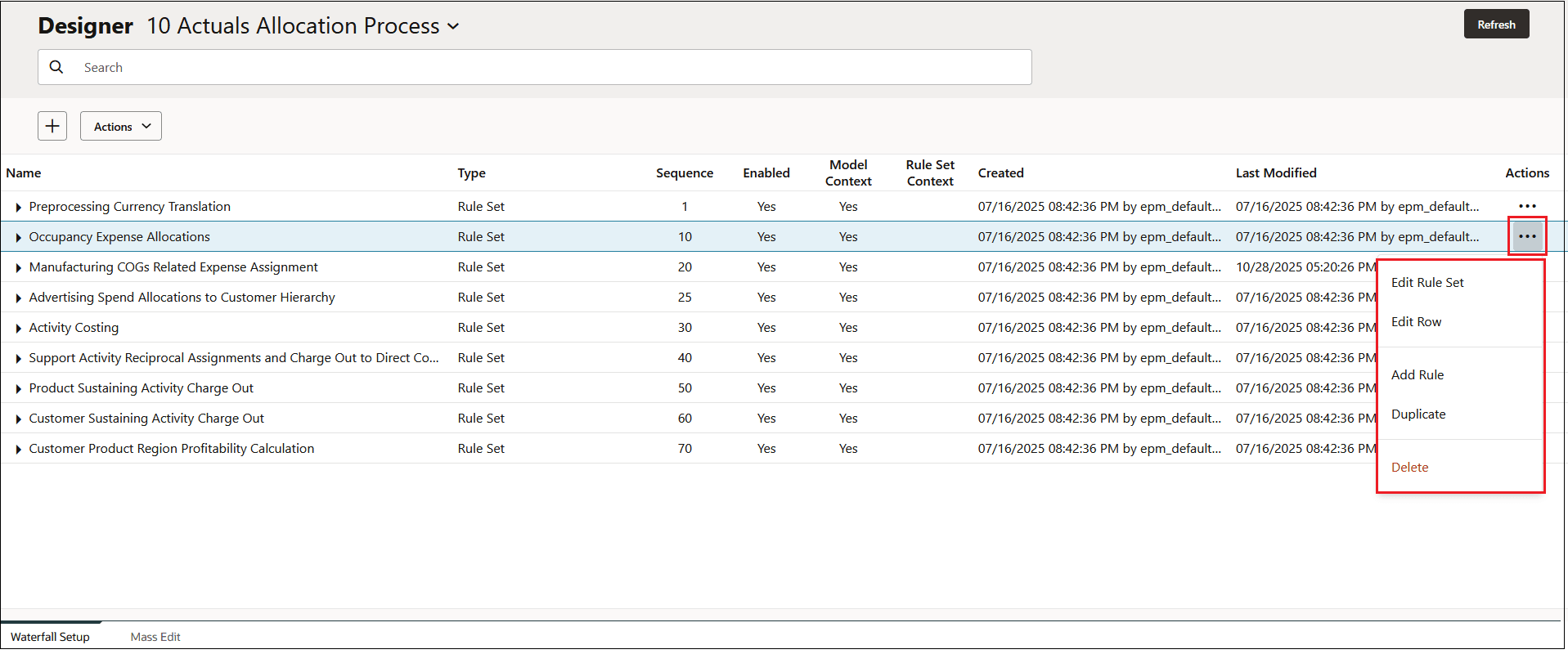
in the Waterfall Setup tab. Click  next to a rule set to complete the following tasks:
-
Edit the rule set to create a rule set context that defines member selections for dimensions that will use the same member for all rules in the rule set (see Creating a Rule Set Context)
-
Edit the information on the row. (If you change any information on the row click
 ; otherwise, click
  .)
.)
-
Add a rule to the rule set (see Creating Allocation Rules and Creating Custom Rules)
-
Duplicate the rule set (see Duplicating a Rule Set)
-
Delete the rule set