Copying a Point of View
You can copy data from one point of view to another. For example, if you wanted to create a "what if" version of a point of view, you could start with data that was already included in an existing point of view, copy it to a new point of view, and then do some additional edits and calculations.
Tip:
You can copy more than one point of view at time. For example, you could copy 12 periods of data from the calculation cube (PCM_CLC) to the reporting cube (PCM_REP), and you could copy 6 periods of data from Actual to Forecast in the same cube. See Copying Multiple Points of View Examples.
To copy one or more points of view:
-
On the Calculation Control page, select the point(s) of view you want to copy, and then click Copy.
-
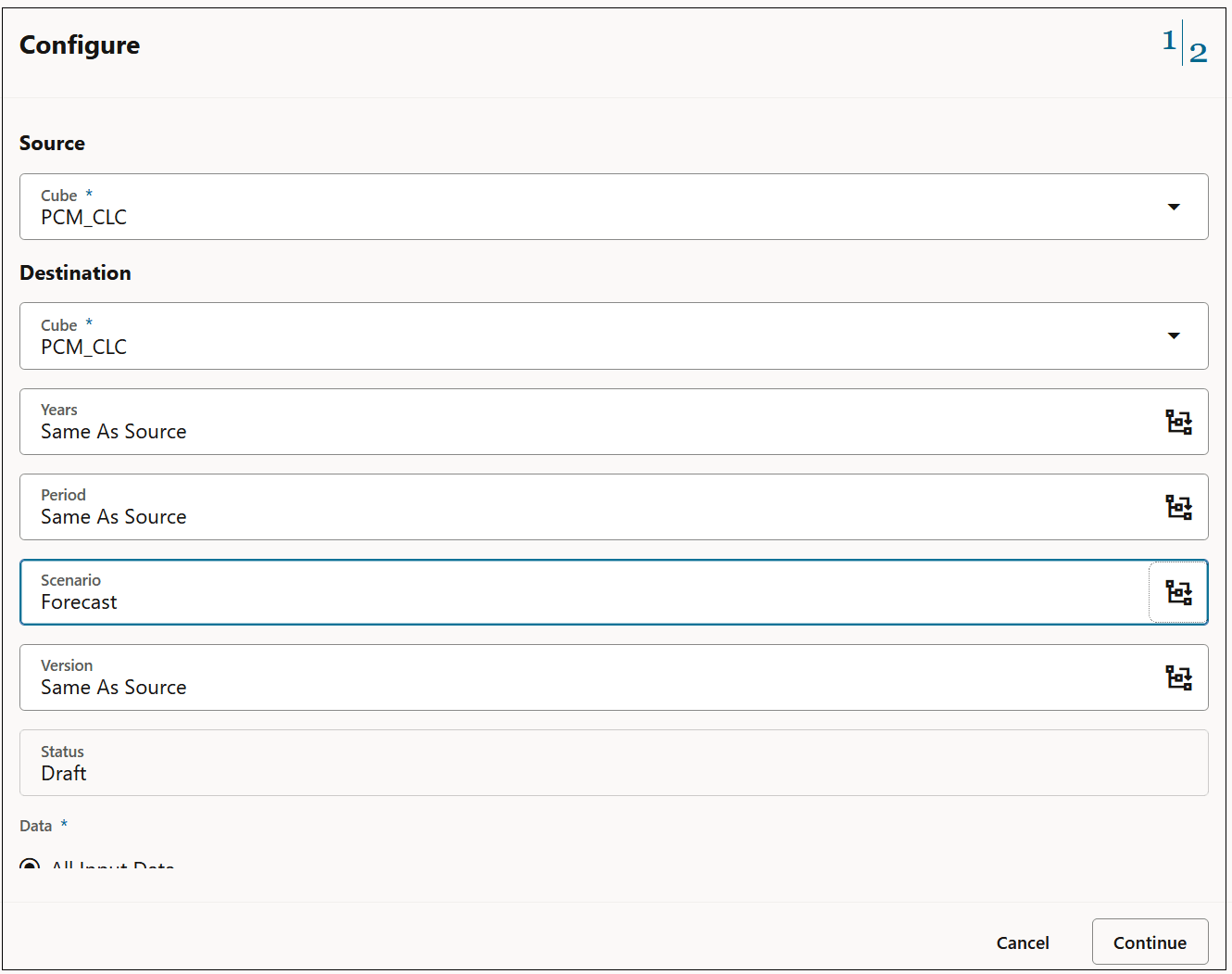
In the Configure dialog box, select a Source cube and a Destination cube.
-
Select the members for the Years, Period, Scenario, and Version dimensions that will be used in the copied point of view.
-
Under Data, select an option that relates to the level 0 members in the PCM_Balance and PCM_Rule regions.
Table 11-3 Data that is Copied for the Selected Point of View
Copy POV Option PCM_Balance Region Copied PCM_Rule Region Copied What this Means All Input Data
Level 0 descendants of PCM_Balance
PCM_Rule.NoRule
For all members in all business dimensions, copies all level 0 descendants in the PCM_Balance dimension, intersecting with the NoRule member in the PCM_Rule dimension.
All Data
Level 0 descendants of PCM_Balance
Level 0 descendants of PCM_Rule
For all members in all business dimensions, copies all level 0 descendants in the PCM_Balance dimension, intersecting with all of the level 0 descendants in the PCM_Rule dimension. This results in all of the data in the POV being copied.
-
Click Continue.
-
Review the options you have selected, and click Copy.
Note:
If you select options for Years, Period, Scenario, and Version to define a point of view that doesn't exist in the calculation control list yet, a dialog box is displayed letting you know that the destination point of view doesn't exist. Click OK to confirm that you want to create the destination point of view.
-
Optional: Go to the Jobs console and verify that the point of view was copied successfully.
The Copy Point of View job is displayed in the Jobs console with a "Completed" or "Completed with Errors" status.. You can select the job to see details about the job and troubleshoot any errors that may have occurred. See Viewing Point of View Jobs.
Note:
You can also use the "Copy Data by Point of View" REST API or the "copyDataByPointOfView" EPM Automate command to copy data. See Copy Data by Point of View in REST APIs for Oracle Fusion Cloud EPM and copyDataByPointOfView in Working with EPM Automate.
Copying Multiple Points of View Examples
Example 1: Copy all the months in FY24 from the calculation cube (PCM_CLC) to the reporting cube (PCM_REP)
-
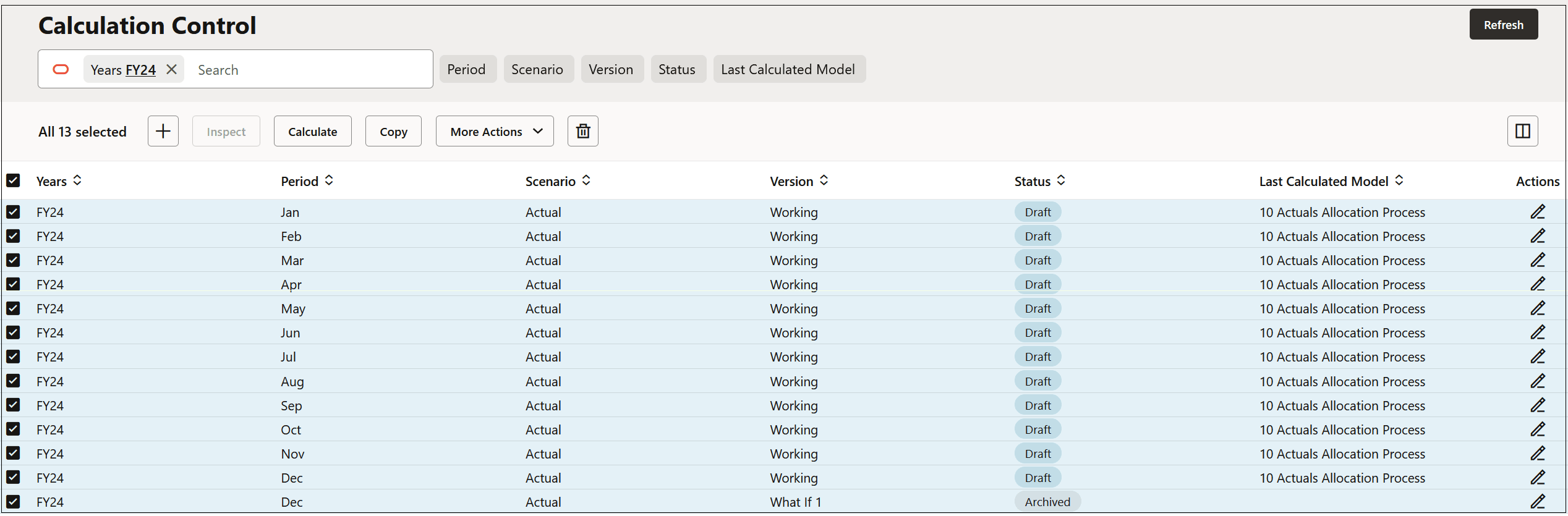
On the Calculation Control page, filter the years to FY24, click the checkbox next to Years to select all the years in FY24, and click Copy.
-
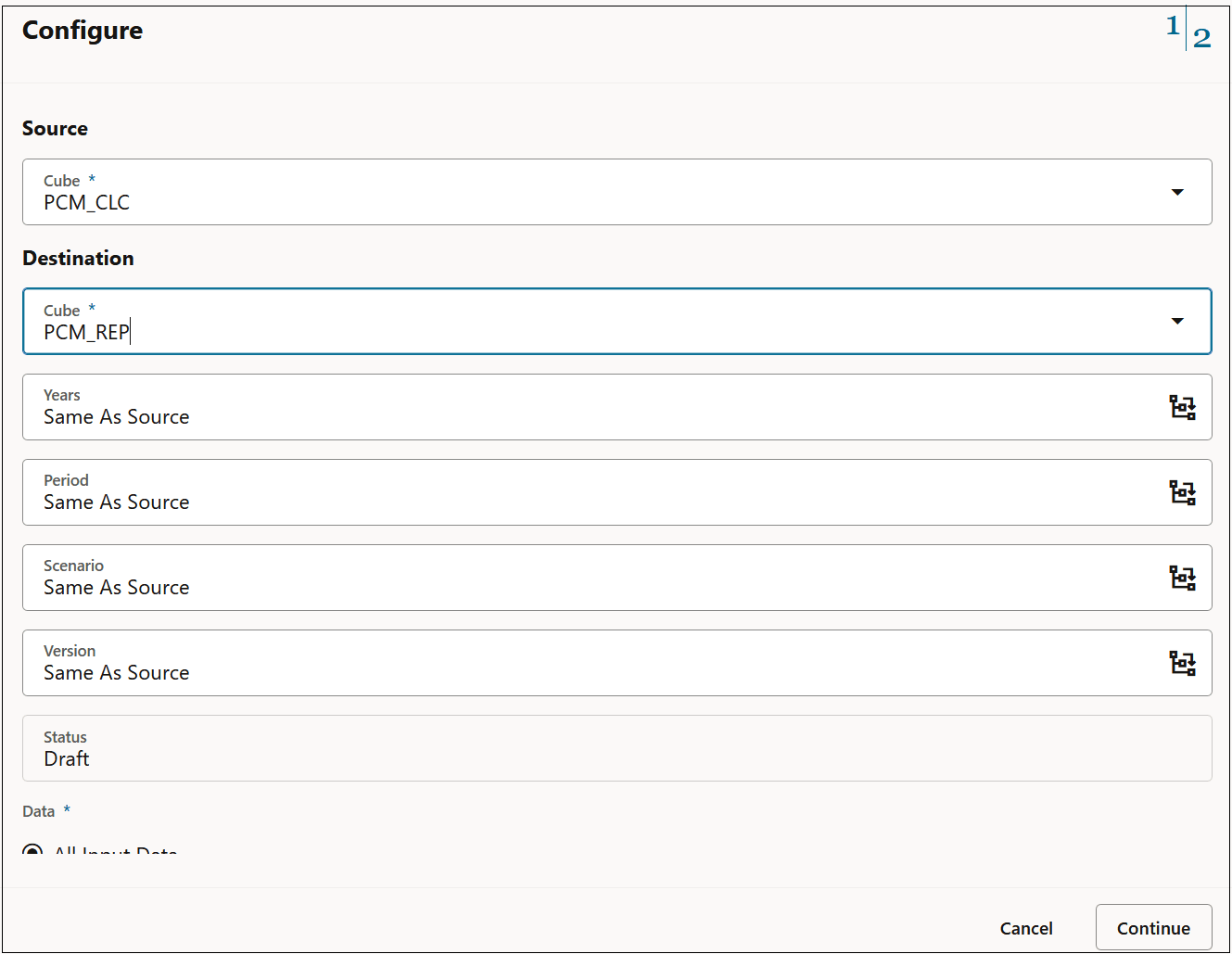
In Configure, change the Destination cube to PCM_REP, and then click Continue.
-
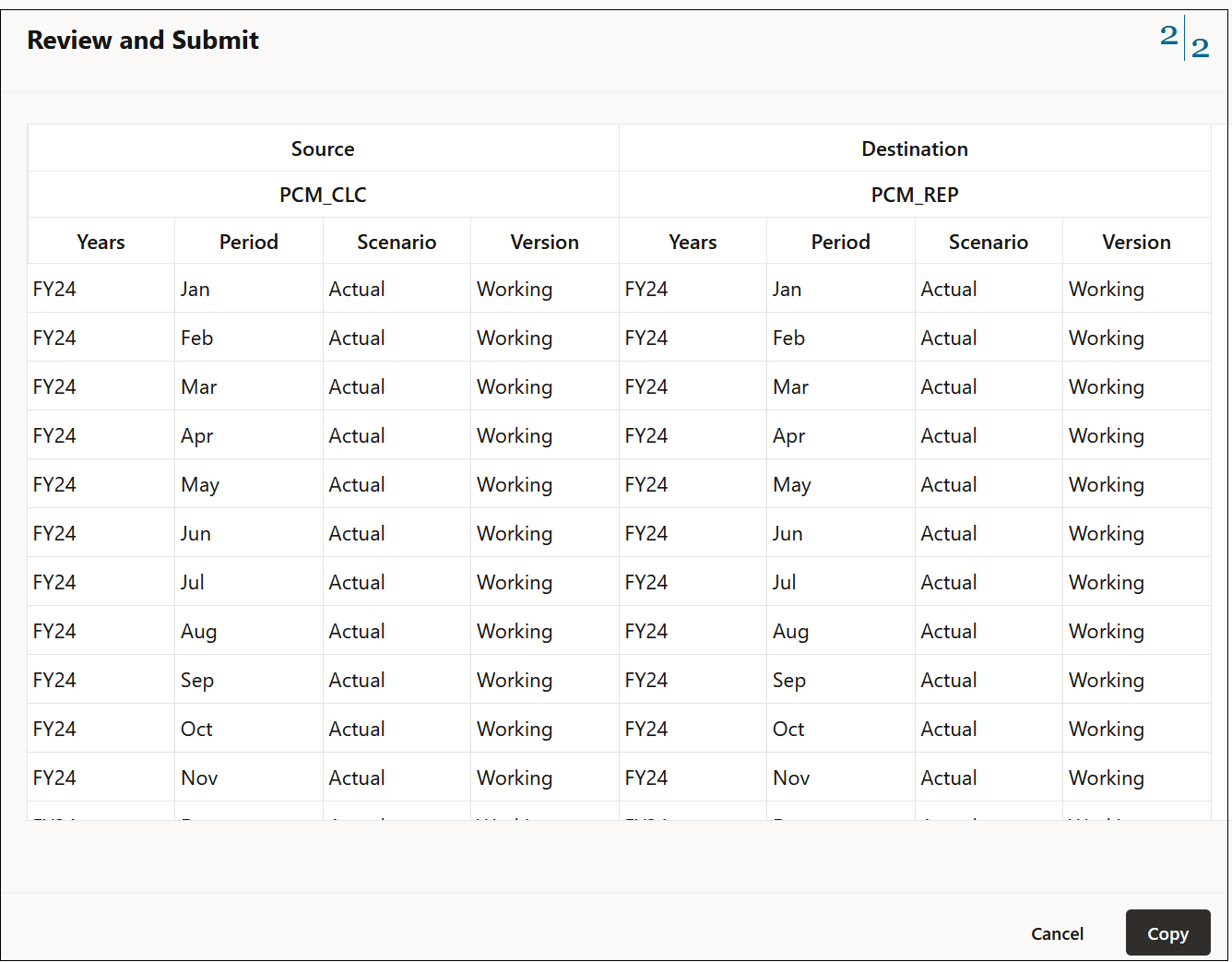
Review the information in Review and Submit, and then click Copy.
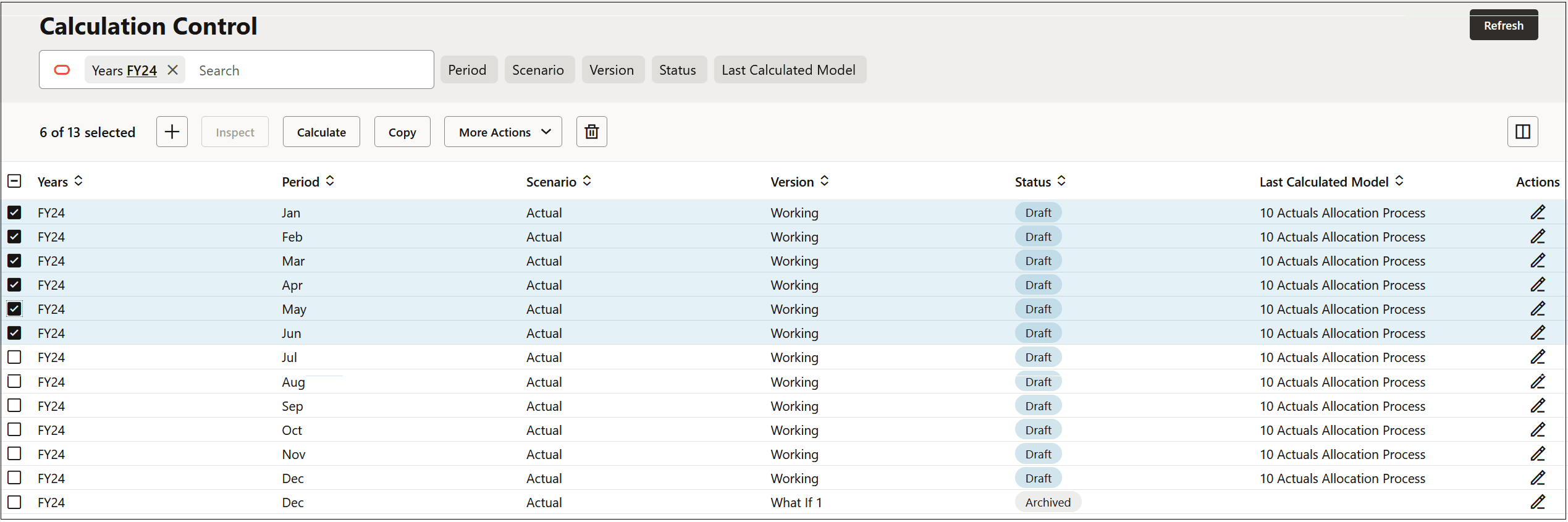
Example 2: In the calculation cube (PCM_CLC), copy the first six months of data in FY24 from Actual to Forecast
-
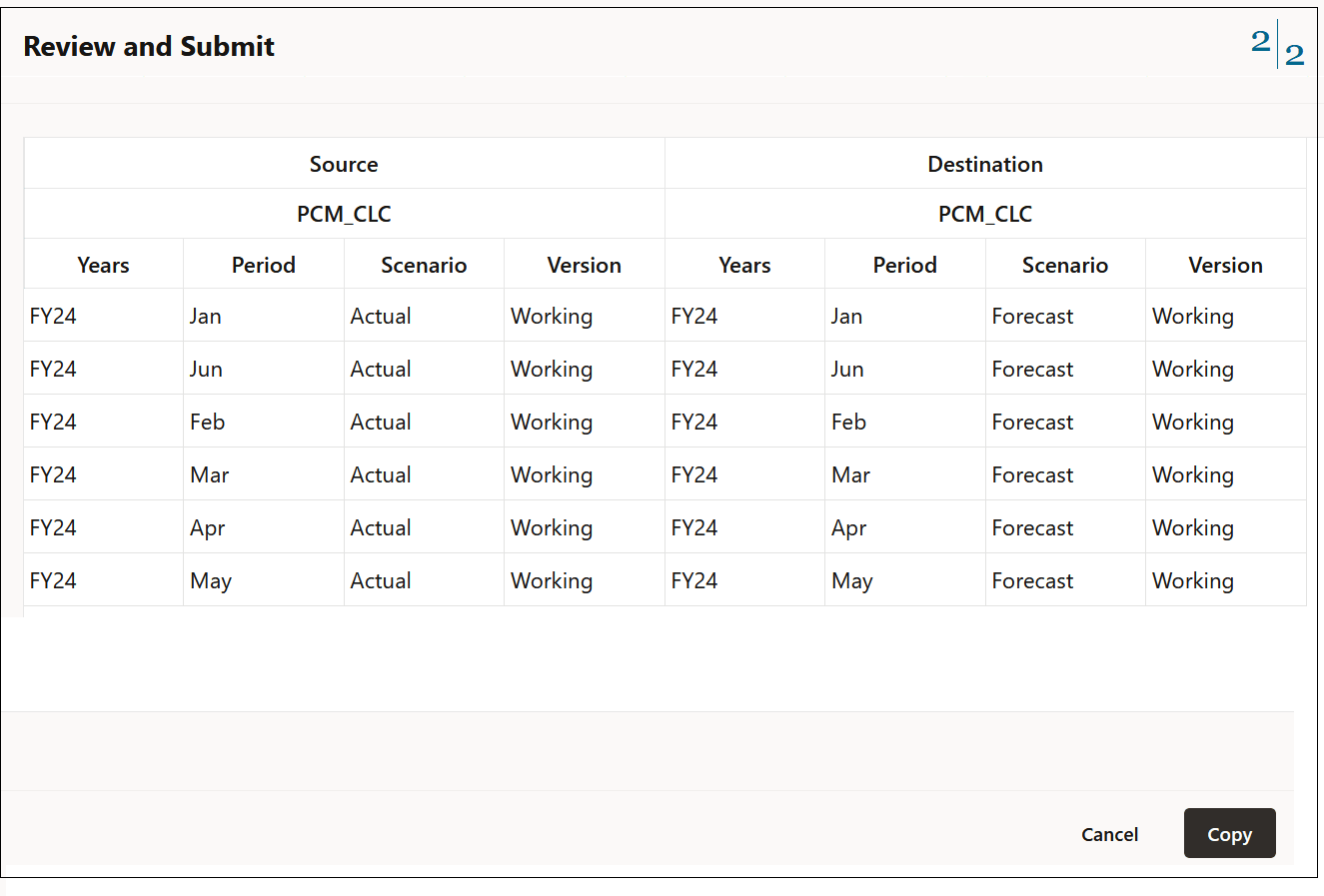
On the Calculation Control page, filter the years to FY24, select the POVs from January - June, and click Copy.
-
In Configure, change the Scenario cube to Forecast, and then click Continue.
-
Review the information in Review and Submit, and then click Copy.