Deploy Your Published Changes
Use the Deploy option to move everything that’s been published so far for your Oracle Cloud Application to your target Oracle Cloud Applications environment. When you use Deploy instead of Publish, anything in your workspace that hasn’t yet been published won’t be included in the move.
You’ll typically do this, for example, if your extension was somehow deleted from your Oracle Cloud Applications environment, perhaps due to an update, and now you want to restore it. You don’t have to republish your extension; you can simply deploy it again.
In addition, if your administrator has set things up so that all changes are first reviewed and approved by a developer, your extension might get stuck after the developer approves your changes. If this happens, you can click Deploy to move those changes to your Oracle Cloud Applications environment.
-
From the menu in the Designer’s header, click Deploy.
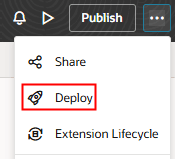
Description of the illustration deploy-action-designer-ext.png
The Deploy dialog displays, letting you know that everything that’s been published so far will be deployed to your Oracle Cloud Applications environment, and anything in your workspace that’s not yet published won’t be. (If you have unpublished changes in your workspace that you do actually want to move to your Oracle Cloud Applications environment, you should use the Publish option instead.)
-
Click Deploy.
Deployment from Remote Branch to Any Target Environment
In an Advanced Mode workspace, you can deploy a VB Extension from a remote repository branch directly to a supported target environment. For example, you can deploy a release branch to QA, UAT, or Production without first deploying it to the workspace environment and promoting it through Manage Extension Lifecycle.
To deploy an extension:
- Open the Deploy dialog.
- In Remote Branch, select the branch containing the extension changes.
- In Target Environment, select an environment configured on the Environments or Manage Extension Lifecycle page.
- If prompted, authorize access to the selected environment.
- Click Deploy.
Note:
- Deployment to an environment other than the workspace environment is available only in Advanced Mode.
- In Express Mode, VB Studio deploys the remote target branch to the workspace-linked environment.
- OAuth environments are supported. Basic Authentication environments might appear in the list but cannot be selected for deployment.
- When deploying to an OAuth environment, you must authenticate with your own credentials, even if another user has already authenticated with that environment.
- VB Studio checks the selected environment’s status. Deployment is disabled if the environment is unavailable or its status cannot be determined.
- Deployment errors and compatibility warnings appear in the deployment response.