Manage Service Endpoints
You may want to add new endpoints to your static or dynamic service connections or modify the endpoints you already have.
See:
- Add Endpoints to a Static Service Connection
- Add Endpoints to a Dynamic Service Connection
- Edit a Static Service Connection’s Endpoints
Add Endpoints to a Static Service Connection
After creating a static service connection, you can add endpoints from the same source or add custom endpoints.
To add endpoints to a static service connection:
-
Open the static service connection’s Endpoints tab:
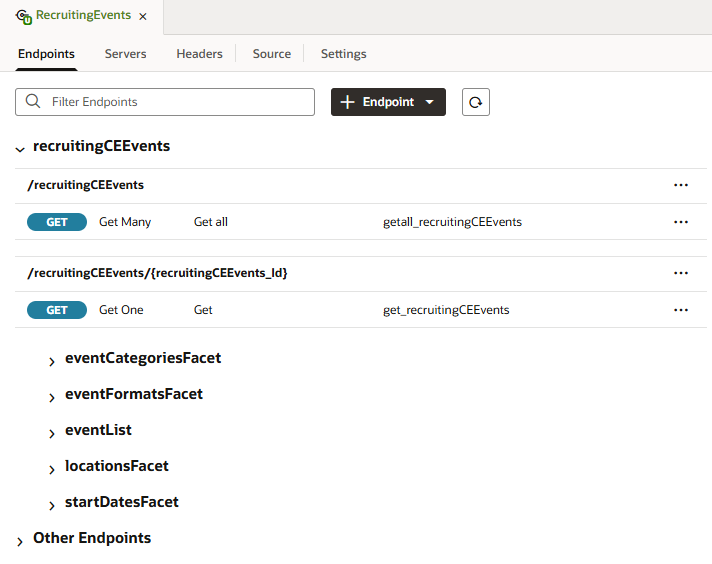
Description of the illustration service-connections-editortabs.bmp
-
Click + Endpoint. If your service connection was created for a service from the catalog, select Custom or From
original_servicein the drop-down list: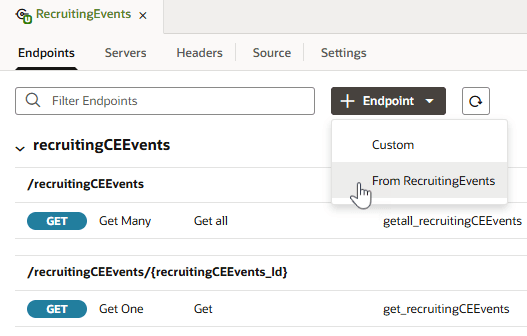
Description of the illustration service-connections-edit-addendpoint.png
-
Select or define the new endpoint in the Edit Service Connection dialog box. Your options depend upon the type of service connection and if you choose Custom or From
original_service.For example, if your service connection was created for a service from the catalog and you choose to add an endpoint from the original service, you can choose from the list of endpoints available in that service.
If your service connection was created from an endpoint, you will need to specify details about the request and response to add a new endpoint from the same source, as shown here:
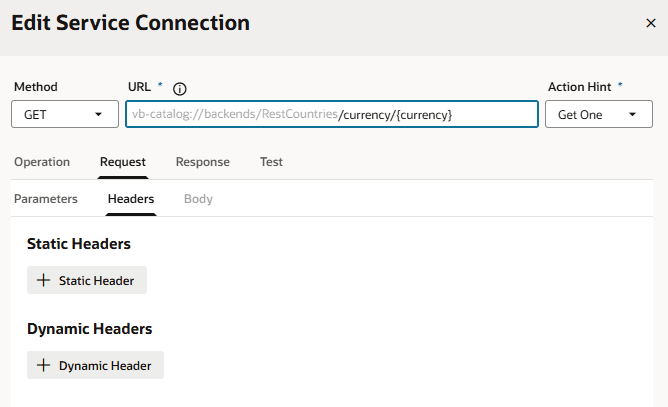
Description of the illustration service-connections-edit-addendpointdb.png
-
(Optional) If you chose to add an endpoint from the original service, you can change how your connection’s service metadata is retrieved in the Metadata Retrieval Option drop-down. Select Dynamically retrieve metadata to convert your service connection to a dynamic one. For ADF Describe-based services, select Copy minimal OpenAPI to the application (recommended) to leverage both static and dynamic capabilities for your connection.
-
Click Save.
Add Endpoints to a Dynamic Service Connection
To add endpoints to a dynamic service connection:
-
Open the dynamic service connection’s Endpoints tab:
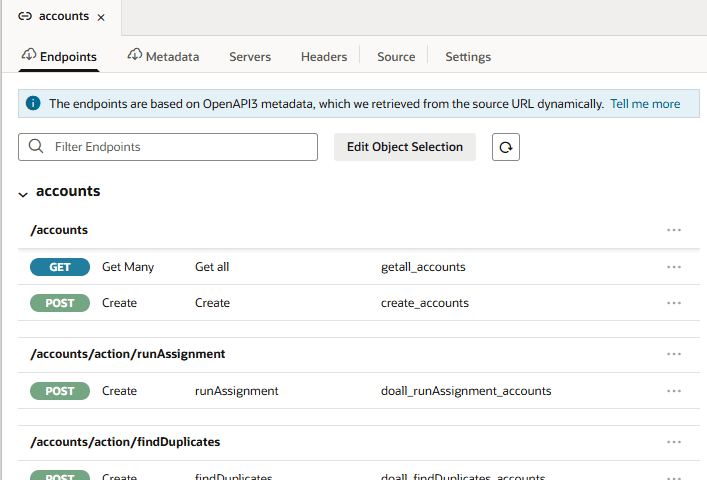
-
Click Edit Object Selection.
-
Select one or more objects in the Add Endpoint dialog box.
- (Optional) Change how your connection’s service metadata is retrieved in the Metadata Retrieval Option drop-down:
- Select Dynamically retrieve metadata to convert your dynamic service connection to a static one.
- For ADF Describe-based services, select Copy minimal OpenAPI to the application (recommended) to leverage both static and dynamic capabilities for your connection.
- Click Add.
Edit a Static Service Connection’s Endpoints
After you create a service connection and select the service endpoints, you can edit the endpoint settings, request parameters, and the response for each endpoint in the Endpoints tab. Endpoints can be edited only for static service connections (identified by the  icon that appears in front of the service name).
If you edit an endpoint after you have created a type from it, you’ll need to manually edit the type to use any of the changes to the endpoint. A type created from an endpoint isn’t updated automatically when the endpoint is modified.
To edit a service endpoint:
-
Open the service connection’s Endpoints tab.
Description of the illustration service-connections-editortabs.bmp
Tip: You can use the Replace button to update the service definitions of all selected endpoints with the latest definitions from the service. The Replace button is available when the service connection is registered via the Catalog or a service specification document. This capability is available for both OpenAPI3 style services as well as ADF Describe services:

-
Click the endpoint you want to edit.
For each endpoint, the editor provides tabs for editing the endpoint’s settings, the request sent to the endpoint, and the structure of the response.
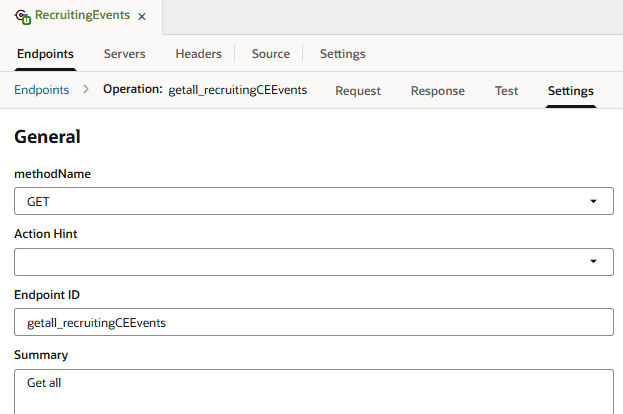
Description of the illustration service-connections-edit-endpoints.png
If your service connection was created from an OpenAPI3 specification that includes request and response examples specified in the
exampleorexampleskeys, the examples will show up within the Request and Response tabs.The
exampleskey takes precedence overexampleand, if multiple examples exist, just one will be shown. If you created an example where one didn’t exist (say, if you used the Test tab to send a request to the service and saved the response as an example), that’s the example you’ll see; otherwise, you’ll see the first example in theexampleskey list. -
Click the service connection link in the breadcrumb to return to the list of service endpoints.