Access Data in Table Format with Table Hyperlinks or Table Hyperlink Groups
Table Hyperlink data can be viewed in tabular format when accessed from a browser. The table format supports scrolling, sorting, filtering, cell colors, and Group By where you select a column name to see column data based on the values in the column.
Use Table Hyperlinks and View Data in Default Table Format
You can access data with a Table Hyperlink from a browser and view the data in table format.
To view data in table format, append the ?view=table query parameter to any Table Hyperlink URL. For example, from a browser enter a Table Hyperlink URL with ?view=table appended:
https://dataaccess.adb.us-ashburn-
1.oraclecloudapps.com/adb/p/F5Sn..._example/data?view=table
Here is a sample response to a Table Hyperlink with ?view=table appended:
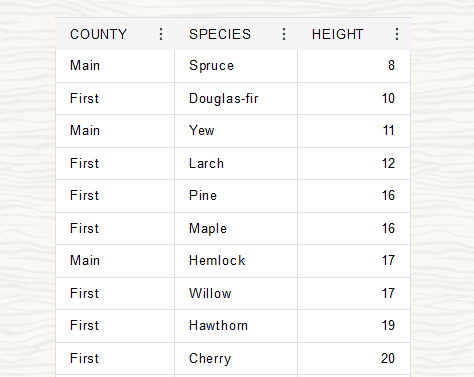
Description of the illustration par_url_ui_default.png
You can view a Table Hyperlink Hamburger Menu 
that enables you to switch views, show or hide columns and split or combine table groups for customized data presentation. See Manage Data with the Table Hyperlink Hamburger Menu for more information on the Table Hyperlink Hamburger Menu.
Column options are configurable when a Table Hyperlink is generated. See Create a Table Hyperlink with UI Features Specified on Columns for more information.
Use a Password Protected Table Hyperlink and View Data in Table Format
When a producer includes the password parameter with DBMS_DATA_ACCESS.CREATE_URL to create a password protected Table Hyperlink, when a consumer accesses the password protected URL they can only access the data after providing the valid password.
For example with this password protected URL:
https://dataaccess.adb.us-ashburn-1.oraclecloudapps.com/adb/p/F5Sn..._example/data?view=tableThe browser shows a prompt and you need to enter the password to access the data.
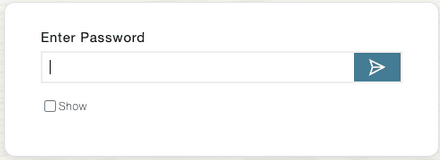
Description of the illustration adb_url_password_prompt.png
Manage Data with the Table Hyperlink Hamburger Menu
The Table Hyperlink Hamburger menu enables you to manage how data is presented in the Table Hyperlinks page. You can toggle between chart and table visualizations, split or combine grouped tables, or selectively display table columns. This menu enables quick customization to suit your workflow.
You can interact with the Table hyperlink data with the options present in the Table Hyperlink Hamburger Menu. This enhances the way data is viewed.
With the Table Hyperlink Hamburger menu, you can:
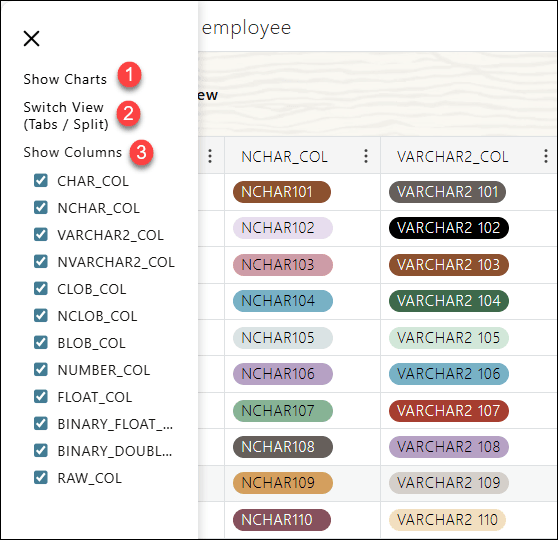
Description of the illustration hamburger-options.png
Switch between Chart and Table View
This option allows you to toggle the representation of data dynamically. You can view the data as a chart or switch to a detailed tabular format for inspection of the data. To view data in chart format, append the ?view=table query parameter to any Table Hyperlink URL.
For example, from a browser enter a Table Hyperlink URL with ?view=table appended:
https://dataaccess.adb.us-ashburn-1.oraclecloudapps.com/adb/p/F5Sn..._example/data?view=tableYou will view the Table Hyperlink data in tabular format.
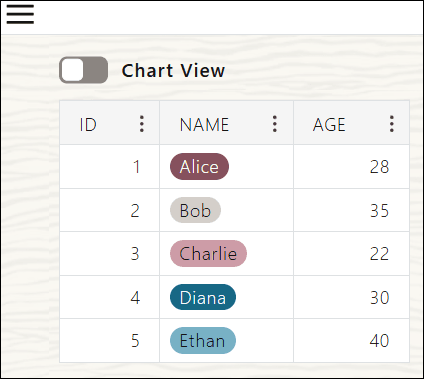
Description of the illustration table-view.png
Open the Table Hyperlink Hamburger Menu
on the Table Hyperlink page and click Show Charts.
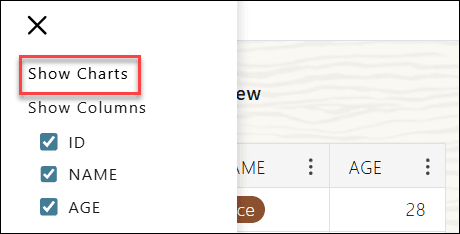
Description of the illustration show-charts.png
Switching to Chart View automatically displays the first column’s data in the chart. The following screenshot displays the data of the ID column in Chart View.
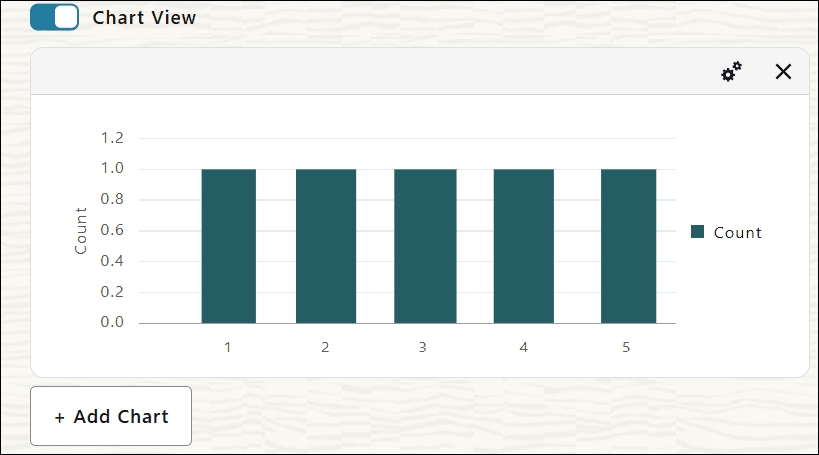
Description of the illustration chart-view-first-column.png
For more information on Charts View, see Access Data in Chart Format with Table Hyperlinks.
Use Table Hyperlink Group to See Data using Switch View
You can access data with a Table Hyperlink Group from a browser and view the data in Chart View.
You can toggle between two ways of viewing tables by using the Switch View (Tabs / Split) option from the Table Hyperlink Hamburger menu.
This option manages how multiple tables or query results grouped under a Table Hyperlink Group is presented. You can choose to split these tables to view each dataset separately or combine them into a consolidated view.
When you click it the first time, it splits the Table Hyperlink Group and displays the tables separately side-by-side or in tabs.
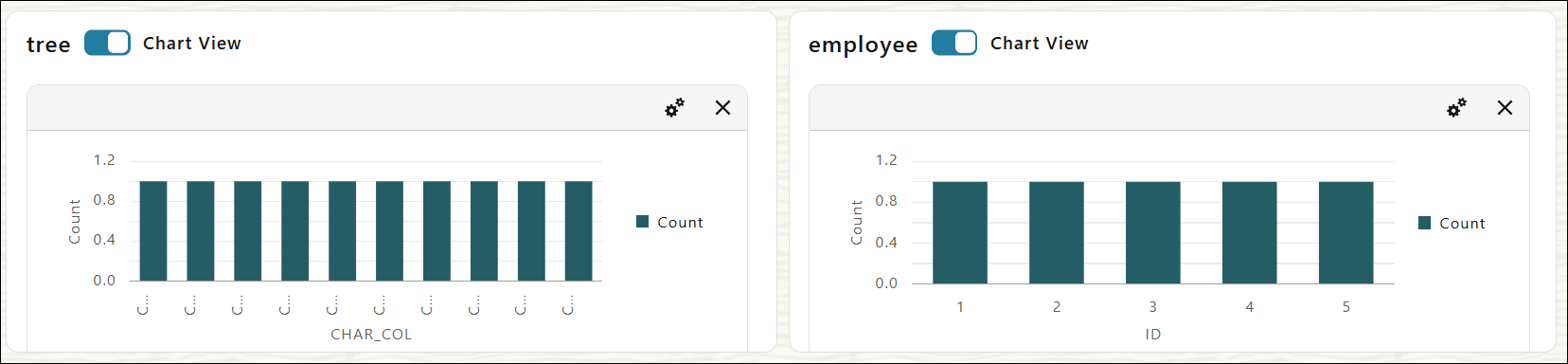
Description of the illustration split-view.png
This way you can view multiple tables’ data simultaneously.
When you click the Switch View (Tabs / Split) option again, it combines the split views back into the original Tab Table Hyperlink Group, presenting all tables grouped together in a single tabbed view instead of separate ones.
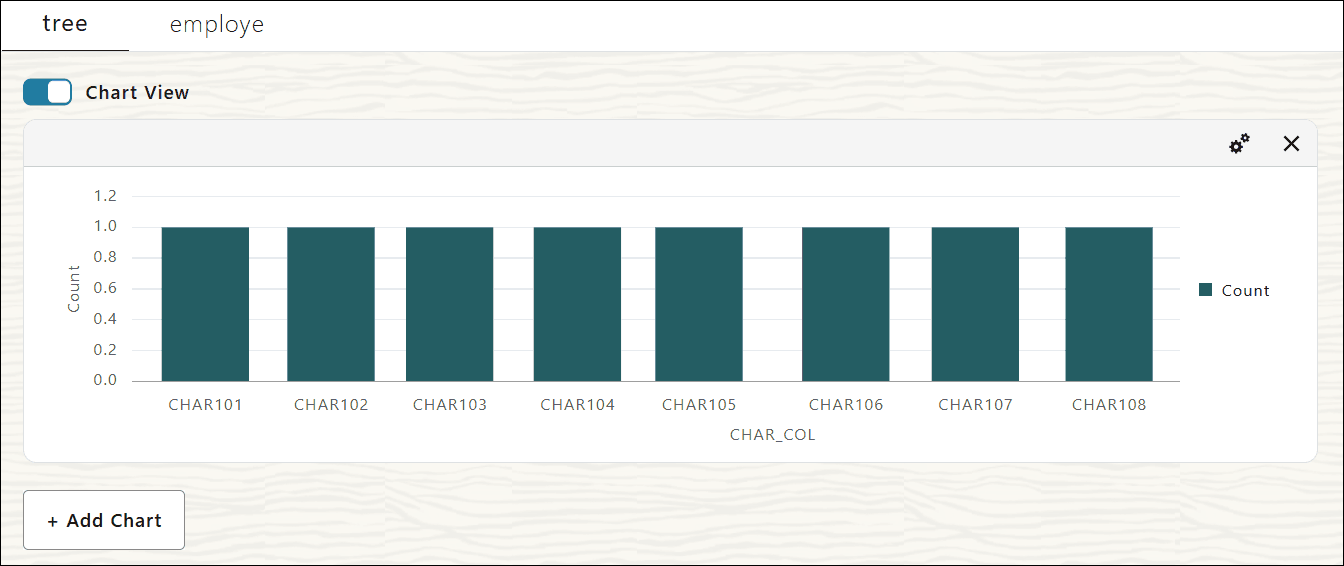
Description of the illustration tab-view.png
Use Table Hyperlink to Show or Hide Table Columns
You can use filters to restrict the data displayed in the Table Hyperlinks page.
From the Show Columns filter of the Table Hyperlinks Hamburger menu, you can select or deselect the check-box next to the column name to display or hide the column from the tabular view.
This option enables you to customize your table views by selecting which columns to display or hide.
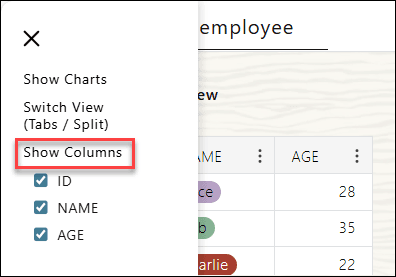
Description of the illustration show-columns.png
Note: The Show Columns option is available only in the tabular view of the Table Hyperlink.
In case of a Table Hyperlink Group, the Show Columns option displays the columns of the currently selected table.
Use Table Hyperlinks in Table Format with Column Sorting
You can access data with a Table Hyperlink from a browser and view the data in table format and sort table data.
To return data in table format, append the ?view=table query parameter to any Table Hyperlink. For example, from a browser use a Table Hyperlink with ?view=table appended:
https://dataaccess.adb.us-ashburn-1.oraclecloudapps.com/adb/p/F5Sn..._example/data?view=tableIn table view you can sort Table Hyperlink columns in ascending or descending order by clicking More actions next to a column heading, and then select Sort Ascending or Sort Descending.
For example:
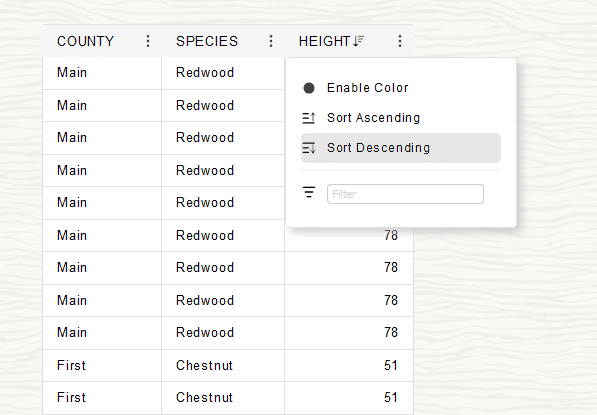
Description of the illustration par_url_ui_descending.png
Column sorting is configurable by column when a Table Hyperlink is generated. See Create a Table Hyperlink with UI Features Specified on Columns for more information.
Use Table Hyperlinks in Table Format with Column Filtering
You can access data with a Table Hyperlink from a browser and view the data in table format and filter table data.
To return data in table format, append the ?view=table query parameter to any Table Hyperlink. For example, from a browser use a Table Hyperlink with ?view=table appended:
https://dataaccess.adb.us-ashburn-1.oraclecloudapps.com/adb/p/F5Sn..._example/data?view=tableYou can filter Table Hyperlink columns by clicking More actions next to a column heading, and then enter the filter text in the input text box, and type Enter.
The following is a screenshot of a sample table with the SPECIES column filtered to only display data for Spruce trees:

Description of the illustration par_url_ui_filtered.png
Column filtering is configurable by column when a Table Hyperlink is generated. See Create a Table Hyperlink with UI Features Specified on Columns for more information.
Use Table Hyperlinks to Access Data in Table Format with Colors in Cells
You can access data with a Table Hyperlink from a browser and view the data in table format and display cell values with color.
You can access Table Hyperlink data with a browser and view the returned data in database table like format. The table format supports scrolling, sorting, filtering and cell colors.
To return data in table format, append the ?view=table query parameter to any Table Hyperlink. For example, from a browser use a Table Hyperlink with ?view=table appended:
https://dataaccess.adb.us-ashburn-1.oraclecloudapps.com/adb/p/F5Sn..._example/data?view=tableBy default columns do not include coloring for cell values. You can add color to cell values in Table Hyperlink table view by clicking More actions next to a column heading, and then select Enable Color.
The following is a screenshot of a sample table with the SPECIES column showing color with values in cells:

Description of the illustration par_url_ui_enable_color.png
Color Column Data with Query Parameters
You can also use query parameters select the columns you want to add color to. To specify the columns with color, include the column names with the colored_column_names query parameter. For example, to color the COUNTY and SPECIES columns:
https://dataaccess.adb.us-ashburn-1.oraclecloudapps.com/adb/p/F5Sn..._example/data?view=table&colored_column_names=COUNTY,SPECIESThe following is a screenshot of a sample table with COUNTY and SPECIES columns showing color with cell values:

Description of the illustration par_url_ui_colored.png
Color Column Data Types with Query Parameter
You can also use query parameter to select a specific column data type to add color in a table by providing the data type with the colored_column_types query parameter.
This parameter supports colored_column_types=VARCHAR to color all the string (VARCHAR) columns, and colored_column_types=NONE to not color any data types.
For example:
https://dataaccess.adb.us-ashburn-1.oraclecloudapps.com/adb/p/F5Sn..._example/data?view=table&colored_column_types=VARCHARUse Table Hyperlinks to Access Data with the Group By Option in Table Format
You can access data with a Table Hyperlink from a browser and group the data by the values of cells in a column.
The Table Hyperlink generation procedures supports column list options that provides support specifying columns and viewing column values with the group by option.
For example, when group by is specified when a Table Hyperlink is generated, do the following to view data by group:
-
From a browser use a Table Hyperlink with
?view=tableappended.For example:
https://dataaccess.adb.us-ashburn-1.oraclecloudapps.com/adb/p/F5Sn..._example/**data?view=table** -
From a column that shows the group by option, select Group by.
For example:
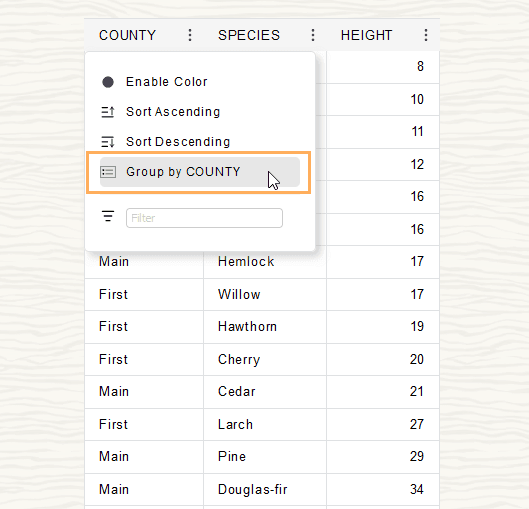
Description of the illustration adb_par_url_group_by_option.png
This shows the Group by display, and allows you to select another column if another column is available for group by display (depending on how the Table Hyperlink was generated).
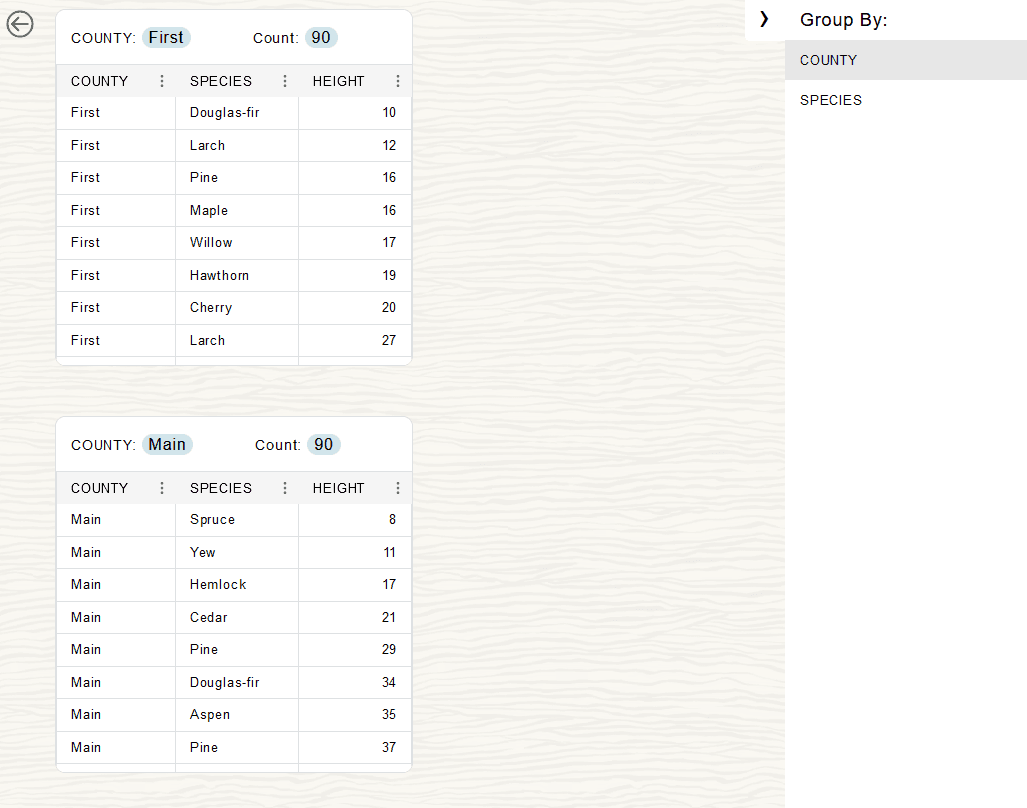
Description of the illustration adb_par_url_group_by_table.png
By default the Table Hyperlink columns do not support group by options. This option is configurable by column when a Table Hyperlink is generated. See Create a Table Hyperlink with UI Features Specified on Columns for more information.
Use Table Hyperlink Group to View Data in Table Format
You can access data with a Table Hyperlink Group from a browser and view the data in table format.
To view data in table format, append the ?view=table query parameter to a Table Hyperlink Group URL. For a Table Hyperlink Group URL, in a browser this shows a page where you can select a tab to view the data for a group member.
For example, you can view a Table Hyperlink Group with group member tabs by appending ?view=table to the URL:
https://dataaccess.adb.us-ashburn-1.oraclecloudapps.com/adb/p/F5Sn..._example/data?view=tableThe following page shows the TREE tab with Chart View selected (when this option is deselected the page shows the table view).
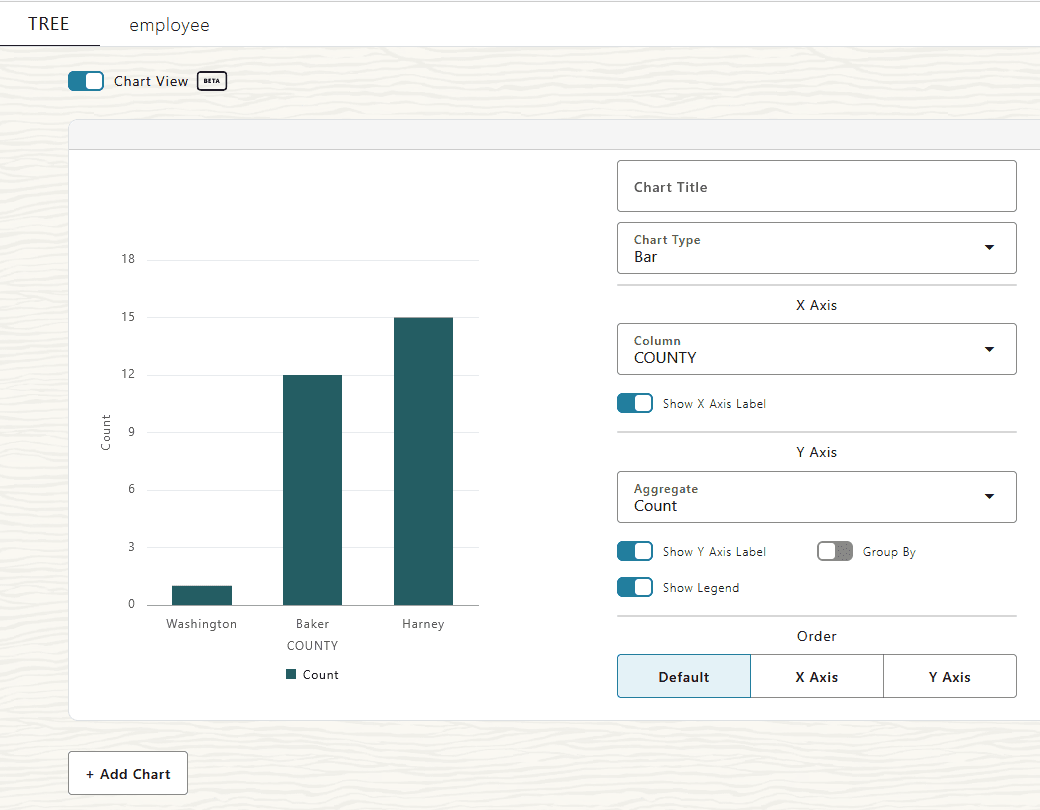
Description of the illustration adb_table_hyperlink_group_chart.png