Prerequisites for Creating a Connection
You must satisfy the following prerequisites to create a connection with the Amazon Simple Notification Service (SNS) Adapter:
Create an AWS Account
- Go to https://aws.amazon.com.
- Click Create an AWS Account.
- Enter a root user email address.
- Enter a name for your account in the AWS account name field.
- Click Verify email address.
- Once the email address is verified, create your root user password.
- In the subsequent steps, enter your contact information and billing information details.
- Complete the transaction to successfully create a root user account.
You can now sign in to your AWS account using the root user credentials.
Note:
The root user possesses unrestricted access to AWS resources. It is necessary to create an Identity and Access Management (IAM) user.Create the Inline Policy
- Log in to the AWS Console with your root user credentials.
- Click IAM and select Select the Users under Users.
- In the Permissions tab, click Add permission and select Create Inline policy.
- Under Inline policy, select SNS as a Service.
- To grant the user permission to list topics, under the
Access Level section, select
List and then select the
ListTopics action.
Note:
If you want to publish a message to a topic, the corresponding inline policy (publish) must be added to the new or existing policy. Likewise, if you want to subscribe to a topic, the corresponding inline policy (subscribe) must be added to the new or existing policy. - Click Next.
- Enter the policy name and click Create
Policy.
The newly created policy is added to the list on the Policies page.
Create an IAM User and Obtain the Access Key and Secret Access Key
- Log in to an AWS account using the root user credential.
- In the search bar, enter
IAM. - Click IAM and select Users under Access management.
- Click Create user.
- Enter a name for the user and click Next.
- On the Set Permissions page that appears, perform the following:
- Select Attach policies directly as the Permissions Options.
- Select the permission policies that you created for this user and click Next. See Create the Inline Policy.
- (Optional step) Set a permissions boundary under Set permissions boundary and click Next.
- (Optional step) Add tags to AWS resources.
- Click Create User.
- Navigate to Dashboard, then Access management, and then Users. The newly created user appears in the list.
- Select the user in the Username column.
- On the User Info page, select Create access key in the Summary section.
- Under Access key best practices & alternatives, select the use case according to your requirement, and click Next.
- (Optional step) Provide a description tag, if required, and click
Next.
The Access key-created message appears. The access key and secret access key are displayed.
- Copy the access key ID and secret key.
Note:
You must enter the access key in the Access Key field and the secret key in the Secret Access Key field on the Connections page. See Configure Connection Security. - Alternatively, you can click Download .csv file to download a file that contains the access key ID and the secret key.
- Click Done.
Create the Client Identifier
- Log in to the Oracle Cloud
Infrastructure Console with your identity domain administrator
credentials.
- In the navigation pane, click Identity & Security.
- Click Domains.
- Select your compartment.
- Click the identity domain.
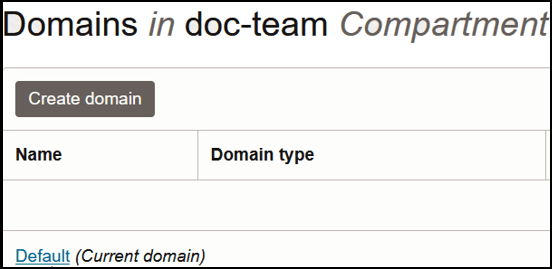
- In the navigation pane, click Integrated
applications.
This is the location at which you create the client application for your grant type.
Configure the Client Application
- Click Add application.
- Select Confidential Application, then click Launch workflow.
- Enter a name. The remaining fields on this page are optional and can be ignored.
- Click Submit.
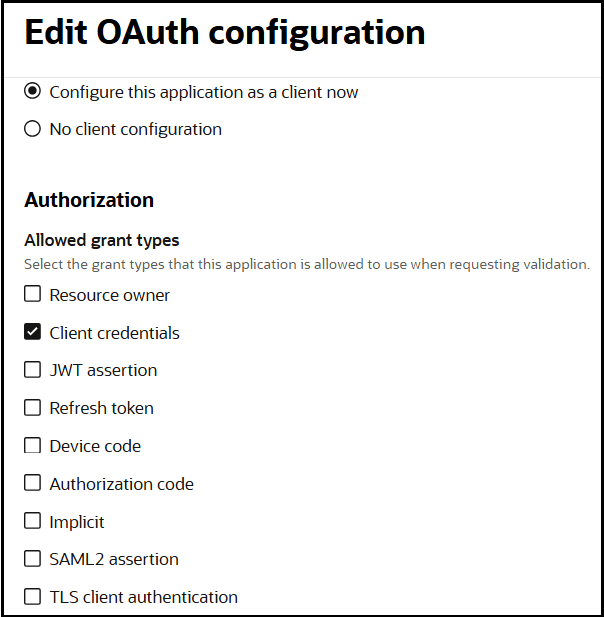
- Click the OAuth configuration tab, then the Edit OAuth configuration subtab.
- In the Client configuration panel, select Configure this application as a client now.
- Select the grant type to use:
- For client credentials, select Client
credentials in the Allowed grant
types section.
- For client credentials, select Client
credentials in the Allowed grant
types section.
- Complete the following steps for either grant type:
- Leave the Redirect URL, Post-logout redirect URL, and Logout URL fields blank.
- For Client type, ensure that Confidential is selected.
- Bypass several fields and scroll down to the Token issuance policy section.
- Select Confidential in the Authorized resources section.
- Click the Add Resources toggle.
- Click Add scope.
- Find and expand the Oracle Integration application for your instance.
- Select the two scopes appended with the following
details:
- urn:opc:resource:consumer::all
- ic/api/
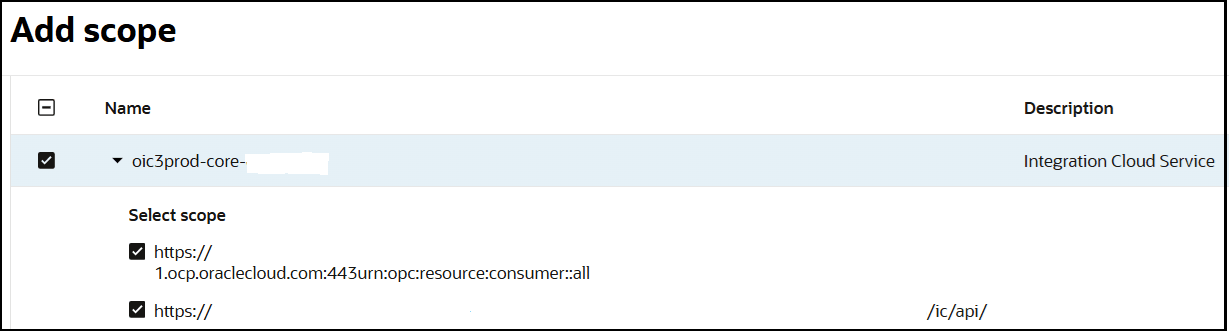
- Click Add.
The scopes are displayed in the Resources section.
- Ignore the Add app roles check box. This selection is not required.
- Click Submit.
The details page for the client application is displayed.
- From the Actions menu at the top, select Activate, and then Activate application to activate the client application for use.
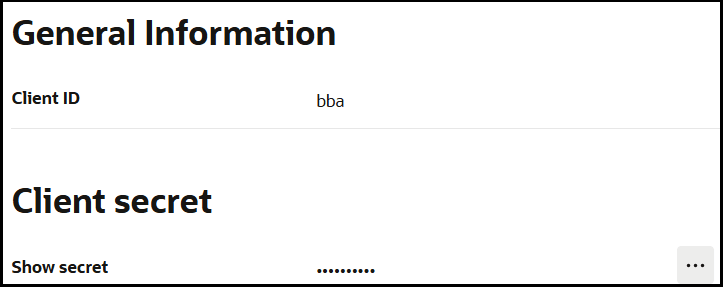
- In the General Information section, note the
client ID and client secret values.
Add Roles to the Client Application
- In the menu bar, click Oracle cloud services.

- Click the specific application corresponding to the Oracle Integration instance.
- In the menu bar, click Application roles.
- If configuring the client credentials grant type, select the
following:
- Expand ServiceInvoker, then click
Actions
 next to Assigned applications.
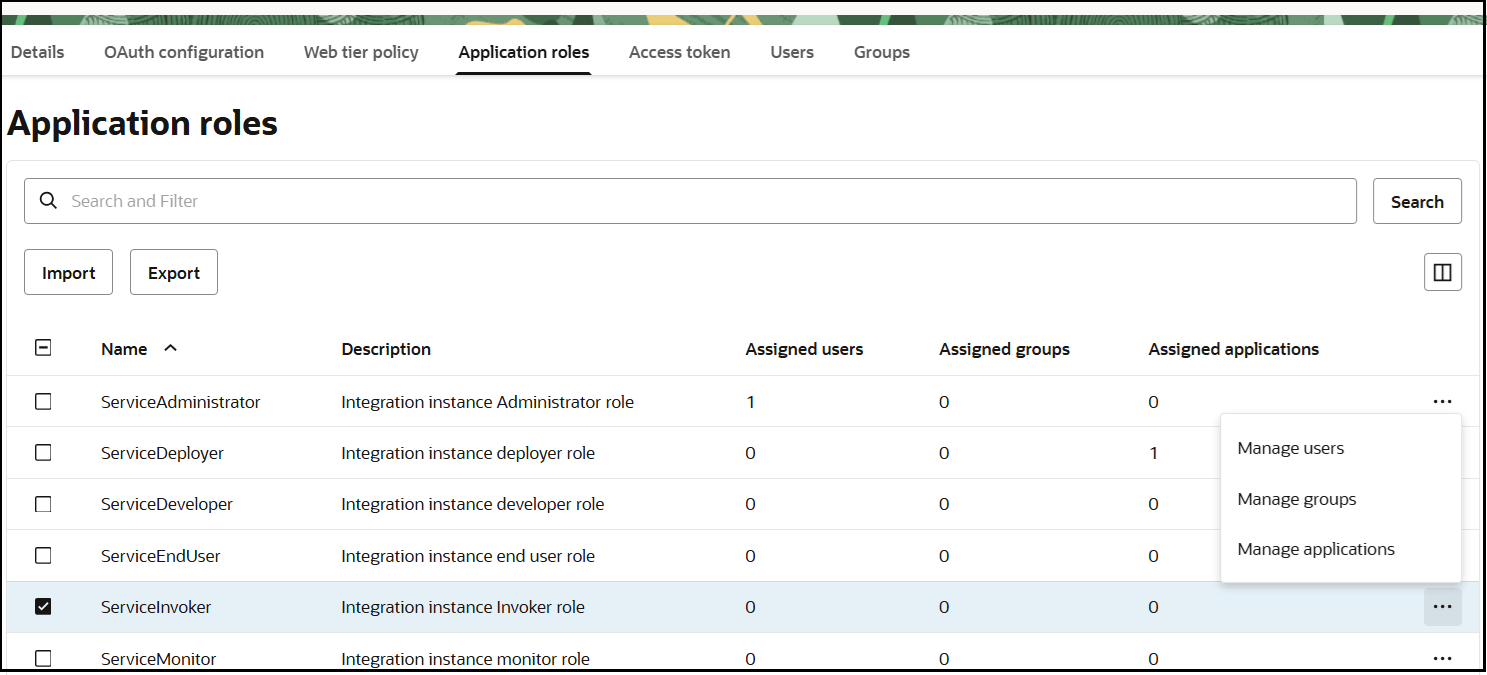
- Select to assign users, groups, and applications to the instance application.
- Expand ServiceInvoker, then click
Actions