Add Prompts to Dashboard Pages
You can add a prompt to a dashboard or dashboard page to prompt the dashboard user to specify an option, such as a type of currency to use or a value to filter the data displayed.
For example, you can create a dashboard prompt for the Brand column. You add the prompt to the Sales Performance dashboard, to drive the content on the dashboard page. You add a filter for Brand that uses the "is prompted" operator to flag the column as ready to be filtered by a prompt. When the prompt is used, the results include only records where the data in the column that is prompted matches the user's choices.
- If you don't already have a prompt:
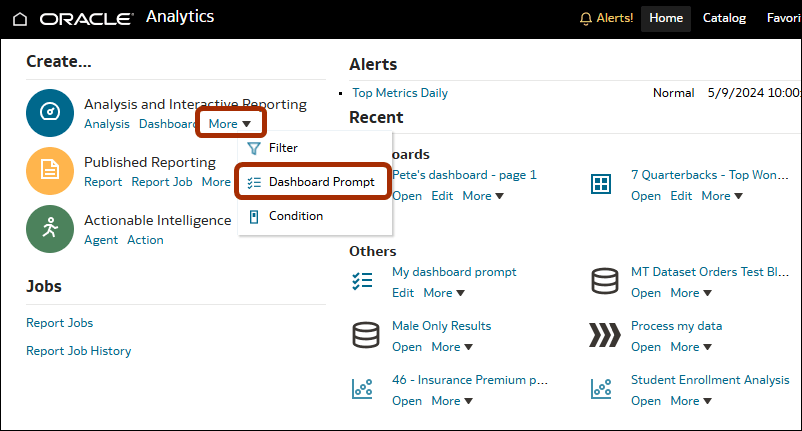
- At the Home page, under New click More then select Dashboard Prompt.
- Select a subject area or data source.
- Click New, then Column Prompt, then select the column type.
- Specify the details then click OK.
- Click Save and save the prompt in the catalog.
- At the Home page, under New click More then select Dashboard Prompt.
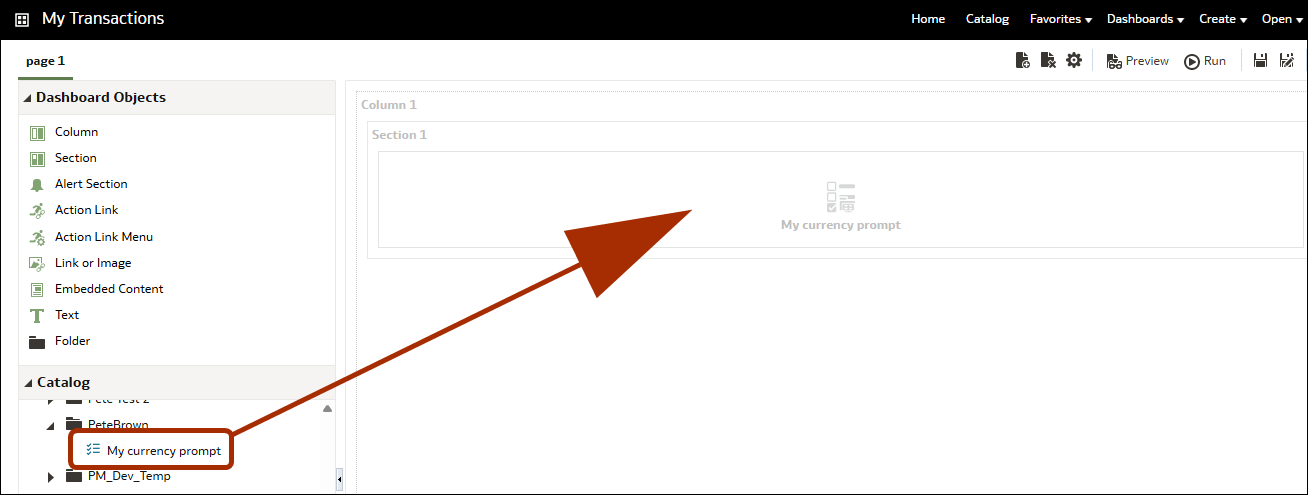
- In the Dashboard builder's Catalog pane, locate the prompt and drag it onto the dashboard.