Connect to Data with Upper, Lower, or Mixed-case Characters
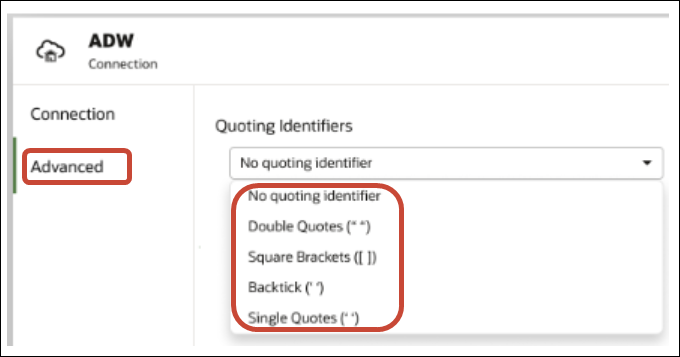
If you're connecting to an Oracle database, Oracle Autonomous AI Lakehouse, Oracle Autonomous AI Transaction Processing, Snowflake, SQL Server, or My SQL, you can change the default quoting identifier so that you can read data with upper, lower, or mixed-case characters in table or column names.
For example, you might choose double quotes as the quoting identifier. Oracle Analytics then adds double quotes to the underlying SQL statement
select "EfG_Field" from "AbCd"; instead of issuing select EfG_Field from AbCd;, (which would fail).
- Click Advanced, then use the Quoting Identifiers option to select the quoting identifiers used in the database.For example, you might select Double Quotes (" "). Oracle Analytics adds double quotes to the underlying SQL statement
select "EfG_Field" from "AbCd";instead of issuingselect EfG_Field from AbCd;.Note:
You won't see the Advanced option if the connection was created with the System connection option selected. Advanced options aren't supported for system connections.