Associating Images with Revenue Centers
You can associate up to four images with each revenue center. Note that you must have the appropriate role privileges in order to access and edit RVC Configuration. Simphony Transaction Services Gen 2 (STS Gen 2) must be enabled for your enterprise devices, and you need an established Oracle Cloud Infrastructure (OCI) account to run with the Object Storage device.
- Select the Property, click Setup
- Under Property Configuration click RVC Configuration.
- In RVC Configuration, select the revenue center record.
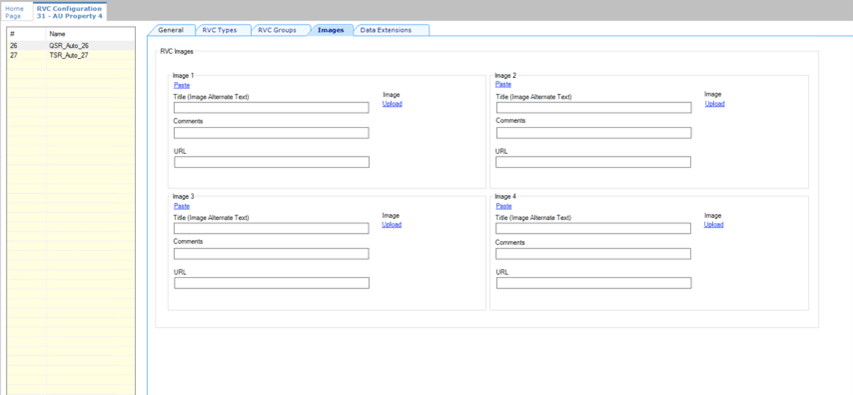
- Navigate to the Images tab.
-
To add an image and its details:
-
Click Upload, and then select the image to upload. A successful upload message appears.
After an image is uploaded, the URL field shows an Object Storage URL.
-
Enter text defining the image in the Title (Image Alternate Text) field.
This text field is used to name the uploaded revenue center image in your Oracle Cloud Infrastructure (OCI) account to run with an Object Storage device.
This content is passed to customers via the API (do not leave blank). This text is the revenue center image description for customers who use assistive technology. Enter an image name or label that customers can access while selecting a revenue center or location.
- (Optional) Enter additional details for the image in the Comments field.
-
- Repeat Step 4 for the remaining RVC Images sections.
- To remove an image and its details, navigate to the uploaded image, and then click Delete or click Clear All.
- To copy the details from an uploaded image to a new image, click Copy, and then click Paste in any empty image section.
- To download an image, click Download.
- Click Save.
Parent topic: Properties