Configure Dual-SIM Phones for Oracle-Provided SIM Data-Only Use
Use this information to configure supported dual-SIM mobile phones that use an Oracle-provided SIM.
Note:
Oracle-provided SIMs are for data services only. You are prohibited from using an Oracle-provided SIM for voice calling, including 911 or other emergency calls. Ensure that voice calling uses the customer-provided, non-Oracle SIM.Use the applicable procedure to configure the phone so that data uses the Oracle-provided SIM.
Configure Dual SIM on a Samsung Phone with the Oracle
Configure a Samsung phone so that the Oracle-provided SIM is the primary SIM for data and the non-Oracle SIM is selected for calls.
When a Samsung phone uses two SIMs, such as one physical SIM and one Oracle-provided SIM , the primary SIM must be selected. To ensure that all data transfers use the Oracle-provided SIM, set the Oracle-provided SIM as the primary SIM. Then configure the Phone app and contacts to use the non-Oracle SIM for calls.
- Set the Oracle-provided SIM as Primary.
- On the Samsung phone, go to Settings.
- Tap Connections.
- Tap SIM manager.
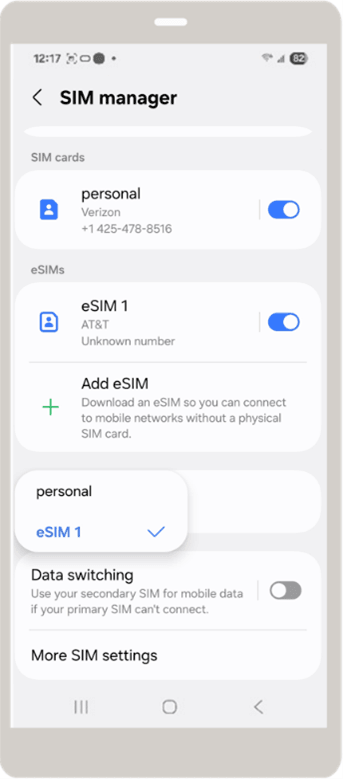
- Set Primary SIM to the Oracle-provided SIM.
Figure - Set the Oracle-provided SIM as the primary SIM.
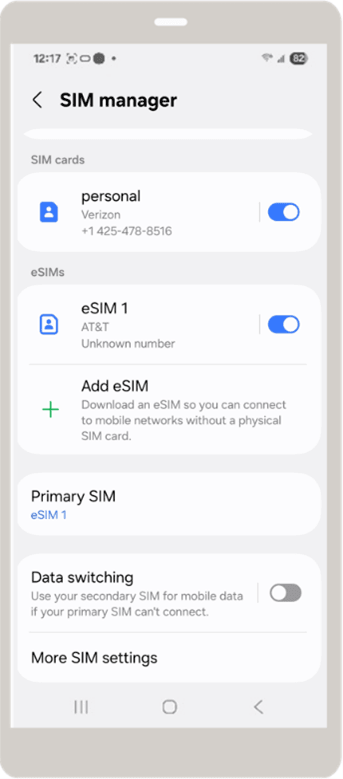
Figure - Select the Oracle-provided SIM as the primary SIM.
- Set Phone Dialer to use the correct SIM.
- Open the Phone app.
- Tap Keypad.
- Type a phone number.
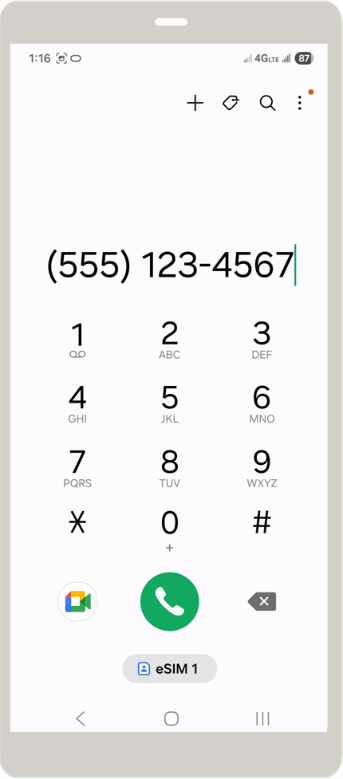
- At the bottom of the screen, toggle SIM to the non-Oracle SIM.
Figure - Choose the SIM to use for phone calls.
- Toggle Contacts to use the non-Oracle SIM.
- In the Phone app, tap Contacts.
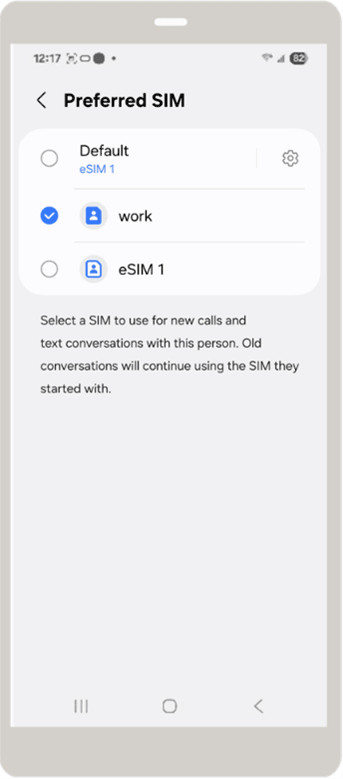
- For each contact, toggle SIM to the non-Oracle SIM.
Figure - Open the contact’s preferred SIM setting.

Figure - Select the non-Oracle SIM for calls and texts.
The Samsung phone uses the Oracle-provided SIM for data transfers and the non-Oracle SIM for calls.
Configure Cellular Data on an iPhone with the Oracle eSIM
Configure an iPhone so that cellular data uses the Oracle-provided SIM and voice calling uses the non-Oracle SIM.
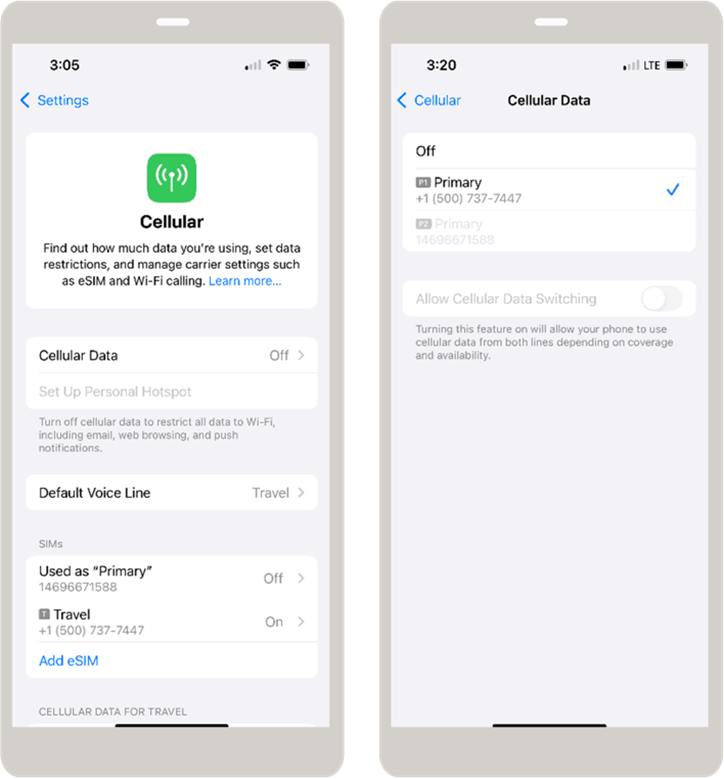
The iPhone uses the Oracle-provided SIM for cellular data, uses the non-Oracle SIM for voice calling, and does not automatically switch cellular data between SIMs.
Oracle Enterprise Communications Platform Configuration for Oracle-Provided SIMs, Release 26.2
G57580-01
Primary Authors: (primary author), (primary author)
Contributing Authors: (contributing author), (contributing author)
Contributors: (contributor), (contributor)