3.16 Using Drag and Drop for Code Generation
The Drag-and-Drop Code Generation feature makes it easier to automatically create code for database connections.
By allowing you to drag a connection from the Connections panel and drop it directly into a Java file, this feature helps you quickly generate either the connection string or complete JDBC API code, streamlining your development process.
3.16.1 Generate Connection Code
When you drag a connection from the Connections panel and drop it into a Java file, the feature will automatically generate the necessary code for you. It supports all connection types including Basic, Custom JDBC, Cloud Wallet, and TNS ensuring flexibility for a wide range of Oracle database scenarios.
The following examples illustrate a specific connection type configuration and the corresponding auto-generated JDBC code and the connection string after using the drag-and-drop feature. Here is a custom JDBC connection type without any advanced properties specified.
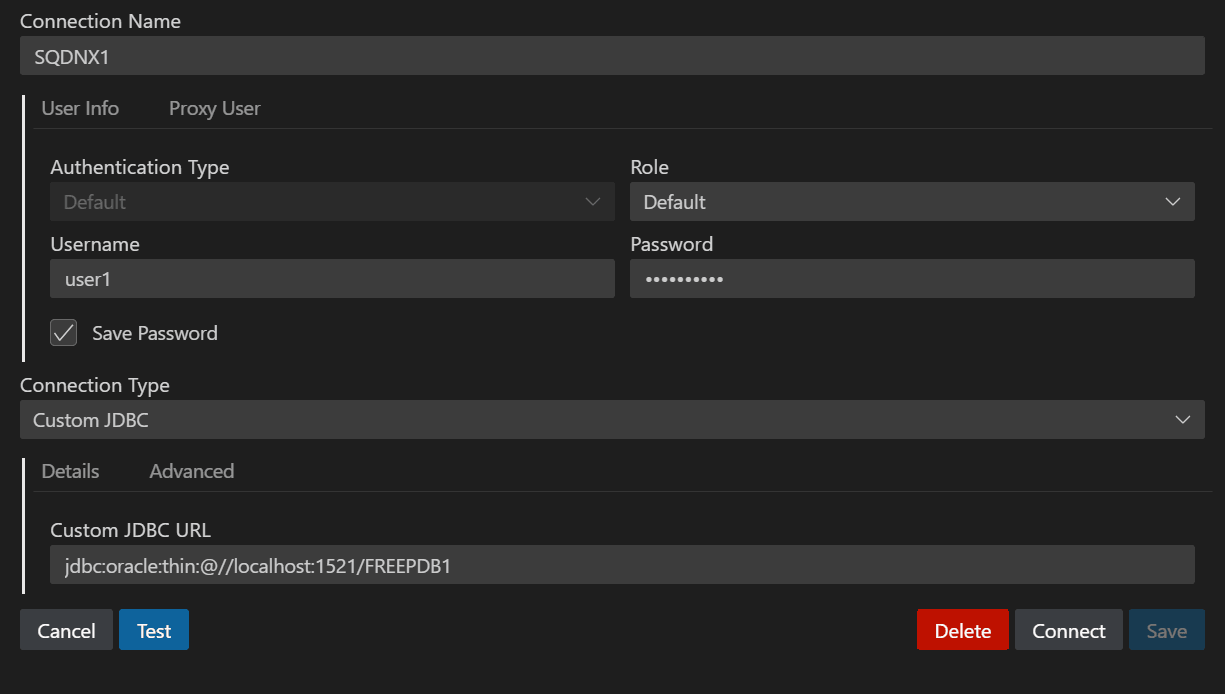
For a selected connection type, such as Custom JDBC, if the code generation option is set to JDBC, the corresponding JDBC connection code is automatically generated. This code includes all the relevant details specified in the connection configuration, streamlining the process of connecting to the database.
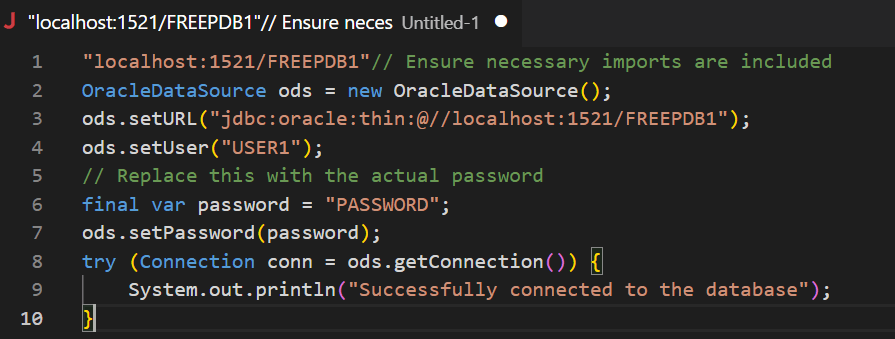
If the code generation option selected is Connection String, only the connection string is displayed.
