3.1.5 Managing Table Groups

The table groups enables you to logically group related tables. With this, you can provide a common description for all the tables in the group, which in turn facilitates the enrichment functionality.

3.1.5.1 Creating a Table Group

Perform the following steps to create a new table group:
  1. On the AI Enrichment dashboard, click Add group in the Table groups section.

    The Create Table Group slider appears:
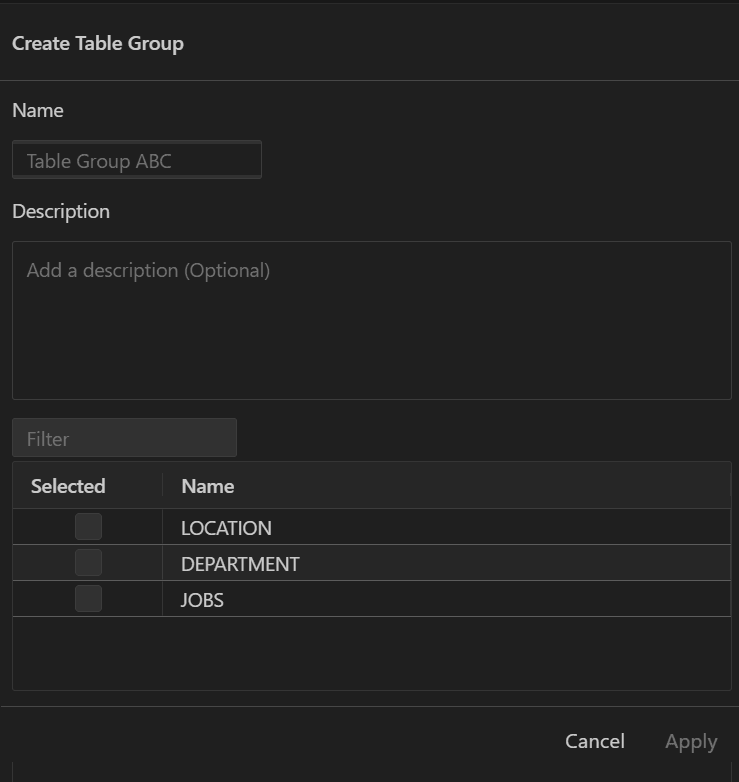

    Create a table group

  2. Enter a name and description for the table group.
  3. Select the checkboxes for the tables that you want to include in this group.
  4. Click Apply.
The new group is now displayed under the Table group panel on the dashboard.

3.1.5.2 Adding a Description to a Table Group

You can add a summary to a table group to clarify the purpose of its tables.

Perform the following steps to add a natural language description to a table group:
  1. In the AI Enrichment dashboard, locate the Table groups section.
  2. Click the Description cell of a table group.
  3. In the Set description slider, enter a description and click Save.
You can also add a description in the table group's view by accessing it through any of these actions:
  • Click a table group link in the Table groups section of the AI Enrichment dashboard.
  • Select a table group under the AI Enrichment node in the Connections panel.
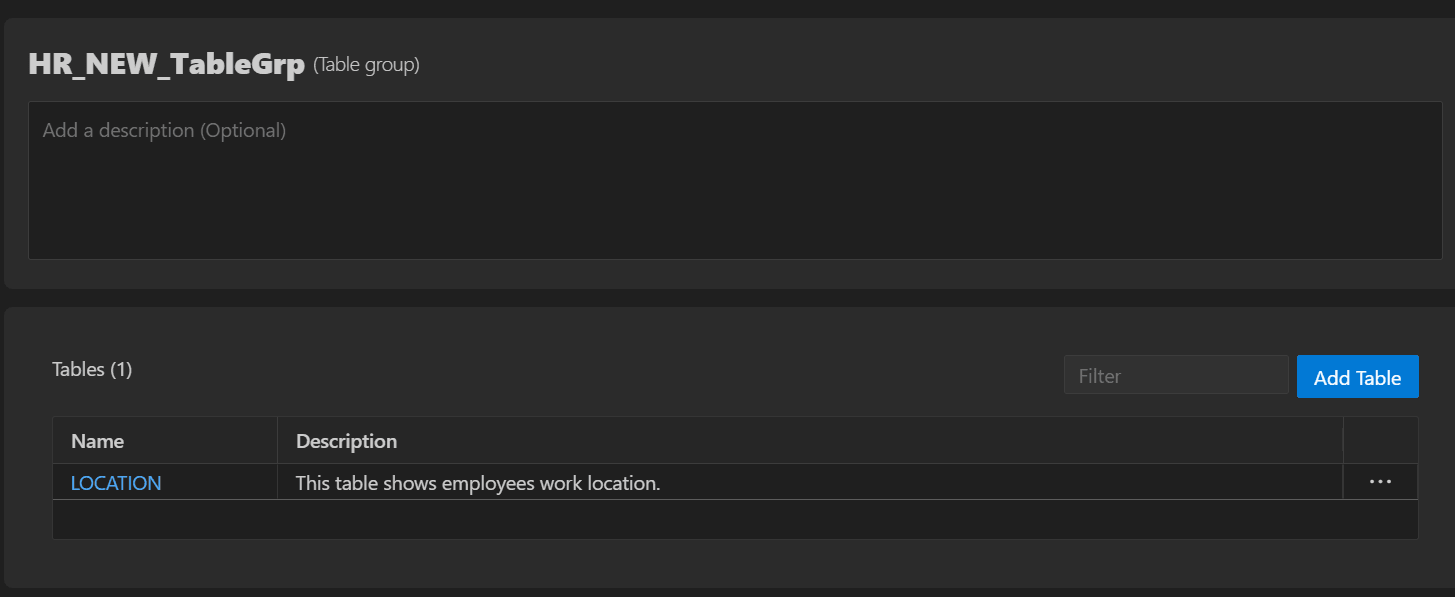
Table Group view

3.1.5.3 Adding Annotations for a Table Group

In addition to providing a description for a table group, you can also include additional annotations to further clarify the table group's purpose.

Perform the following steps to add and edit annotations for a table group:
  1. In the AI Enrichment dashboard, locate the Table groups section.
  2. Click ... next to a table group name.
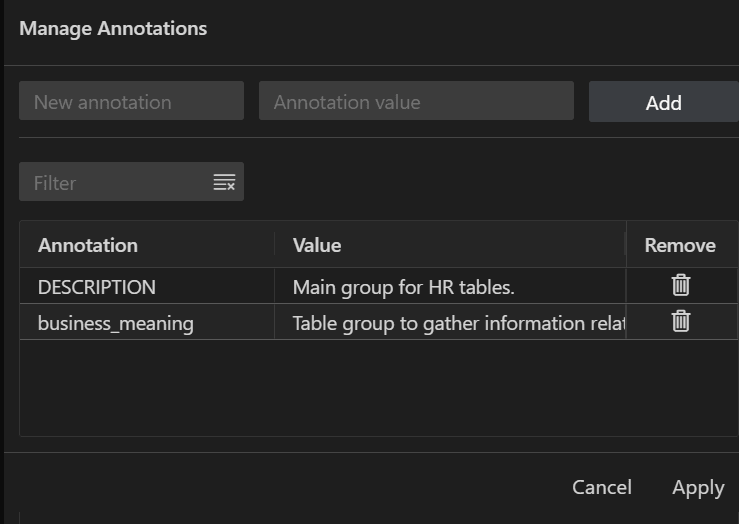
    The Manage Annotations slider appears.
    Manage Annotations slider

  3. To define an annotation, enter a key-value pair in the New annotation and Annotation value fields respectively.
  4. Click Add, and then click Apply.

    The new annotation is added to the table.

    To edit an annotation, re-open the Manage Annotations slider, edit the value, and then click Apply to save the changes.

3.1.5.4 Adding an Existing Table to a Table Group

From the table group view, you can also include new tables in the selected table group.

Perform the following steps to add an existing table to a table group:
  1. On the AI Enrichment dashboard, click a table group link in the Table groups section.

    Alternatively, select a table group under the AI Enrichment node in the Connections panel.

    You are navigated to the table group view.

  2. Click Add Table.

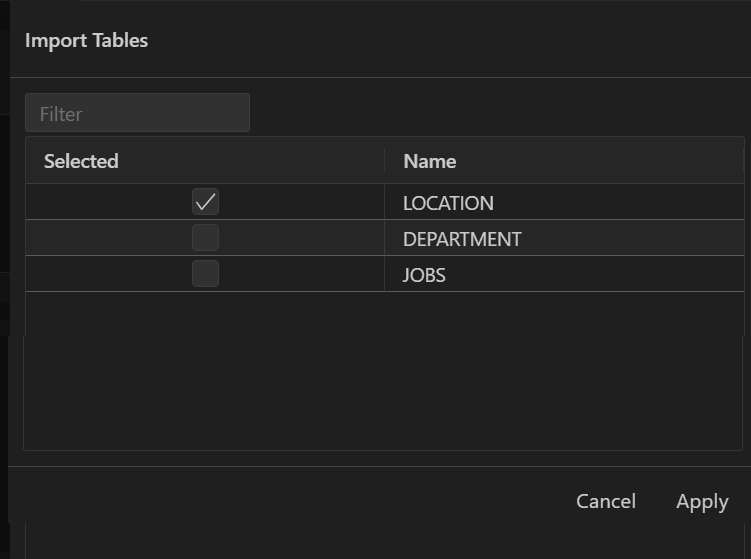
    Import table slider

  3. In the Import Tables slider, select the checkboxes next to the tables you want to include in the group.
  4. Click Apply.

3.1.5.5 Assigning a Table to Multiple Groups

A single table can belong to multiple logical groups, reflecting its role in different business contexts.

Perform the following steps to add a table to different groups:
  1. Navigate to the table's view using any of the following actions:
    • On the AI Enrichment dashboard, click a table group link in the Table groups section, then click a table link in the Tables section.
    • Select a table under the AI Enrichment node in the Connections panel.
  2. Select the Table Groups tab and click Add Table Group.
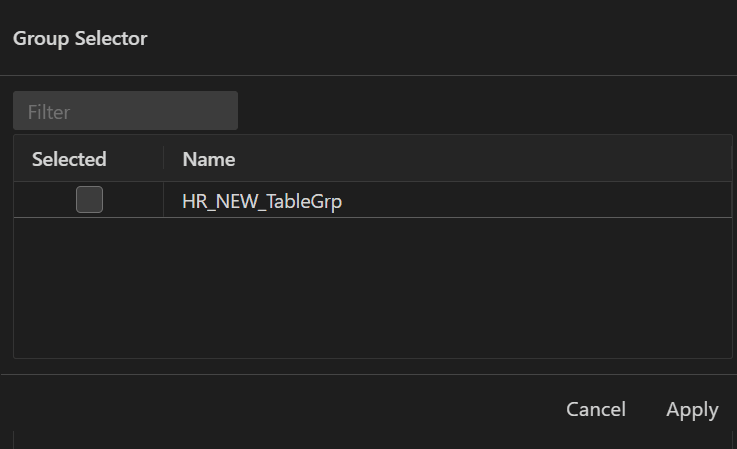
    The Group Selector slider appears.
    Group Selector Slider

  3. Select the checkboxes next to the table groups you wish to add your table to.
  4. Click Apply.