Export and Import Workflows
Export custom workflows to a .paf archive, then import them into another Agent Factory environment.
The export creates a password-protected .paf archive which you can share with trusted users.
Export Workflows
-
In the navigation menu, click My custom flows.
-
Select the workflows that you want to export.
- To export specific workflows, select the check box for each workflow.
- To export all workflows in the current list, select the Select all check box at the top left of the list.
-
Click Import/Export and choose Export Selected.
-
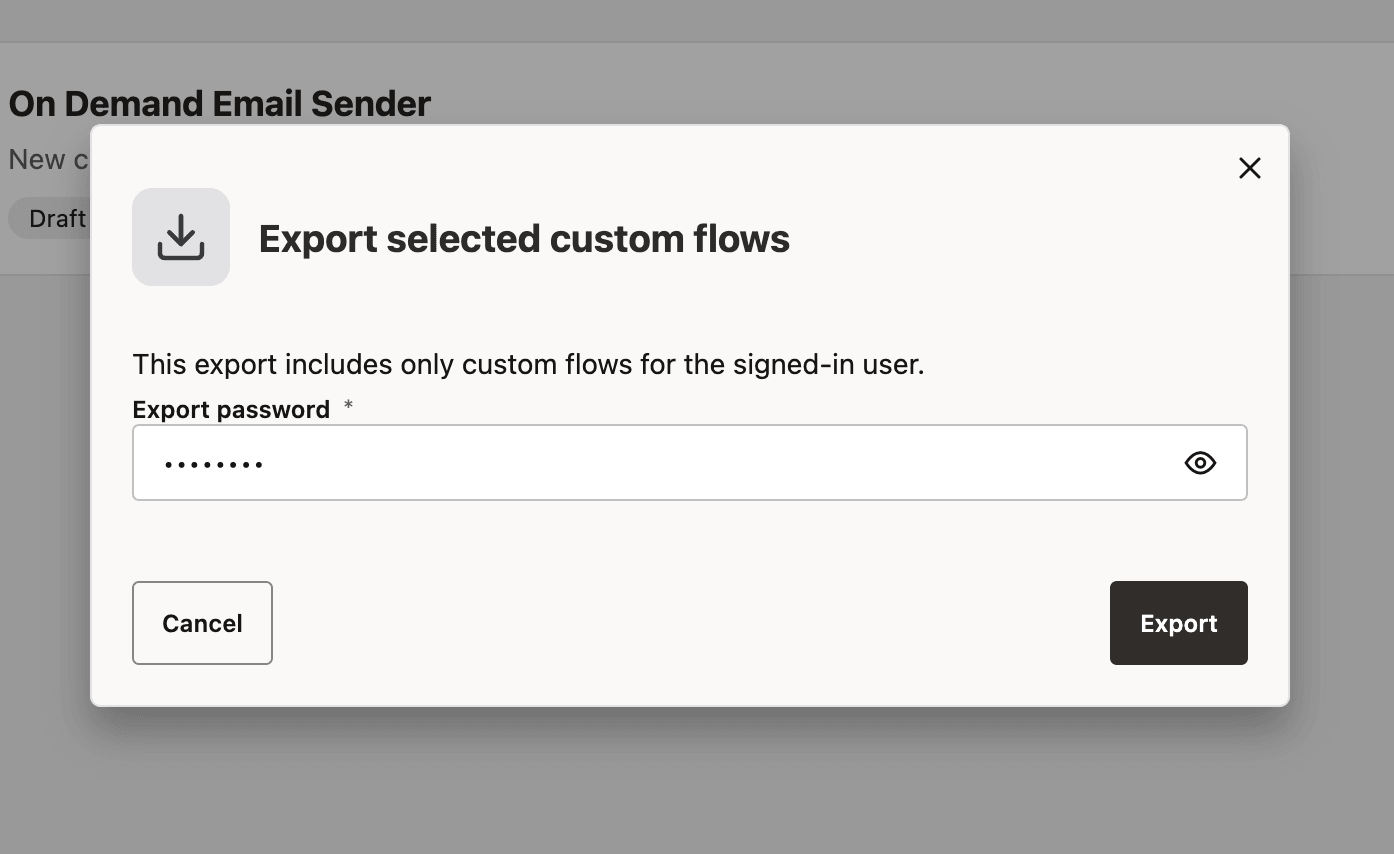
In the export dialog, enter a strong password for encrypting the archive. You must use this same password when you import the archive.
-
Click Export.
-
Save the downloaded
.pafarchive.The file name uses the format
exported_flows_<date>_<time>.paf.Note:
- Store
.pafarchives only in restricted locations and delete stale archives after use. - Share the archive and its password only with trusted users. Use secure channels to share them. Avoid emailing or sharing archives over insecure channels.
- Rotate credentials if an archive is shared beyond the intended boundary.
- Store
Import Workflows
-
In the navigation menu, click My custom flows.
-
Click Import/Export and choose Import Flows.
-
Upload the
.pafarchive.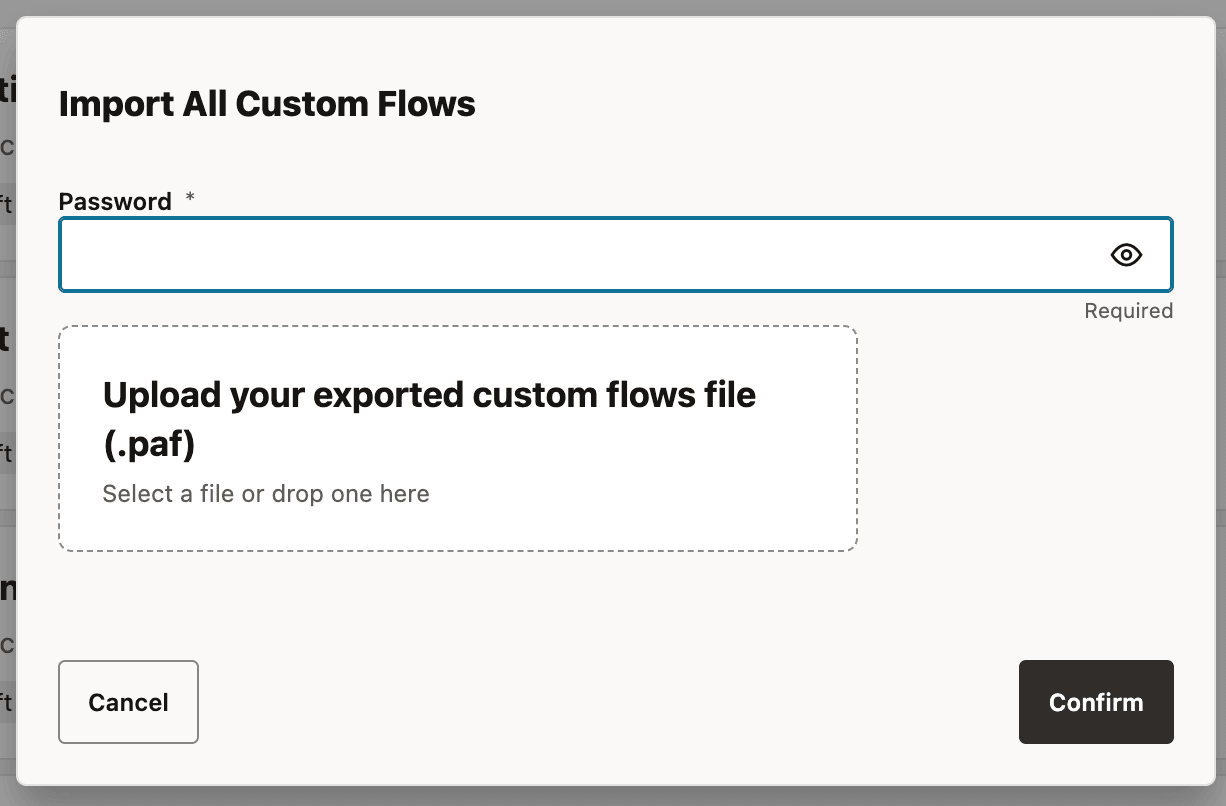
-
Enter the password that was used to export the archive.
-
Click Confirm.
Agent Factory decrypts the archive and creates the imported workflows.
-
Once the import completes successfully, a notification displays the number of flows imported.
Note: If an import fails, Agent Factory performs a best-effort cleanup of newly created flows and restored resources. Existing flows updated during the import may not be reverted.
-
Review all imported workflows and manually configure any required LLM, database data source, REST API source, MCP server, or Select AI metadata references.
Note:
-
Imported workflows are created as unpublished workflows, even if they were published before export.
-
If the archive was exported from a newer application version than the current environment, the import continues, but Agent Factory displays a warning.