Amazon S3 Data Source
Connect an Amazon S3 bucket to Agent Factory so Knowledge Agents can retrieve and ground answers in bucket content.
Amazon S3 data sources let Agent Factory ingest documents stored in S3 buckets. After you create the data source, Agent Factory crawls, parses, chunks, embeds, and indexes the selected bucket content.
Configure an Amazon S3 Data Source
-
Select Data Sources in the navigation menu.
-
Select Create new data source.
-
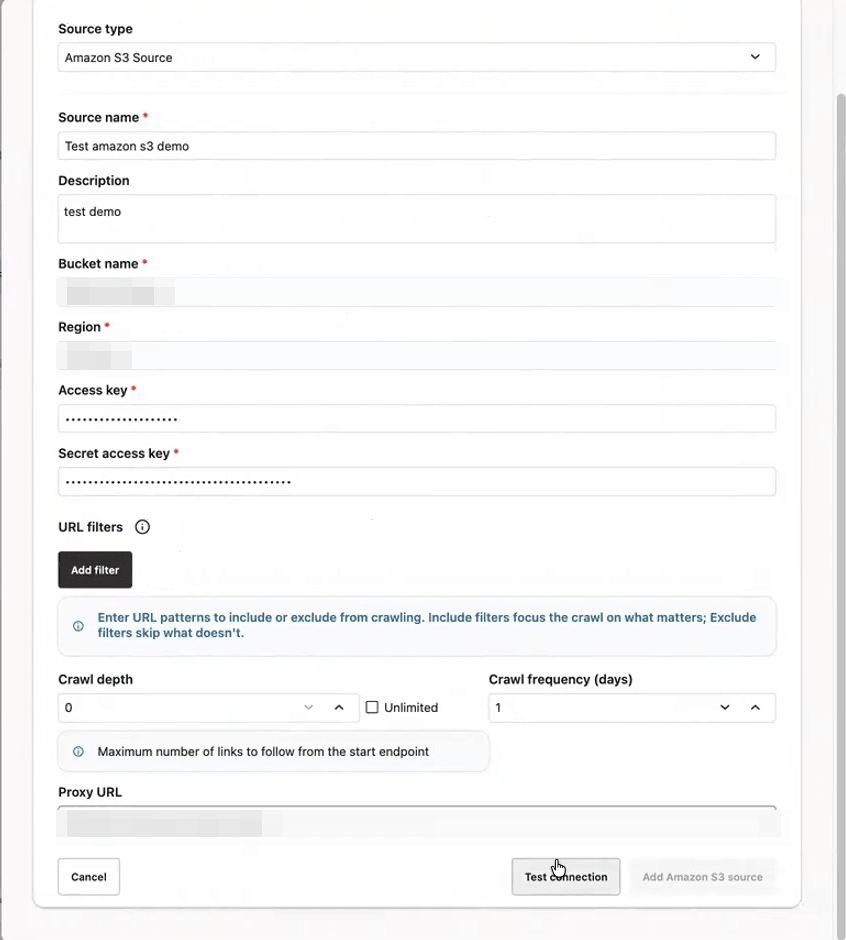
Select Amazon S3 as the data source type.
-
Enter a Data source name and Description.
-
Enter the Bucket Name and AWS Region where the Amazon S3 bucket is hosted.
-
Enter the Access Key and Secret Access Key for the bucket to read the bucket content you want to ingest.
Important: Currently, Amazon S3 data sources support only long-lived access key credentials. Make sure the access key credentials have Amazon S3 permissions. The policy must allow
s3:ListBucketands3:GetObjecton the required bucket. -
To limit the crawl scope and narrow the content to ingest, configure any optional Include Filters, Exclude Filters, and Exclude File Extensions.
-
Set Crawl Depth and Crawl Frequency to control how much content Agent Factory crawls and how often it revisits the bucket.
-
Enter a Proxy URL if access to Amazon S3 requires a network proxy.
-
Select Test Connection and confirm that Agent Factory can reach the bucket.
Note: If the connection test fails, verify the bucket name, AWS Region, and AWS credentials. If Agent Factory cannot reach Amazon S3, verify the network path and proxy configuration.
-
Select Create Data Source.
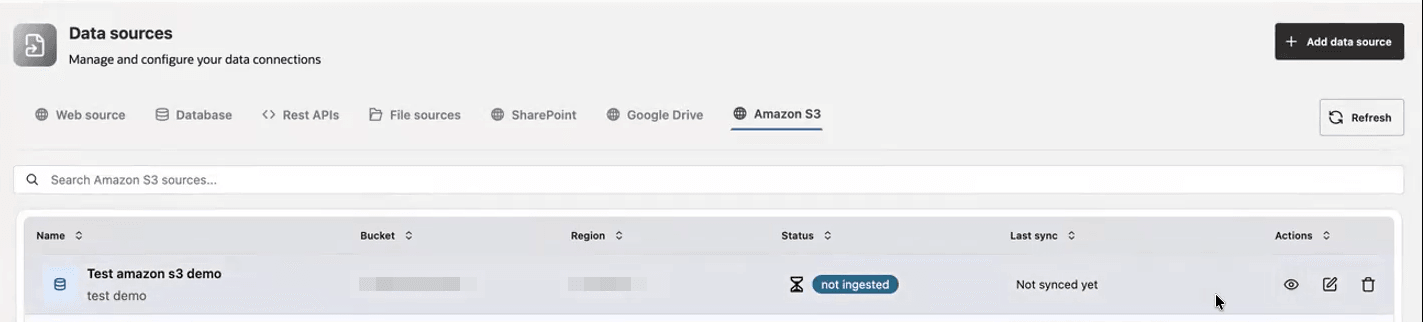
After the data source is created, monitor the ingestion status on the Data Sources page. When ingestion status is ingested, you can select the Amazon S3 data source while creating or editing a Knowledge Agent. See Create Knowledge Agent.
See Data Sources Troubleshooting for information about data source-related statuses and errors.
Minimum IAM Policy Shape
Use credentials with the minimum required S3 permissions. The exact policy depends on your bucket and prefix strategy, but the credentials must be able to list the selected bucket and read selected objects.
{
  "Version": "2012-10-17",
  "Statement": [
    {
      "Effect": "Allow",
      "Action": ["s3:ListBucket"],
      "Resource": "arn:aws:s3:::<bucket-name>"
    },
    {
      "Effect": "Allow",
      "Action": ["s3:GetObject"],
      "Resource": "arn:aws:s3:::<bucket-name>/<prefix-or-path>*"
    }
  ]
}
Troubleshoot Amazon S3 Sources
| Symptom | Check |
|---|---|
| Test connection fails with an authentication error | Verify access key, secret key, region, and IAM policy. |
| Bucket is reachable but objects are missing | Verify object prefix, include/exclude filters, and s3:GetObject permission. |
| Connection times out | Verify outbound internet/NAT/proxy access from the Agent Factory container. |
| Ingestion is too broad | Use include filters, exclude filters, and file extension exclusions to narrow the crawl. |