What is Prompt Lab?
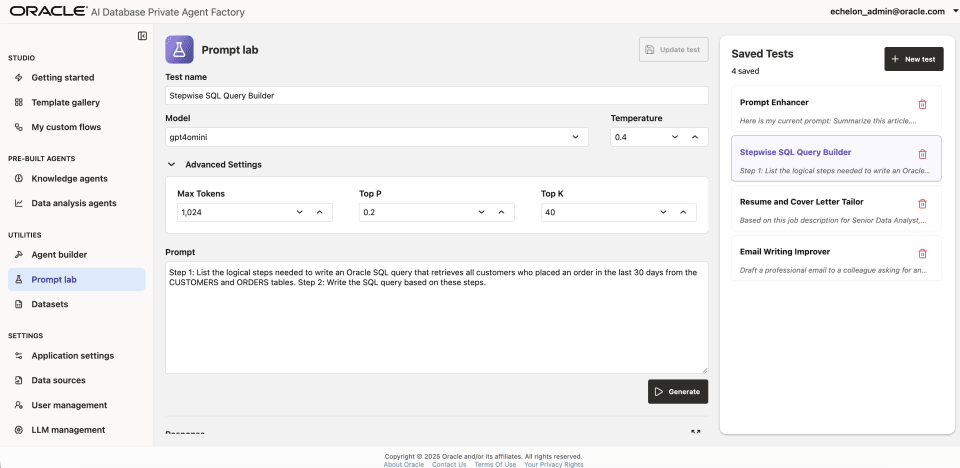
Prompt Lab is a utility that serves as an environment for you to experiment with custom prompts, as well as customizing aspects such as the LLM, temperature, Max. Tokens, Top K, and Top P values. You can also save your tests, modify them, and compare previous LLM outputs with new ones. You can find the Prompt Lab under the Utilities section of the left-hand side menu.
Core Capabilities
- Facilitates Rapid Experimentation: Quickly test ideas to identify the best prompt formulations for your AI applications.
- Model Comparison: Evaluate outputs from different AI models for the same prompt to determine optimal model performance.
- Knowledge Retention: Save and manage effective prompts for consistent results and future use.
- Boosts Productivity: Access a library of tested, pre-built prompts to save time and standardize best practices across teams.
- Supports Iterative Improvement: Refine prompts based on model performance to achieve optimal outcomes.
Layout
- Prompting Section: Located on the upper left side of the screen. Here, you can design your prompts, models, and make desired parameter changes.
- Saved Tests: Located on the right-hand side of the screen. Here, you can visualize your saved prompts and load them if you want to.
- Response Section: Located on the lower left side of the screen. Here, you can track the LLM responses to the prompt by comparing both the most recent and the previous response displayed and labeled.
Making use of Saved Tests
- Choose one of the
Saved Testsdisplayed on the right panel. - Click on
Modeland choose an LLM. - Click on
Advanced Settingsbutton. - Set
Top Pfield to 1. - Prompt should be already filled up, so just click on
Generate.