Configure Single Sign-On (SSO)
Administrators can configure Single Sign-On (SSO) for their organization by adding OAuth providers. The form allows the users to enter key information such as Provider, Client ID, API URLs, and connection details, making it easy to enable secure, streamlined authentication for all users.
Following SSO Providers are supported:
- Oracle Identity Cloud Service (IDCS)
- Okta
- Auth0
- Microsoft Azure AD
- Amazon Cognito
Configure Oracle IDCS Single Sign-On
-
In Agent Factory, select Application settings from the left sidebar, then select the SSO settings tab.
-
Select Add a new SSO provider button and copy the Redirect URL at the bottom of the form.
-
Request SSO credentials.
SSO relies on a browser-based redirect flow. As a result, the redirect URL configured in the SSO provider must exactly match the application’s externally accessible URL. This includes: Protocol (https), Hostname, Port, Path (for example:
/agentFactory/callback)Example:
https://<public_hostname>:8080/agentFactory/callback -
Fill in the SSO credentials in the Add a new SSO provider form.
Required fields include:
-
Provider - select an SSO provider from the dropdown
-
Connection Name - name for your SSO connection
-
Client ID - your client ID
-
Client Secret - your client secret
-
Server Metadata URL -
https://<IDCS-URL>/.well-known/openid-configurationNote: The
/.well-known/openid-configurationsuffix in the Server Metadata URL field refers to an endpoint that may change depending on your SSO provider. -
Log Out URL -
https://accounts.google.com/logout(Only required for Google SSO)
See Adding a Confidential Application to learn more about Client ID and Client Secret.
-
-
Select Add Provider button to save the SSO provider.
SSO Access Validation and Deployment Considerations
After configuring Single Sign-On (SSO) additional validation steps and deployment requirements must be met to ensure successful authentication, especially in deployed (non-local) environments.
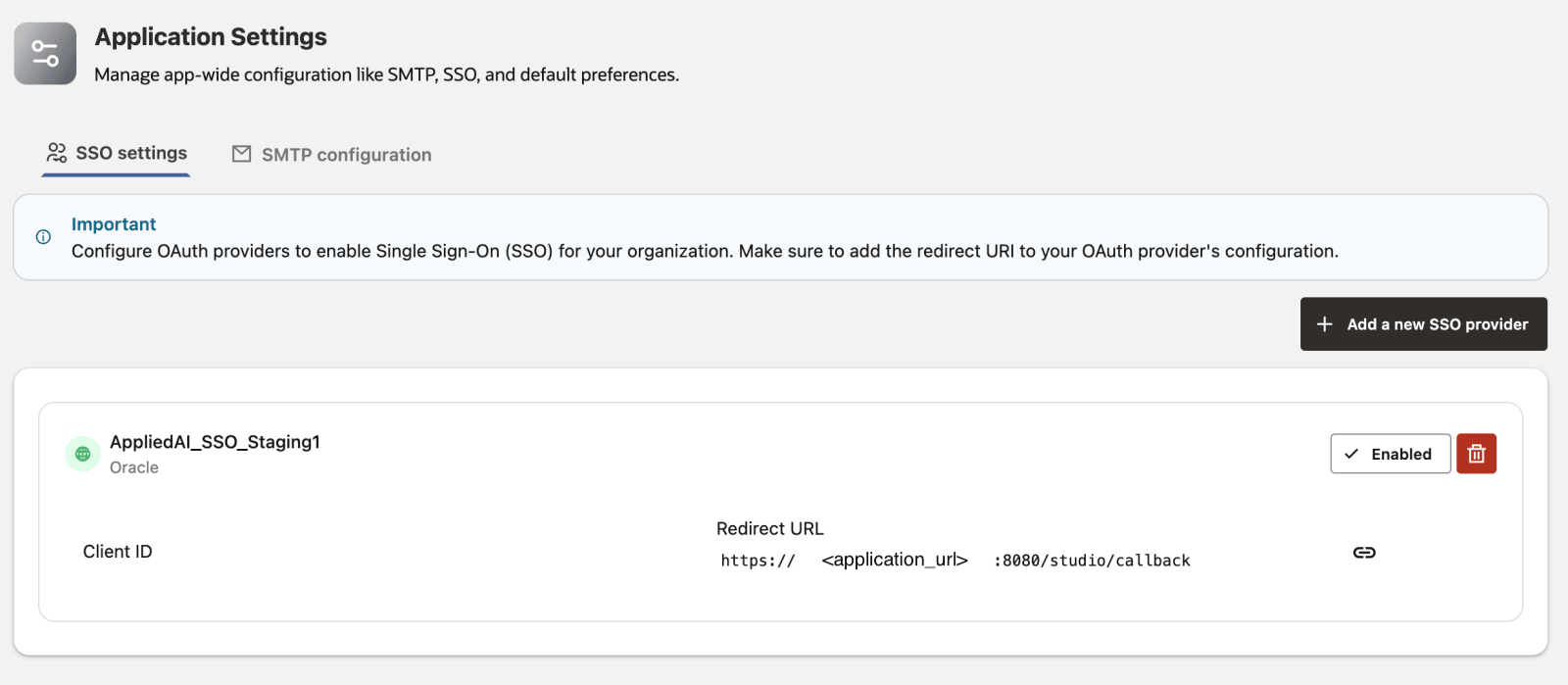
Note: Please ensure that your newly created SSO configuration is enabled.
-
Click Enable to activate it if it is currently disabled.
-
Also verify that the Client ID and Redirect URL are correct and free of typos or mismatches.
Post-Configuration Validation
Once the SSO provider configuration is saved and enabled:
-
Open a new Incognito / Private browsing window This ensures no existing application sessions, cookies, or cached credentials are used during validation.
- Access the application URL in the Incognito window
- Navigate directly to the application’s login page.
- The application should automatically redirect you to the configured SSO provider (IDCS, Google, Okta, etc.) for authentication.
Note: If the browser does not redirect to the SSO provider, or fails during callback, the issue is typically related to redirect URL configuration or deployment accessibility.
- Complete authentication with the SSO provider
- Log in using valid credentials for the configured provider.
- After successful authentication, you should be redirected back to the application and logged in automatically.
- Validate recovery behavior (if needed)
If authentication fails or redirect errors occur:
- Close the Incognito window.
- Return to the original (non-Incognito) session.
- Disable and remove the incorrect configuration.
- Add SSO configuration with correct details.
If the SSO works correctly you can close the Incognito/Private browsing window and logout of the non-Incognito session and use SSO to login.