ORACLE CONFIDENTIAL. For authorized use only. Do not distribute to third parties.
Pre-General Availability: 2025-12-16
Add a Data Source
Agent Factory allows you to add databases, websites, file systems, SharePoint sources, and REST APIs as data sources for your agents. You can view, edit, or delete the configured data sources.
Database Data Source
Connect to structured data sources, such as relational databases to provide comprehensive and organized information for your data analysis agents.
-
Direct Database Access: Integrate with enterprise databases like Oracle AI Database, allowing agents to run queries and analyze data. Set up and test a database connection configuration using either the connection string, connection details, or a wallet to create a database data source.
Note: Only
SELECT-like queries are supported for security and governance. -
User-Specific Security: Access is managed according to user credentials and roles, ensuring appropriate data governance and compliance.
File System Data Source
File System data sources allow you to create a knowledge base for your agents based on the files of your choice. You can upload .pdf, .txt, and .rtf files up to 1 GB each.
-
Seamless Integration: Easily add files or directories as data sources to expand the information available to your agents.
-
Asynchronous and Chunked Uploads: File uploads are processed asynchronously and transmitted in chunks.
-
Concurrent Uploads: Upload up to 10 files concurrently improving productivity.
-
Intuitive UI: Track the upload progress in real time with a window that is available across the Agent Factory.
-
Manage Uploads: Cancel uploads or retry them individually or for all files if a network or system failure occurs.
-
Backend Upload for Large Volumes: Upload very large data volumes directly through the backend. Administrators can create directories and subdirectories within the
/scratch/<project-folder>/volume/dataSourcesfolder and add files to configure them as file sources.
Website Data Source
Web data sources allow you to use publicly available website content, including unauthenticated web pages, as a data source for your agents.
Configure a Website Data Source
-
Provide Source Name and Description of the data source.
Note: Data source names can be any UTF-8 string.
-
Enter the root (homepage) URL in the Endpoint field.
-
If you wish to exclude certain file extensions from crawling, select them from the Exclude File Extensions dropdown. At present, .pdf and .doc files can be excluded.
-
Enter URL patterns to include or exclude from crawling in the URL Filter.
-
Use Include filters to limit the scope of search to specific site sections or paths so the crawler collects only relevant content.
-
Use Exclude filters to skip sections or paths that are not expected to be crawled.
Include filters restrict the crawl to the content that matters. Exclude filters skip what doesn’t. Combining both the include and exclude filters helps you control crawl scope, improve speed, and avoid gathering unrelated data.
Adding URL filters is optional.
-
-
Enter Crawl Depth to specify the maximum number of links to follow from the start endpoint. Select the Unlimited checkbox to crawl the endpoint exhaustively.
-
Provide Crawl Frequency to specify how often (in days) the data source should be crawled.
-
Configure a Proxy URL for the data source when operating within a firewall or an internal corporate network.
-
Click Test Connection and make sure the connection is successful before adding the web source.
OpenAPI-Compatible REST API Data Source
Agent Factory supports uploading the OpenAPI Specification version 2.0 or later as a JSON file to automatically configure API endpoints.
-
Fast Integration: Instantly connect to external or third-party REST APIs by uploading their OpenAPI specification even if direct integration via an MCP isn’t available.
-
Reusable Agent Tools: Convert OpenAPI-defined APIs into agent tools that your knowledge or data analysis agents can invoke during conversations.
-
Easy API Management: Upload your OpenAPI Specification in JSON format, review and test endpoints, update descriptions, and refine parameter details to guide agent interactions.
-
Accelerated Development: Automated import and configuration of APIs reduces manual effort, helps prevent errors, and speeds up the development of agent capabilities.
-
Authentication Support: REST API data sources support OAuth2, allowing you to add your preferred authentication method when using the REST APIs.
Configure a REST API Data Source with OAuth2
-
Select Data Sources in the left sidebar and select Add data source button.
-
Select REST API as the Source Type and optionally add a custom name and description for the data source under Advanced Configuration.
-
Upload your OpenAPI 2.0 or above specification JSON file to automatically configure API endpoints and select Add REST API source button.
-
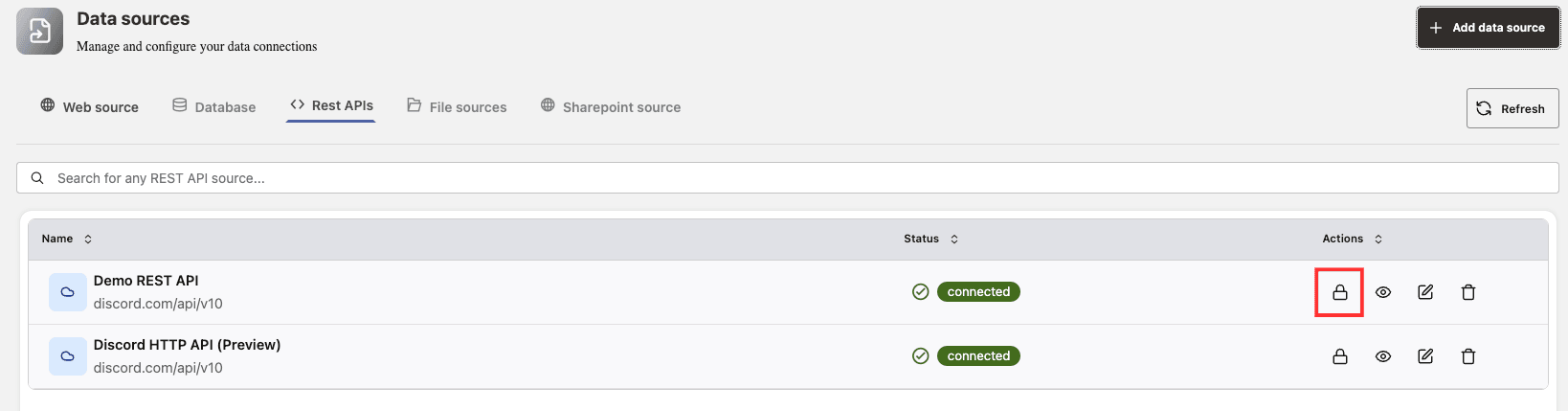
On the Data Sources dashboard, select the REST APIs tab, then click the lock icon in the Actions column for that data source.
-
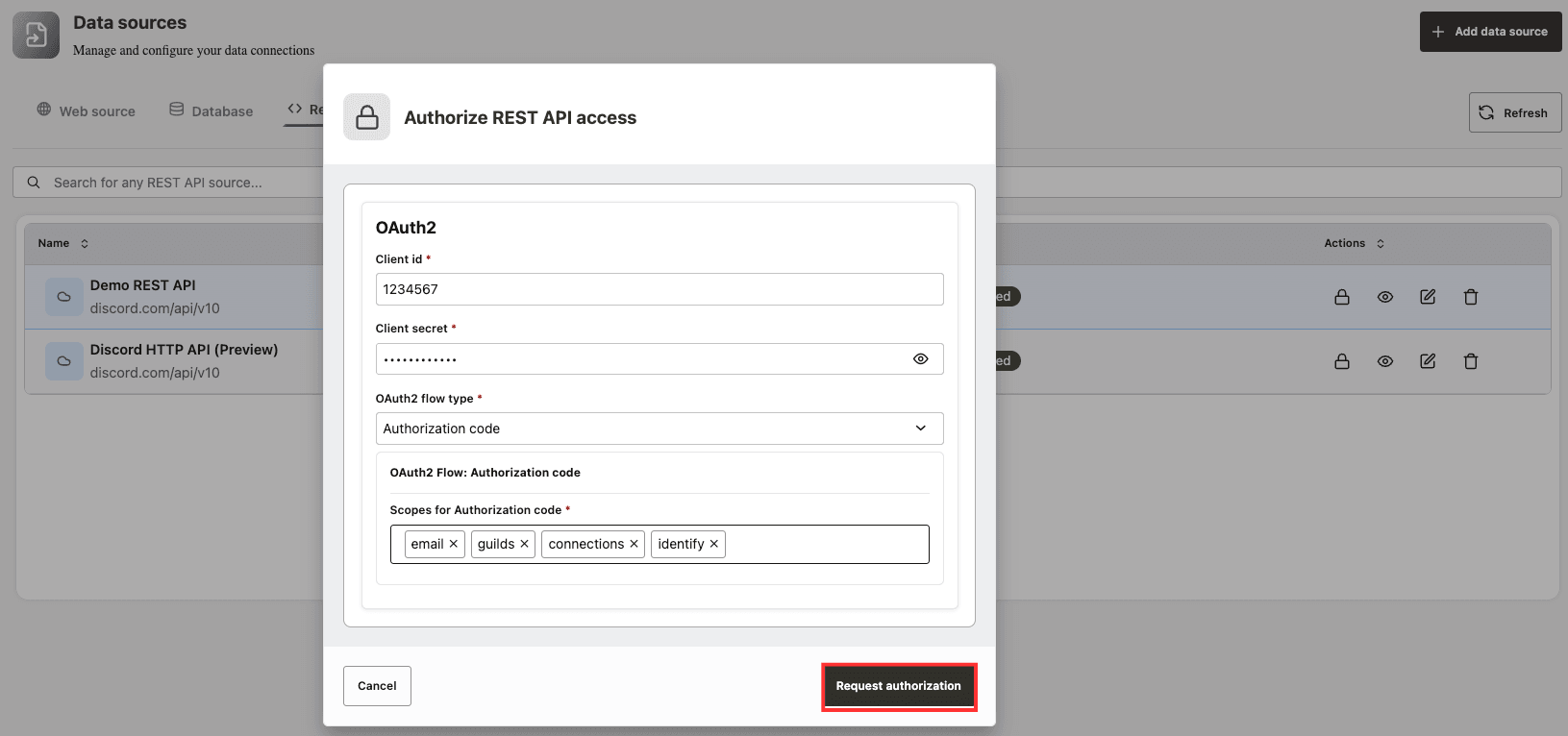
Authorize the REST API access to this data source by entering Client ID, Client Secret and OAuth2 Flow Type. Based on the flow type selected, a new selector will be displayed where you can select the desired scopes.
-
Select Request authorization button.
-
For the ‘Authorization Code’ flow type, you will be redirected to a page to grant the necessary permissions. After approving access, you will be sent to a callback page that displays “Authorization complete.” You can then close this tab and return to Agent Factory. When you see the message “Authorization successful. You can now access your secured endpoints.”, it means your authentication settings have been saved and you can begin using the REST API in Agent Builder.