Using the Plugin Service for Trail File Encryption
Learn about the prerequisites, requirements, and steps to configure a third-party plugin service for encryption and create an encryption profile in Oracle GoldenGate to allow trail file encryption using the configured plugin.
Note: The Plugin Service is only available on the Linux platform.
Setup Plugin Service and Build the Plugin
To set up and build the encryption profile plugin service, perform the following steps on the cURL prompt:
-
Enable the Plugin Service in the Service Manager:
OGG_ADMIN_PASSWORD="oggadmin-A1" curl -svu "oggadmin:${OGG_ADMIN_PASSWORD}" http://127.0.0.1:9011/services/v2/deployments/ServiceManager/services/pluginsrvr -XPOST --data '{"$schema":"ogg:service", "config":"external", "enabled":true, "critical":true, "status":"running"}' -
Build an encryption plugin using the
Encryption-Minimalplugin:cd $OGG_HOME/src/PluginExamples/Encryption-Minimal -
Add variable names in
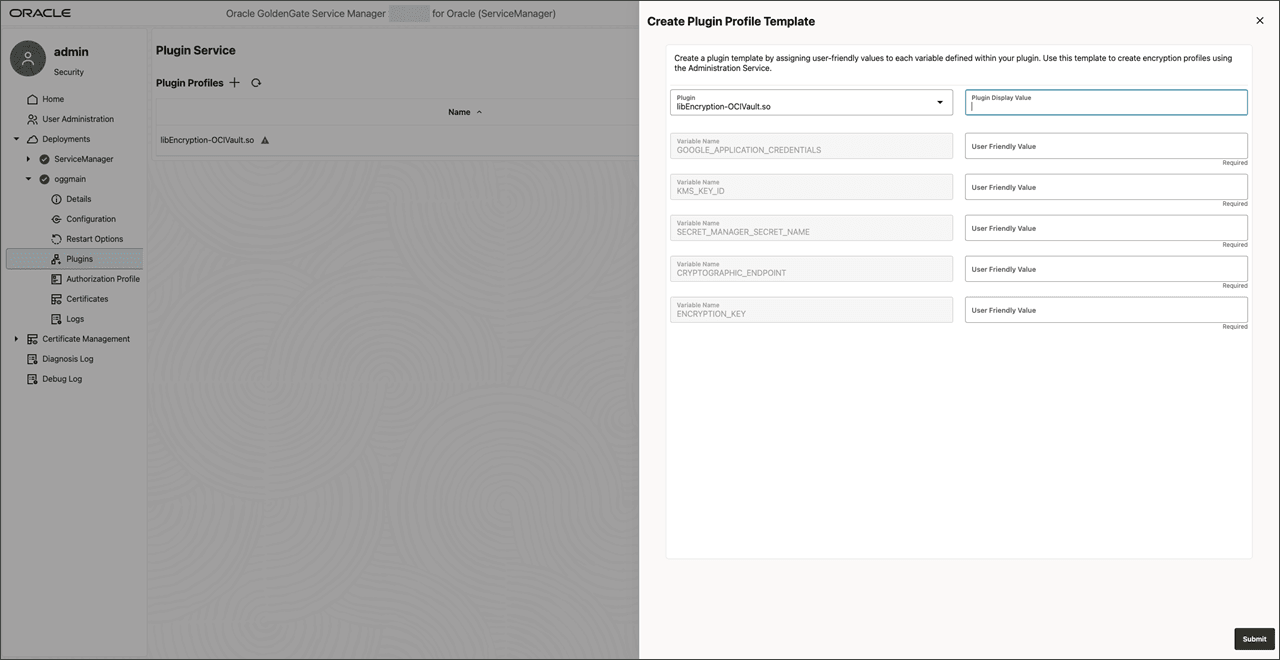
Encryption-Minimal.c. Replace getManifest()function as shown in the following syntax:const char * getManifest() { return "{ "$schema": "ogg:plugin", "version": "23.7", "variables": [ "GOOGLE_APPLICATION_CREDENTIALS", "KMS_KEY_ID", "SECRET_MANAGER_SECRET_NAME", "CRYPTOGRAPHIC_ENDPOINT", "ENCRYPTION_KEY" ] }"; }The variables being added in this step store the necessary information on how to access third-party tools. They will show up in the later steps, when the template for this plugin needs to be created.
It is mandatory to configure the
encryptanddecryptfunctions, for your chosen third-party encryption/decryption endpoint to invoke any third-party encryption/decryption tools. -
Build
Encryption-Minimalplugin:make && cp libEncryption-Minimal.so <OGG_deployment_home>/ServiceManager/var/lib/plugins/libEncryption-OCIVault.soNote: The name of the Plugin library file that was copied to the Service Manager’s
var/lib/pluginsdirectory, shows up in the Service Manager web interface as the Plugin Name for the template creation.
Create Plugin Template in the Service Manager
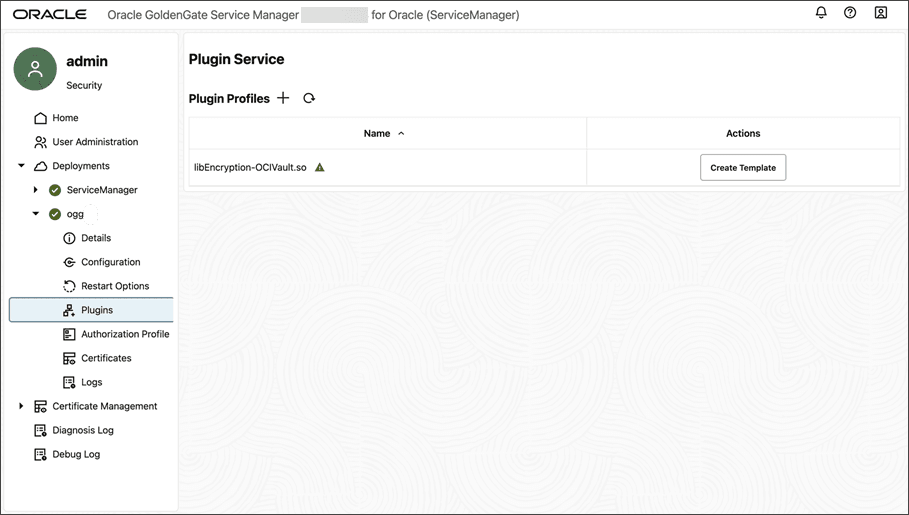
Log in to the Service Manager and perform the following steps to create the plugin template for encryption profile: 1. Go to Deployments, select the deployment name, and click Plugins.
If the plugin name is not visible under the **Plugin Profiles** table, click the Refresh button. The Service Manager scans all the library files under `SM_HOME/var/lib/plugins` and refreshes the list.
-
Create a template for any available Plugin (if template is not created):
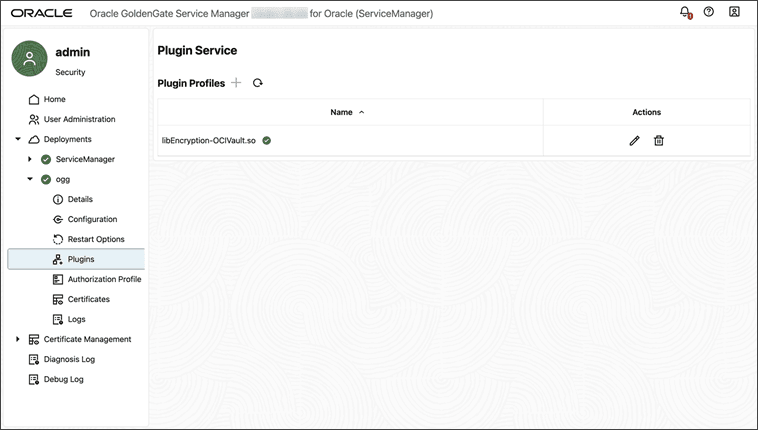
After the plugin template is created, it’s displayed on the Plugin Service page with a green check mark.
Create the Plugin Encryption Profile from the Administration Service
Go to the Administration Service page to create the encryption profile and apply it to the specific Extract, Replicat, or Distribution Path process: 1. Go to the Encryption, Profiles page. A new table for the Plugin Template is available, with column names matching the names defined for each variable in the Service Manager.
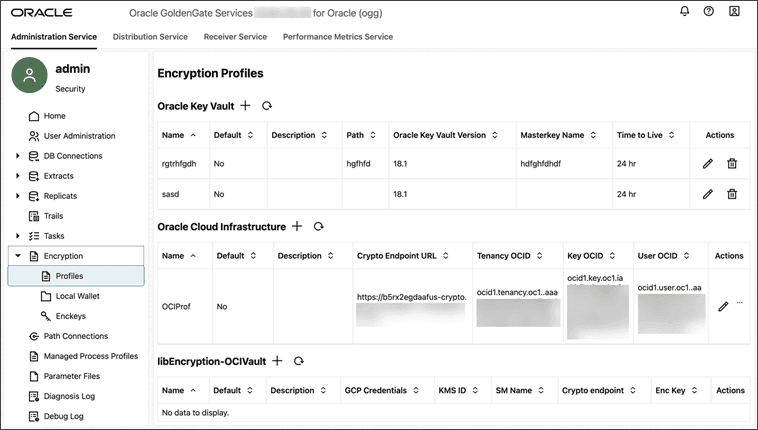
-
Add an encryption profile, enter values, and click Submit.
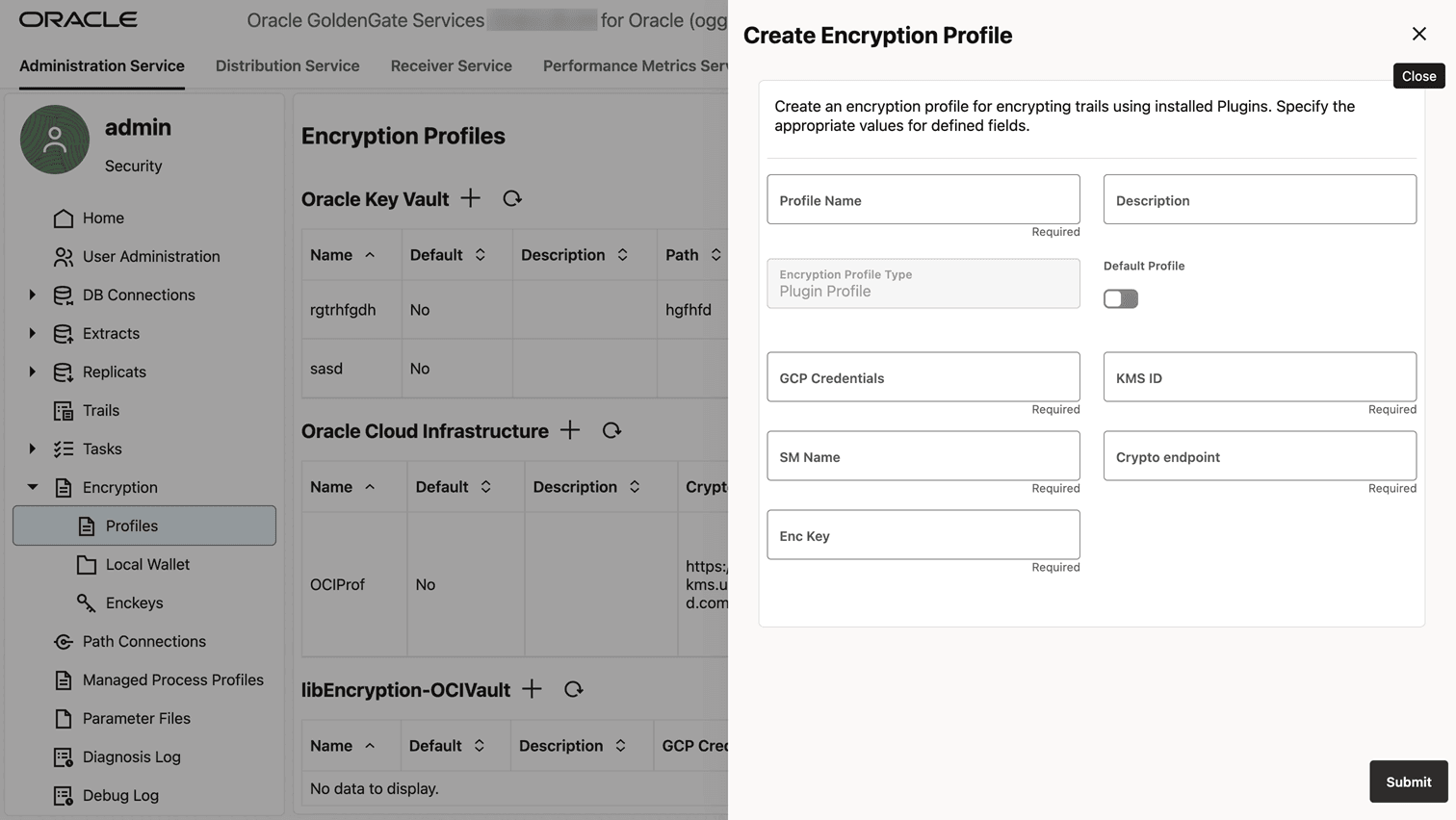
-
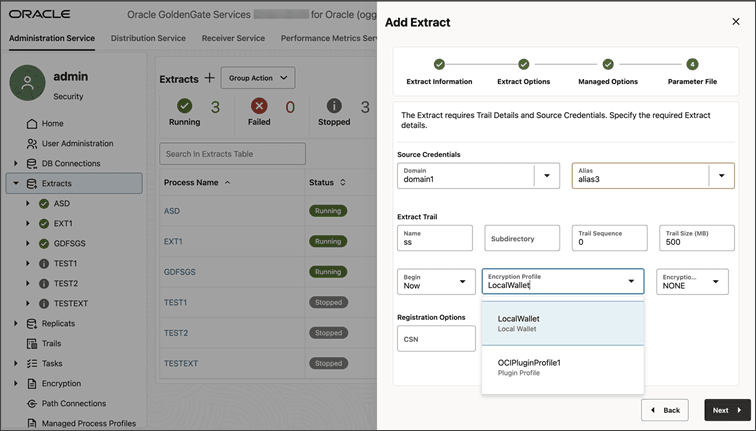
Create Extract, Replicat, Distribution Path and select the encryption profile plugin service as your encryption profile.