AI Agentic App: Sales Order Command Center
Obtain early access to the demo version of the Sales Order Command Center agentic AI application.
The Sales Order Command Center is an AI-powered agentic command center where customer service representatives continuously review sales order exceptions, review sales orders on hold, coordinate and execute priority actions to drive faster issue resolution and improved customer satisfaction. Use Ask Oracle to perform actions such as canceling an order.
The key capabilities include:
- Review an AI-generated summary that highlights critical sales order exceptions, such as supplier delays and out-of-stock items, and the recommended actions.
- View price hold orders, compare PO and sales order prices, and take action based on the variance.
- Review Priority Actions to see the most critical sales order exceptions and take the recommended actions.
- Use Ask Oracle to cancel an entire order.
To open the Sales Order Command Center, go to Order Management > Show More > Sales Order Command Center.
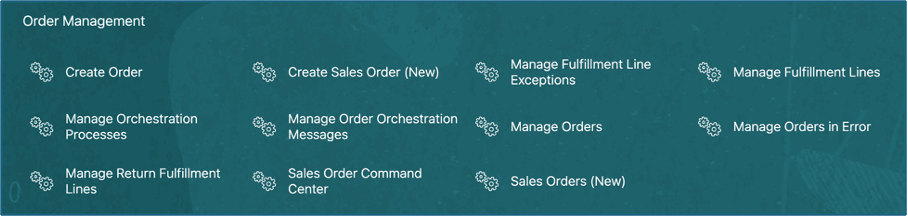
Quick Actions for Sales Order Command Center
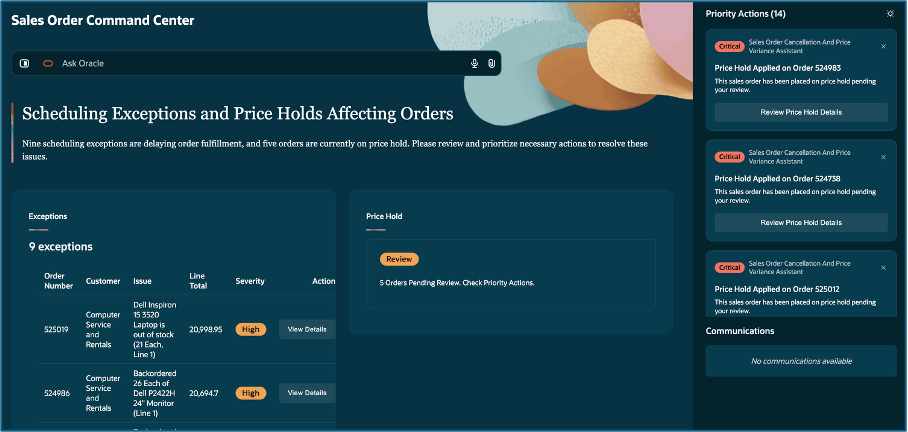
Open the Sales Order Command Center
Exceptions
Expand the Exceptions panel to view orders in exceptions and to view details of these exceptions.
Select the Apply Recommendation button in the Priority Actions panel to accept the recommendation without viewing details.
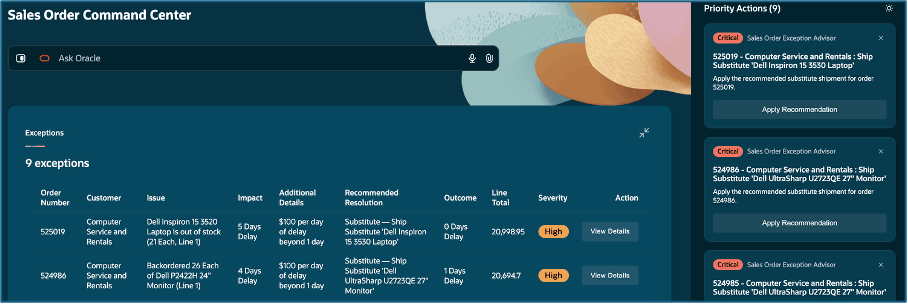
Priority Actions
Alternatively, select View Details to review details of the exception, customer preferences, and alternate resolutions.
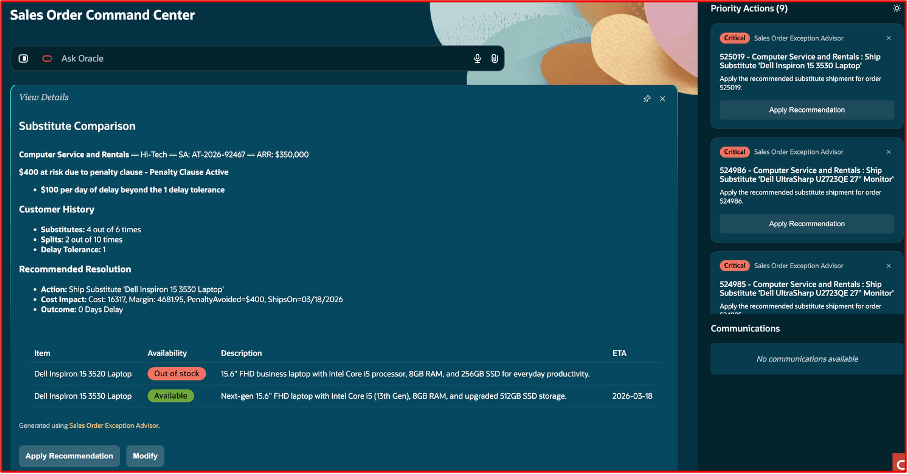
View Details
Select Apply Recommendation to apply the resolution recommended by the agent. Or you can select Modify to view alternate recommendations.
Price Hold
Review an order on price hold by selecting Review Price Hold Details in the Priority Actions panel.
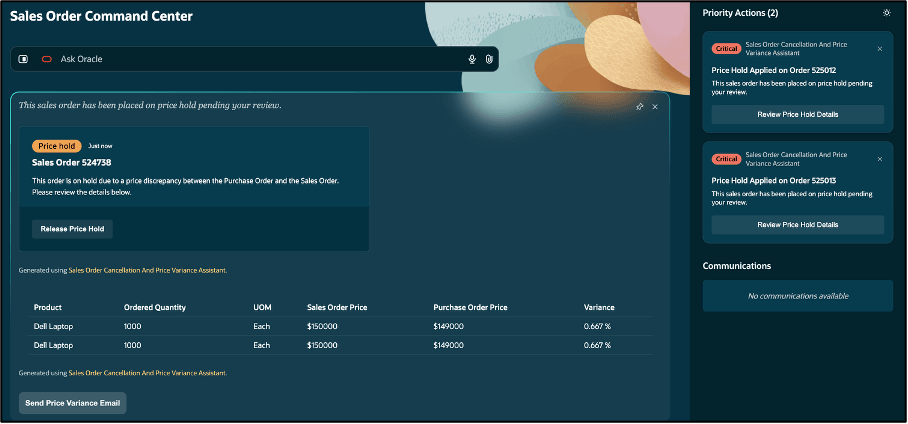
Review Price Hold Details
The Release Price Hold button is available only if the price variance is below the set threshold. Send an email to the customer about the new price applied on the lines of the order.
If the variance exceeds the threshold, notify the customer to submit a revised purchase order. The order hold cannot be released.
Cancel and Return
Cancel an order using Ask Oracle. Enter cancel order at the prompt, or use your computer microphone to Ask Oracle to cancel your order.

Cancel an Order
Return items that are not eligible for cancelation. Select Return Shipped Items to create the return order.
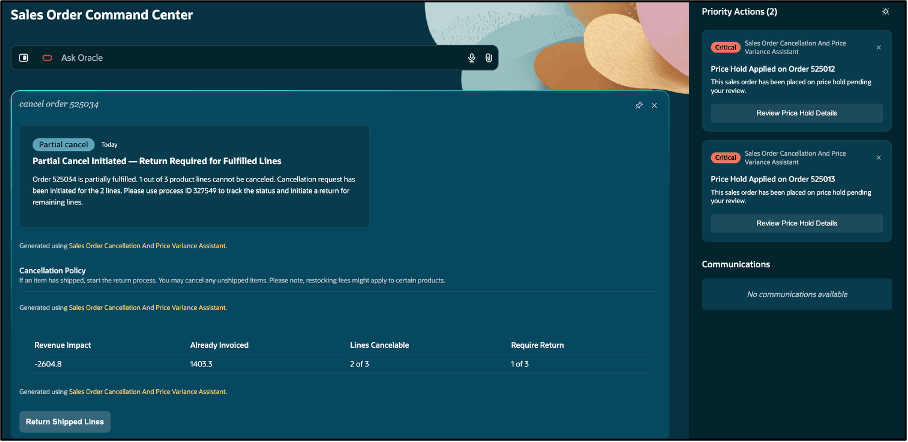
Return Shipped Items
The agentic app is an AI-powered command center for customer service representatives that proactively analyzes order issues before they impact fulfillment, recommends the next best action, and automatically executes actions when confidence is high. Customer service representatives get instant answers on order status, pricing, and action eligibility without screen hopping. AI agents analyze order data and apply holds based on defined business rules, with one-click release when appropriate. Natural-language order entry via the Ask Oracle bar lets customer service representatives simply describe what’s needed. Every recommendation is personalized— informed by customer order history, segmentation data, and company policy documents—turning complex workflows into one-click decisions.
Steps to enable and configure
To use this feature, you must enable this profile option at the site and user level; set the profile value to Y:
- Sales Order Command Center Agentic App Enabled : ORA_FOM_COMMAND_CENTER_AGENTIC_APP_ENABLED
The agentic app consists of multiple autonomous workflow AI agents that periodically scan the order management sales order data to identify new or unresolved exceptions. The Sales Order Precompute Processor agent periodically crawls the transactional order data and policy documents to identify the exceptions.
- Schedule your crawler agent in AI Agent Studio. Go to Tools > AI Agent Studio, and search for the Sales Order Precompute Processor agent.
-
Select Use Template to create a new instance of your crawler agent.
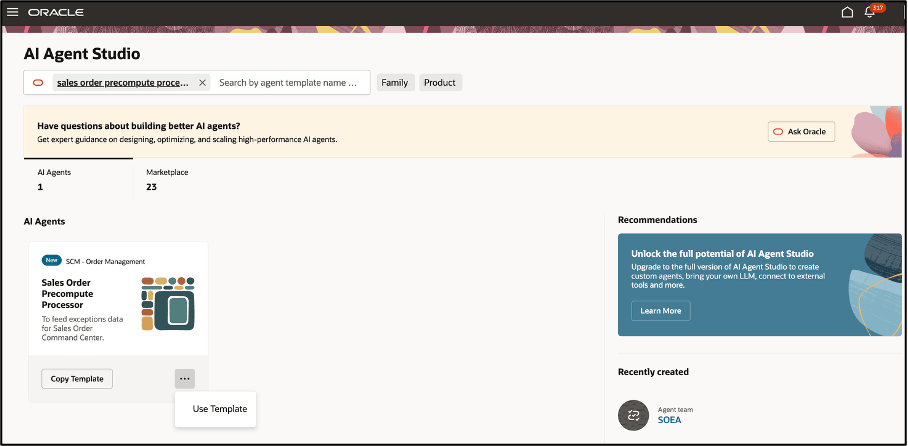
Create a New Instance of Your Crawler Agent
-
Give your new agent a team name and select Update.
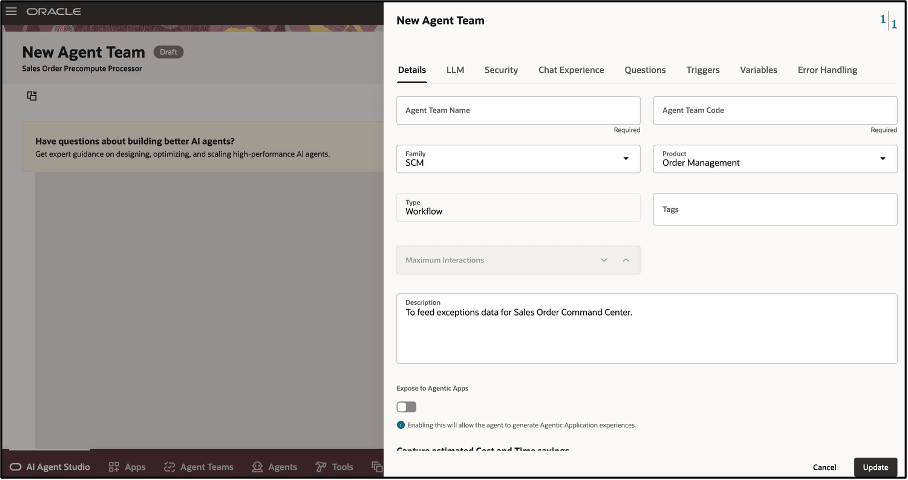
Give Your New Agent a Team Name
- Select the Schedule icon > Triggers tab > Add to schedule your agent at a defined time interval.
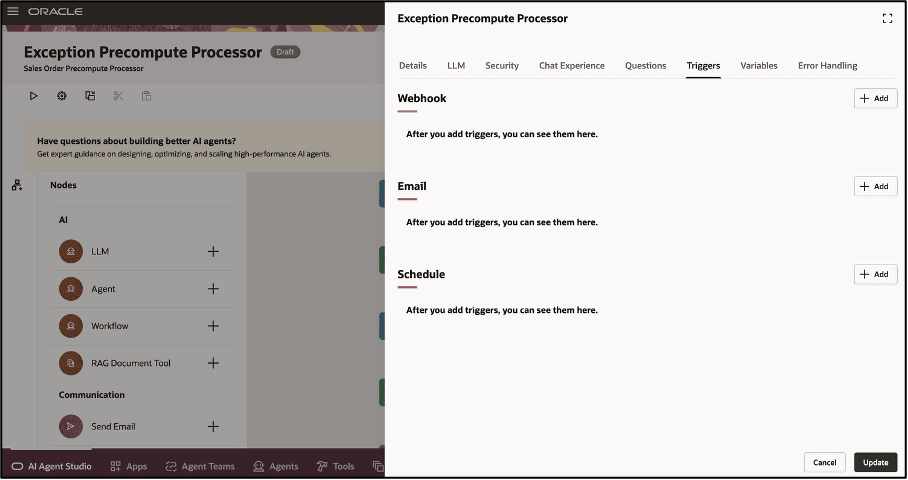
Schedule Your Agent
- Select Schedule Type > Interval.
- Enter a Start Time. You can also set an End Date and End Time.
- Select Update.
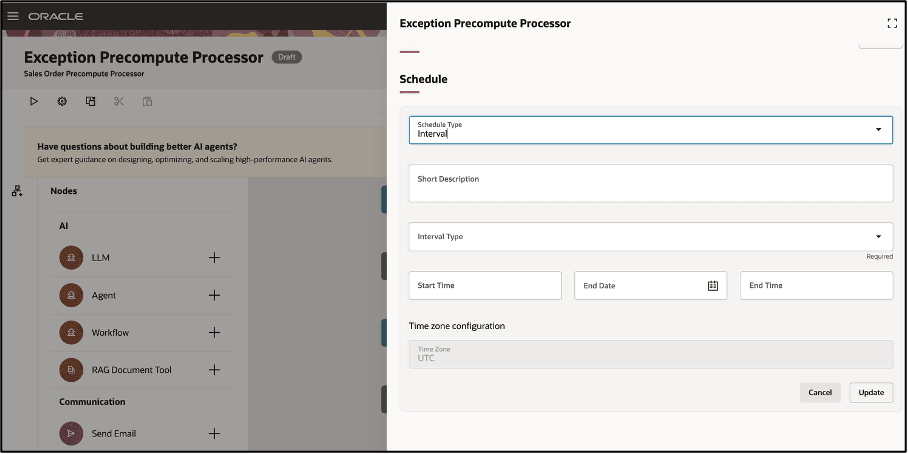
Add Internal Details
Tips and considerations
- Currently the application supports only standard shippable products. Models, kits and non-shippable products are not supported.
- Create a new hold code for price variance and provide the hold code and hold comments in the RAG document.
- Use a RAG document to provide details for the following information:
- Customer details such as Account Type, Annual Revenue, Sales Agreement, Penalty Clause, and Penalty.
- Order History Pattern such as Substitutes Accepted, Splits Accepted, Delay Tolerance, Average Orders Per Quarter, and Average Order Value.
- Hold Code and Hold Comments.
- Price variance threshold as a percentage; for example, 1%.
- The number of days to look back for orders containing exceptions.
- Review AI recommended priority actions for accuracy before applying. Always validate AI suggestions against your business priority.
- You can’t access the sales order details from the Sales Order Command Center. To view sales orders details, log in to the Oracle Order Management work area in Redwood.
Key resources
Building Agentic Apps Using Agents from AI Agent Studio
How to Set Up the AI-Powered Oracle Sales Order Command Center KB885061
Access requirements
Users who are assigned the job roles below can access this feature:
- ORA_FOM_ORDER_ENTRY_SPECIALIST_JOB
- ORA_DOO_ORDER_MANAGER_JOB
If you have created custom job roles, you can assign the following duty role to your custom job roles: ORA_DR_FOM_SO_COMMAND_CENTER_WORKFLOW_DUTY