Display Charge Accounts in the Table View of the Shopping Cart
Display charge accounts in the table view of the shopping cart in the Redwood Self Service Procurement application. Before this release, you could view charge accounts only in the list view of the shopping cart.
Here's a view of how this is displayed in the cart:
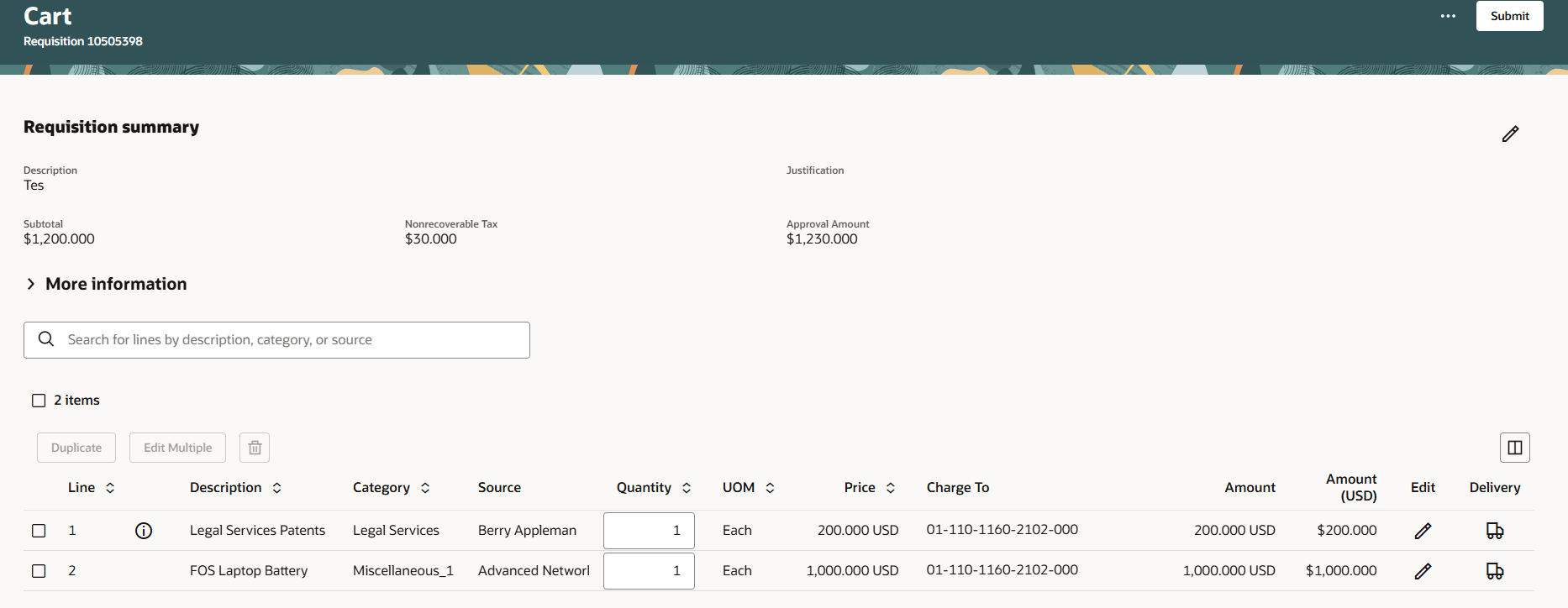
Display Charge Account in the Shopping Cart
The Charge To column is available in the table column selector and is hidden by default. You can use the column organizer to display the column in the table.
To display the Charge To column by default, edit the shopping cart page in Oracle Virtual Builder Studio or simply navigate to the Shopping Cart - View page in Oracle Virtual Builder Studio. Create a new collection rule and mark the Line Charge Account attribute to Visible by Default.
This screenshot shows the collection rule configuration.
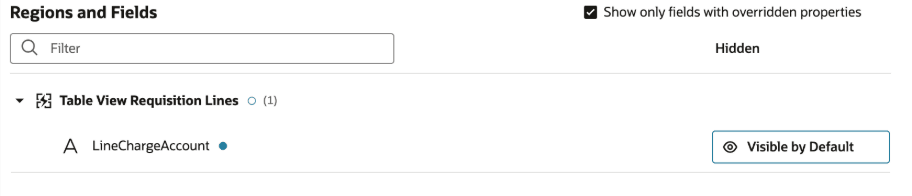
Use Extensibility to Make Charge Account Visible by Default
Steps to enable and configure
Use the Opt In UI to enable this feature. For instructions, refer to the Optional Uptake of New Features section of this document.
Offering: Procurement
If you want to use the Display Charge Accounts in the Table View of the Shopping Cart feature, then you must opt in to one or both of these features:
- Enable the Redwood Version as the Default Self Service Procurement Application: Makes the Purchase Requisitions (New) work area available to all your users, and hides the Purchase Requisitions work area from all your users.
- Procure Goods and Services Using the Redwood Self Service Procurement Application: Keeps the Purchase Requisitions work area available to all your users, and makes the Purchase Requisitions (New) work area available to the users who are assigned this privilege: Manage Requisition with the Redwood Self Service Procurement Application (POR_MANAGE_REQ_WITH_PWA_PRIV).
If you’ve already opted in, then you don’t have to opt in again.
Tips and considerations
- If you want to use the Extensibility feature to make the Charge To attribute always visible by default, you must first display it using the Column selector.
- After duplicating a line in the shopping cart, the charge account will become visible after you drill down to the line details and return.
Key resources
- To know more about the extensibility, refer to the Extending the Redwood Self Service Procurement Application document.
- To know how to provide the required privileges to your requesters to use your own configured role instead of the Requisition Self Service User role, refer to the Privileges Required for a Predefined Role for a Requisition Self Service User topic.
- For more information on how to enable a guided journey for Redwood pages, refer to the Enable a Guided Journey for Redwood Pages topic.
- For information about using Oracle Visual Builder Studio to extend your Redwood application pages, see Oracle Fusion Cloud HCM and SCM: Extending Redwood Applications for HCM and SCM Using Visual Builder Studio.
Access requirements
Users who are assigned a configured job role that contains this privilege can access this feature:
- Manage Requisition with the Redwood Self Service Procurement Application (POR_MANAGE_REQ_WITH_PWA_PRIV) to access the Redwood Self Service Procurement application.
NOTE: This privilege isn’t required if you have opted in to the Enable the Redwood Version as the Default Self Service Procurement Application feature to access the Redwood Self Service Procurement application.
This privilege was available prior to this update.