Oracle Fusion Pricing Runtime Integration
Oracle CPQ now offers a productized integration with Oracle Fusion Pricing, allowing users to ingest and use calculated list prices from Fusion Pricing as an opt-in feature within CPQ Pricing.
Capability Highlights:
-
Enables seamless end-to-end ingestion of Fusion price lists and standard discounts into CPQ, with prices applied at runtime.
-
Supports complex pricing scenarios, including multi-charge products, price waterfalls, applied or available rate plans, BOM pricing, and coverage pricing.
Fusion Pricing Price Model Type
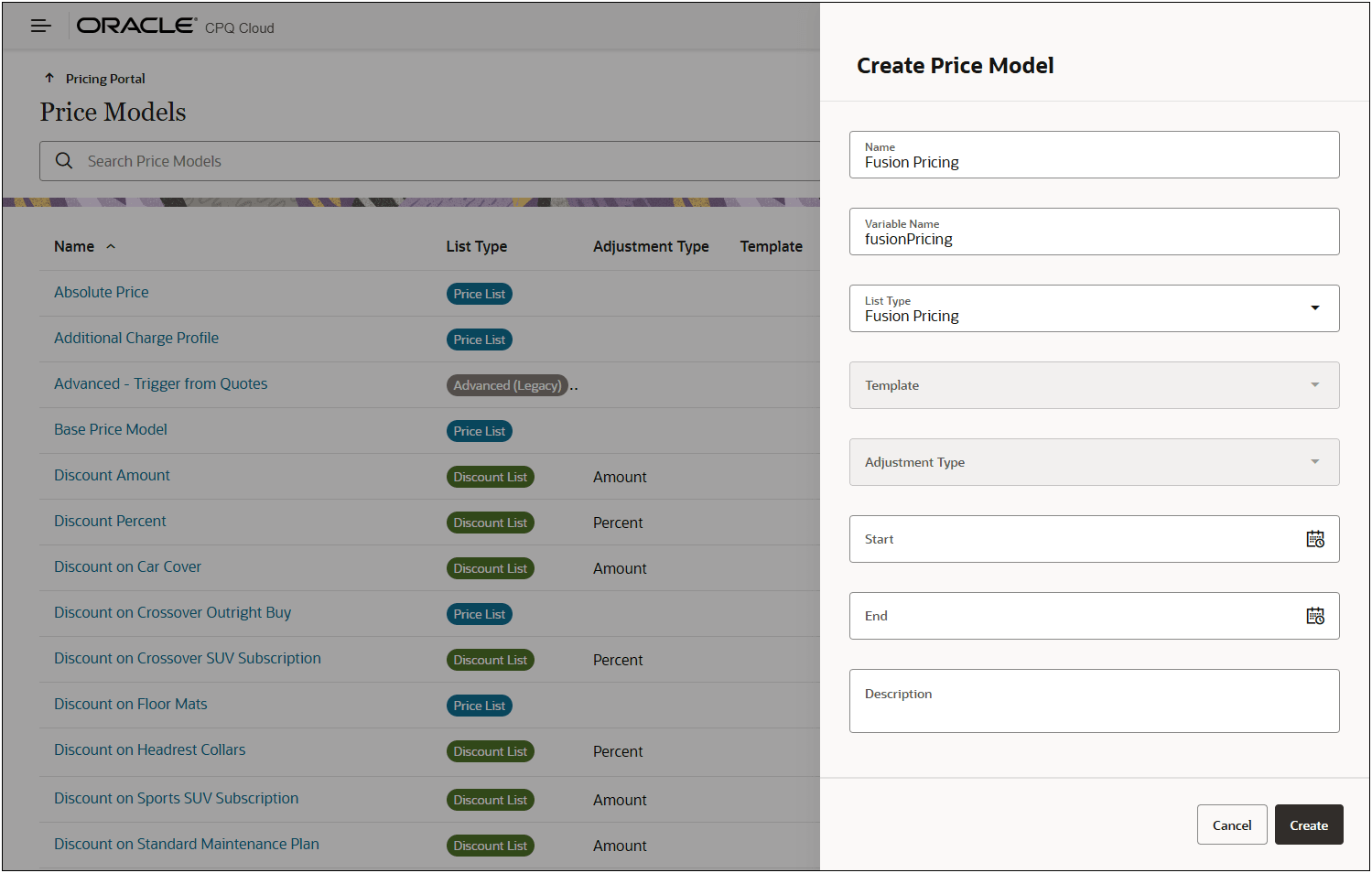
Oracle CPQ 26B introduces the Fusion Pricing type Price Models for Oracle Fusion Pricing Runtime integrations.
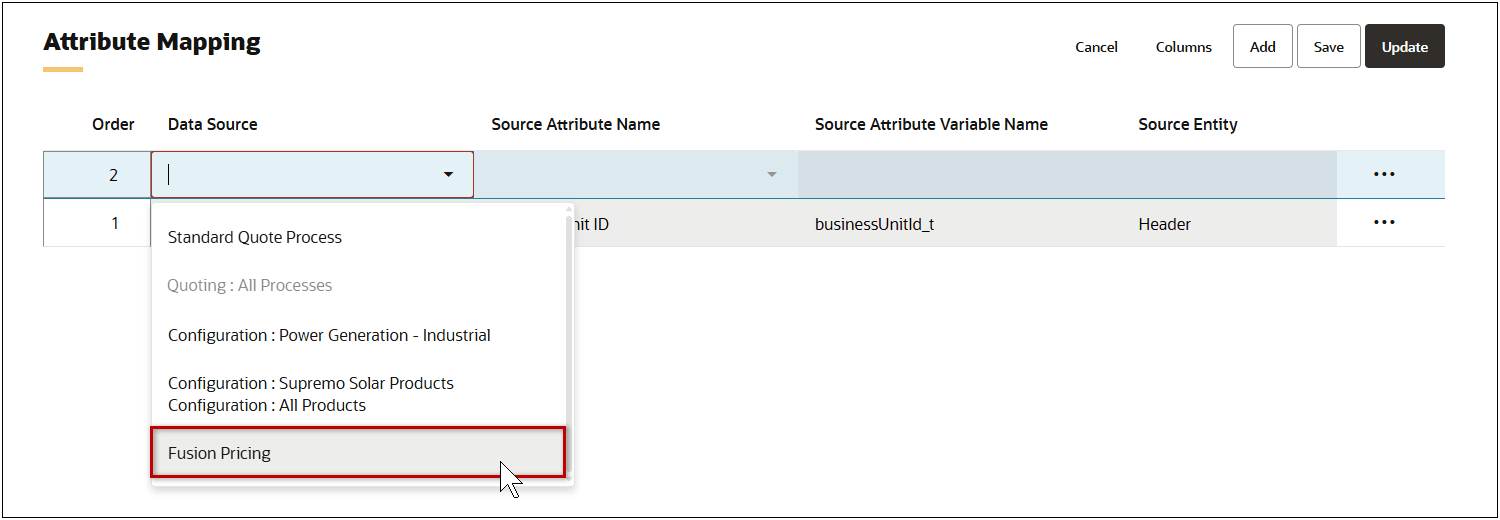
Map CPQ Pricing Attributes to Fusion Pricing Attributes
Oracle CPQ 26B also introduces the Fusion Pricing Data Source to enable mapping of CPQ pricing attributes Oracle Fusion Pricing attributes.
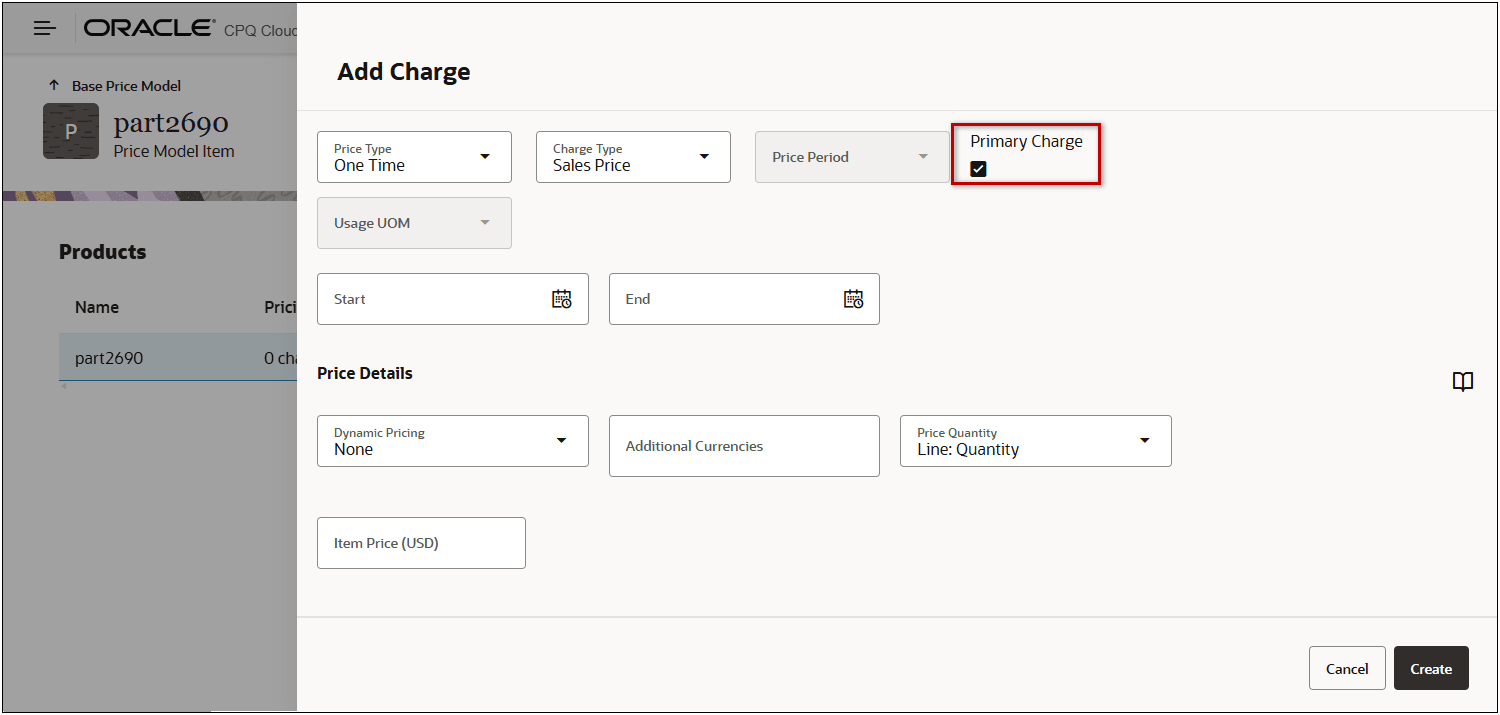
Primary Charge
Beginning in Oracle CPQ 25B, all references to the CPQ 'Product Price' element are renamed Primary Charge. When adding a new charge in the Pricing Portal or Product Workbench, the Primary Charge field is automatically enabled if no existing charges exist.
This feature provides the following business benefits:
-
Provides a single source of truth for pricing across Oracle Fusion Pricing and CPQ, ensuring consistency.
-
Delivers accurate quoting for subscriptions, bundles, and complex pricing models.
-
Features an extensible design, reducing future integration effort and associated risks.
Steps to enable and configure
Create a Fusion Pricing Price Model
Complete the following steps to create a Fusion Pricing type Price Model.
- Navigate to CPQ Admin > Prices > Price Models.
- Select the Add from the Actions drop-down.
- Enter the following information:
- Enter the Name.
- Enter the Variable Name.
- Select Fusion Pricing from the List Type drop-down.
- If applicable select a Start and End dates.
- If applicable, enter a Description.
- Click Create.
Create and Link a Pricing Rule for Fusion Pricing
Complete the following steps to create and link a Pricing Rule for the Fusion Price Model.
- Navigate to CPQ Admin > Prices > Setup and Maintenance > Price Rules.
- Select the Add from the Actions drop-down.
- Enter the following information:
- Enter the Name.
- Enter the Variable Name.
- If applicable select a Start and End dates.
- If applicable, enter a Description.
- Click Create.
- Select Add from the Linked Price Models Actions drop-down.
- Check the applicable Fusion Pricing type Price Model.
- Click Add.
Set Up an Oracle Fusion Pricing Server Integration
Complete the following steps to set up an Oracle Fusion Pricing Server integration.
- Navigate to CPQ Admin > Integrations.
- Click Create Integration.
- Select Generic Integration from the Type drop-down.
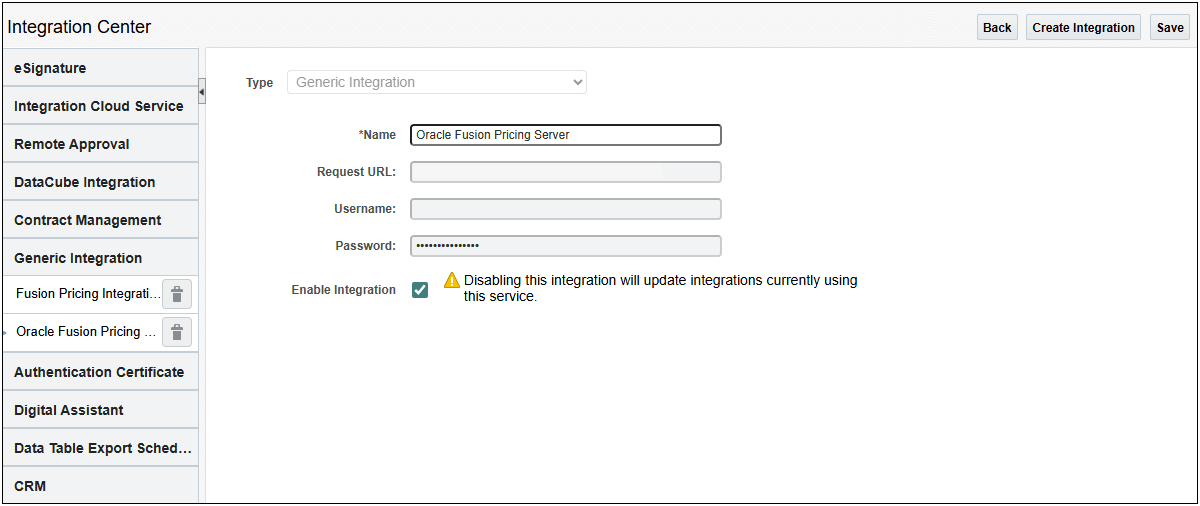
- Enter "Oracle Fusion Pricing Server" for the Name.
- Enter the Request URL for the Oracle Fusion Pricing application.
- Enter the Username and Password login credentials for the integration user.
- Select the Enable Integration option.
- Click Save.
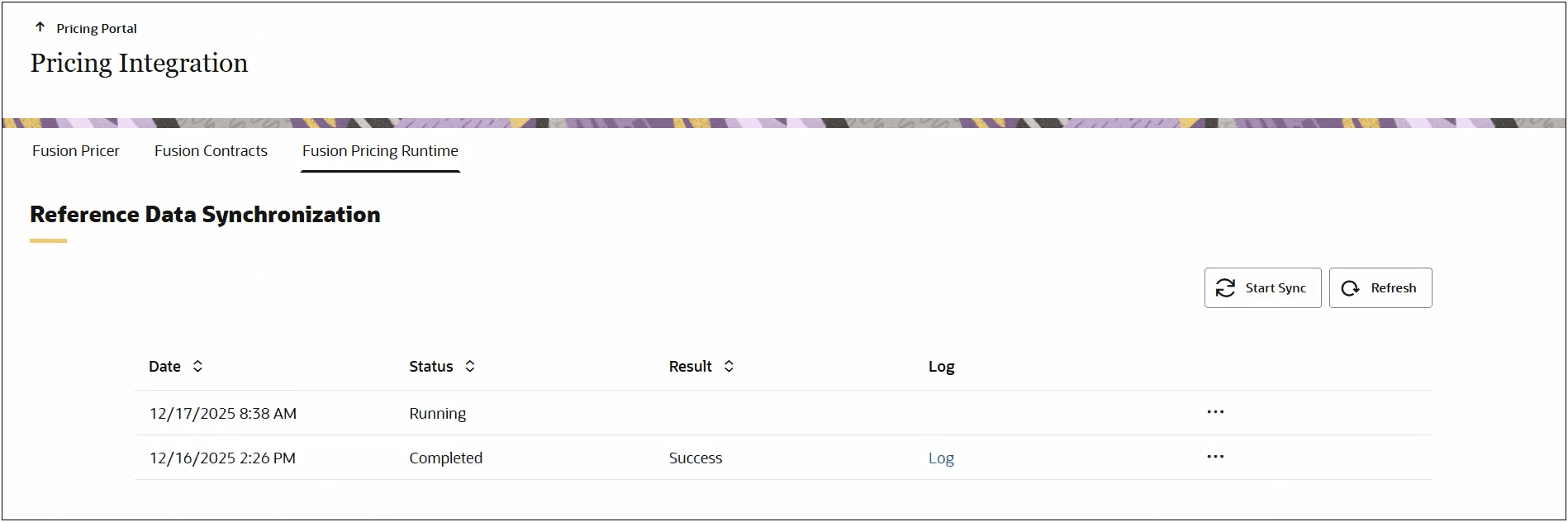
Synchronize Fusion Pricing Reference Data
Fusion Pricing reference data includes charge definitions, price types, charge types, usage UOMs, price periods and service duration periods. When Fusion Pricing reference data is updated, complete the following steps to synchronize the reference data from Fusion Pricing.
- Navigate to CPQ Admin > Prices > Pricing Integration.
- Select the Fusion Pricing Runtime tab.
- Click Start Sync.
Tips and considerations
Note: Rate Plan selection is improved for the JET and Redwood Quote UIs. The Requested Rate Plan selections are now updated upon request and users no longer need to update line items to retrieve rate plan details.