Top-Selling Configurations Recommendations
Starting with Oracle CPQ 26B, CPQ will use machine learning to recommend top-selling configurations for configurable products, based on actual sales data from past transactions. This dynamic approach offers more commercially accurate and relevant suggestions compared to static Favorites defined by users.
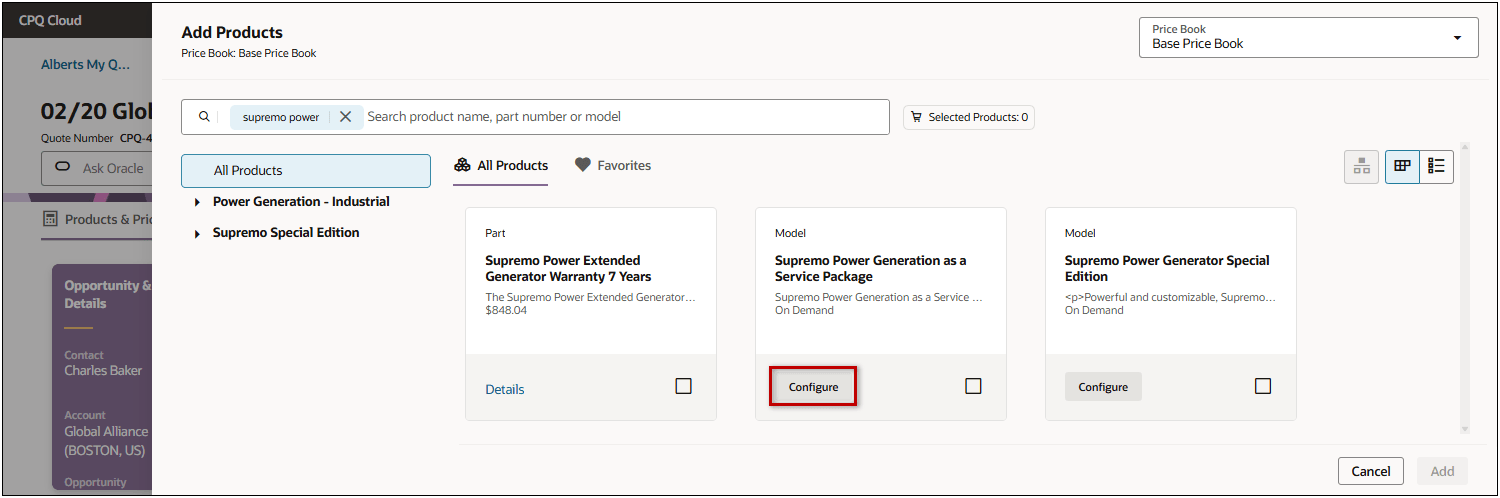
When enabled and deployed, top selling configuration recommendations are displayed when a user opts to Configure an applicable model.
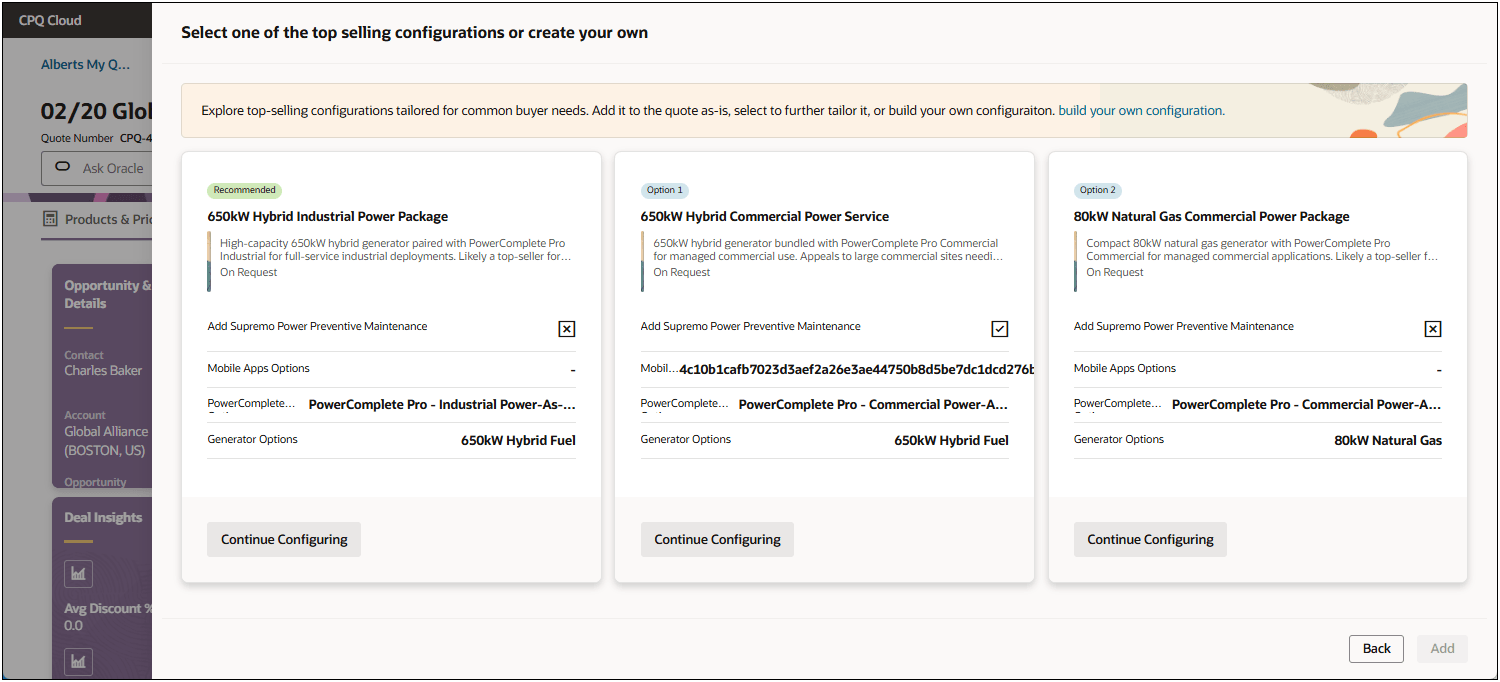
The top selling configurations are displayed along with relevant attributes that distinguish each configuration.
- When users click Continue Configuring, they can review and potentially edit the full proposed configuration before adding it to their quote.
- If they prefer to discard the recommended configurations, they can click build your own configuration.
-
Significantly reduces the time sales users spend configuring products from scratch, leading to faster deal closures.
-
Provides quicker, more efficient, and more complete configuration recommendations.
-
Removes the need for manual analysis or custom solutions to identify well-selling product configurations, delivering better sales guidance directly within CPQ.
Steps to enable and configure
Enable Top Selling Configurations in Quote Designer
Complete the following steps to enable Top Selling Configurations
- Open or create a Redwood quote, then click Design.
- Click the applicable view. (Products & Pricing is the default view for the Line Item Grid)
- If the Products Line Item Grid section is collapsed, click the Products Line Item Grid.
- Click next to the Line Item Grid actions.
- Click Customize Actions.
- Open the Add Products section.
- Check the Recommendations > Enable Top Selling Configurations option.
Add Intelligence Portal Top-Selling Configuration
Complete the following steps to create a Top-Selling Configuration in the Intelligence Portal.
- Log into Oracle CPQ as a Full Access user and navigate to the Admin home page.
- Select Intelligence Portal from the Products card ellipsis menu.
- Click on the Top-Selling Configurations tab.
- Click + Top-Selling Configuration.
- Define the Basic Details:
- Enter a Name for the configuration.
- Select the Configuration Model.
- Select a Commerce Process.
- Optional, enter a Description.
- Click Save & Continue.
- Optional, define Data Filters.
- Click + Add Data Filter to create a new filter.
- Select the Attribute, Operator, and Value.
- Click Create.
- Click Save & Continue.
- Optional, define Key Attributes to add your own key attributes.
- If desired, check Use Custom Key Attributes Only.
- Click + Custom Attribute.
- Select the applicable attribute from the Name drop-down.
- To remove a key attribute, select Delete from the Actions ellipsis menu.
- To change the order of the key attributes. click on the Reorder Attributes icon.
- Click Save & Continue.
- Train and deploy top-selling configurations.
- Click Train to add a new training session.
- Select Deploy from the line ellipsis menu for the applicable training session.
You can only deploy training sessions with a Trained status. - To remove a training session, select Delete from the applicable line ellipsis menu.
- To undeploy a training session, select Undeploy from the applicable line ellipsis menu.
- Click Done.