Integrate Calendars with Check-In Documents
As an employee or manager, you can select check-in meeting time and location so that check-in discussions are seamlessly tied to your daily events.
Check-in Calendar Integration Assistant Agent
You can schedule, update, and manage ad hoc and recurrent check-in discussions through the Check-in Calendar Integration Assistant agent to ensure check-in meetings are aligned with everyone’s availability, providing a smooth scheduling experience. The agent integrates with your Microsoft Outlook calendar allowing you to detect participant availability based on date and time. The agent generates available time slots by reviewing each participant’s calendar availability, the preferred time zones, and identifies the best overlapping time slots for the participants.
When scheduling or updating a check-in, you can choose from 9 available time slots for a 14-day consecutive window by checking the participant’s calendar.
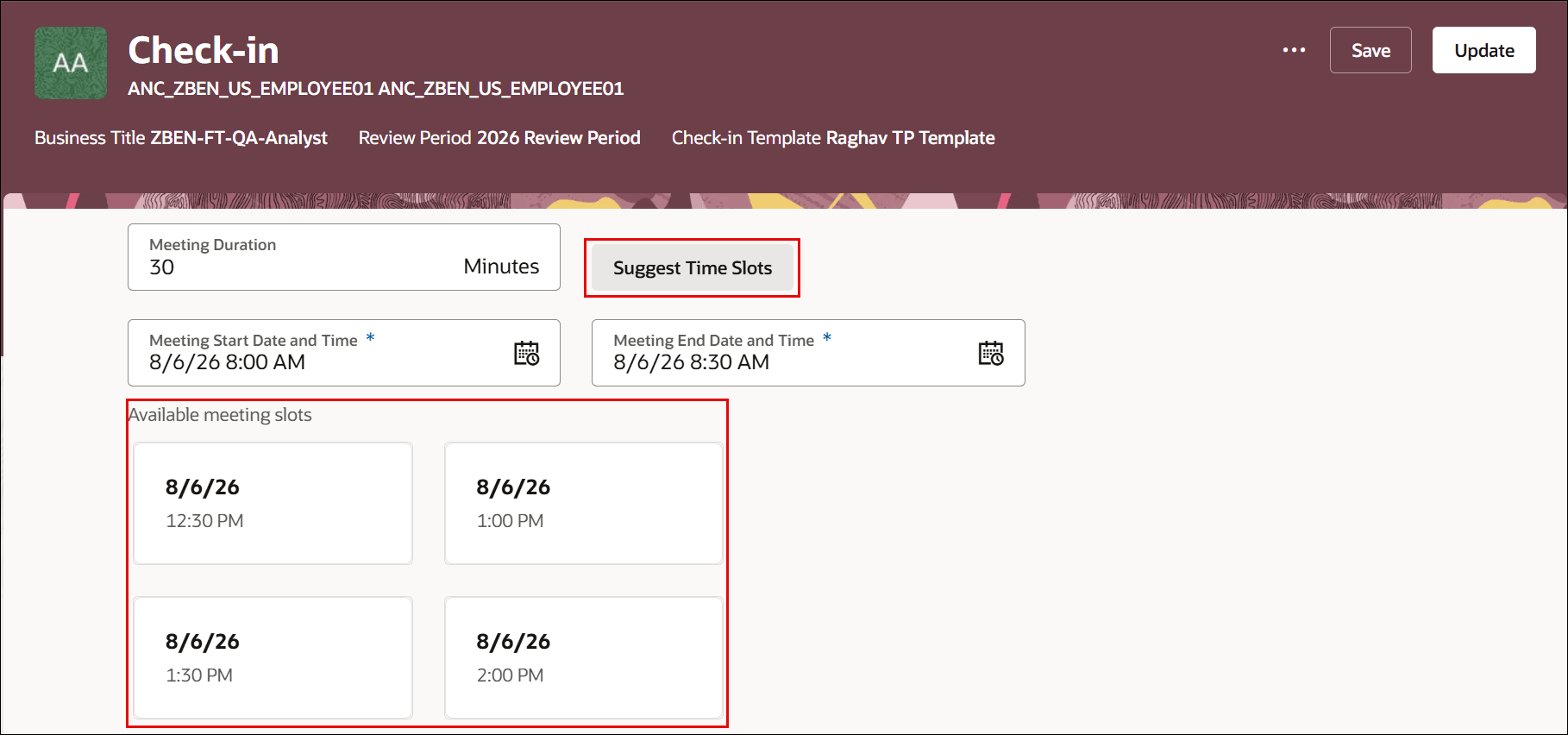
Suggest meeting slots
Updating Informal and Recurrent Check-in Discussions
You can update the date, time, or meeting details of a previously scheduled check-in to accurately reflect the changes for all participants. When you update an existing check-in, the updates are automatically sent to participants.
Note: Updates made to check-in meetings reflect in Microsoft Outlook, but not the other way around.
In case of recurring check-ins, the same time slot is chosen for all recurrences. You can update either a single recurrence or all future recurrences. The updates are automatically reflected in participants’ calendars.
When you delete a check-in the meeting invites are automatically removed from participants’ calendars and cancellation notifications are sent.
Office 365 Integration
You must set up the ORA_HRA_REAL_TIME_CALENDAR_INTEGRATION_OPTION profile option. Additionally, your administrator must specify the authorization parameters for the Office 365 Calendar Integration Tool to integrate Microsoft Outlook 365 calendar.
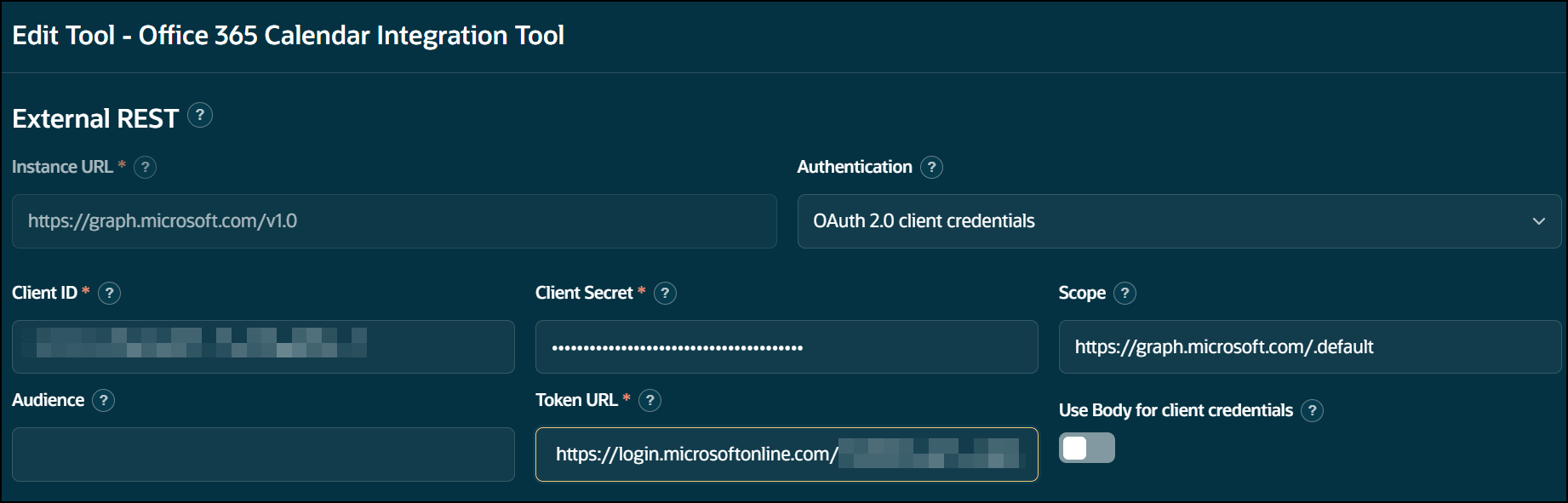
Office 365 Calendar Integration Tool
Business benefit
This feature allows you to:
- View available time slots based on participant availability
- Schedule meetings aligned with calendars
- Update meeting details with automatic notifications
- Avoid scheduling conflicts
- Manage recurring meetings flexibly
- Delete meetings with automatic calendar updates
Steps to enable and configure
You must set the ORA_HRA_REAL_TIME_CALENDAR_INTEGRATION_OPTION profile option to Microsoft Office Calendar. See Set Profile Option Values.
Configure the agent
- Your environment must have the appropriate services for Oracle Applications Platform deployed. For more information, see FAQ2521 on My Oracle Cloud Support.
- Set the Enable Security Console External Application Integration (ORA_ASE_SAS_INTEGRATION_ENABLED) profile option to Yes and enable permission groups for the appropriate roles. See Access Requirements for AI Agent Studio.
To learn how to set up AI agents, see Create AI Agents Using Preconfigured Agent Team Templates.
Specify Parameters for Office 365 Calendar Integration Tool
Before you specify parameters, your administrator must have:
- A registered Microsoft Entra ID.
- Appropriate read and write permissions for your organization.
If you administrator doesn’t do this task, your Microsoft Office 365 Calendar will not be integrated and you can’t specify meeting slots.
- Go to Tools > AI Agent Studio.
- Click the Tools tab.
- Search for Office 365 Calendar Integration Tool.
- Click View in the Actions column.
- Click Edit in the Authorization tab.
- Click Update after specifying the following:
| Parameter | Description |
|---|---|
| Instance URL | Base URL for the Microsoft Graph API used by the Office 365 Calendar Integration Tool. Enter https://graph.microsoft.com/v1.0. |
| Authentication Protocol | OAuth 2.0 client credentials authentication, managed by Microsoft Entra ID. Select OAuth2.0 client credentials. |
| Client ID |
Application (client) ID of the Performance Channel app registration. In the Microsoft Azure portal, go to Microsoft Entra ID > Manage > App registrations, select Performance Channel, and copy the Application (client) ID. |
| Secret | Client secret for the Performance Channel app registration. In Microsoft Entra ID, open Client credentials, create a new client secret, and copy the secret value. |
| Scope | Microsoft Graph application scope. Enter https://graph.microsoft.com/.default to request the application permissions granted to the app registration. |
| Token URL | Microsoft Entra ID OAuth 2.0 token endpoint. Enter https://login.microsoftonline.com/<Directory (tenant) ID>/oauth2/v2.0/token, replacing <Directory (tenant) ID> with the value from the Performance Channel app registration. |
Key resources
- Touchpoints Check-In Enhancements
- How do I use AI Agent Studio?
- Set Profile Option Values
- How do I use connectors in AI Agent Studio?
Access requirements
The agents you can view depend on the roles and privileges assigned to you. To access this agent, your role must be explicitly granted access to it by an AI Studio Administrator. See How can I give users access to AI agents and Access Requirements for AI Agent Studio.
To access all applicable Touchpoints features, managers and employees must have appropriate user roles.
| Duty Roles | Role Code | Job or Abstract Role | Privileges |
|---|---|---|---|
|
Access Touchpoints by Worker |
ORA_HRE_ACCESS_TOUCHPOINTS_BY_WORKER | Employee Contingent Worker |
HRE_ACCESS_TOUCHPOINTS_BY_WORKER_PRIV |
| Access Touchpoints by Manager | ORA_HRE_ACCESS_TOUCHPOINTS_BY_MANAGER | Line Manager | HRE_ACCESS_TOUCHPOINTS_BY_MANAGER_PRIV |
| Human Resource Specialist | ORA_PER_HUMAN_RESOURCE_SPECIALIST_JOB | Human Resource Specialist | N/A |