Redwood Experience: Agency Hiring
Take advantage of Agency Hiring that has been recreated in the Redwood toolset called Visual Builder Studio (VBS). When Redwood profile options are enabled the user experience is improved with a streamlined workflow and enhanced filter capabilities.
Agency Hiring and its Quick Actions are available in the My Client Groups area.
Getting Started
The flow for Agency Hiring kicks off when a recruiter in Hiring sends a recruiting agent an invitation to submit candidates for a job requisition. The recruiting agent can then act on that invitation and manage their candidates and processes in Agency Hiring.
When an agent submits a candidate, they’re referring that candidate to a specific job requisition at which point the candidate becomes a referral. The agent can see and track the progress of this candidate on the Referrals page. Next, the candidate receives an email inviting them to apply to the job. Once they submit their application or the agent submits the application on behalf of the candidate, the agent can see the application and candidate on the Job Applications page.
Agency Hiring is organized into four areas: Invitations (formerly Requisitions), Candidates (formerly Talent), Referrals and Job Applications.
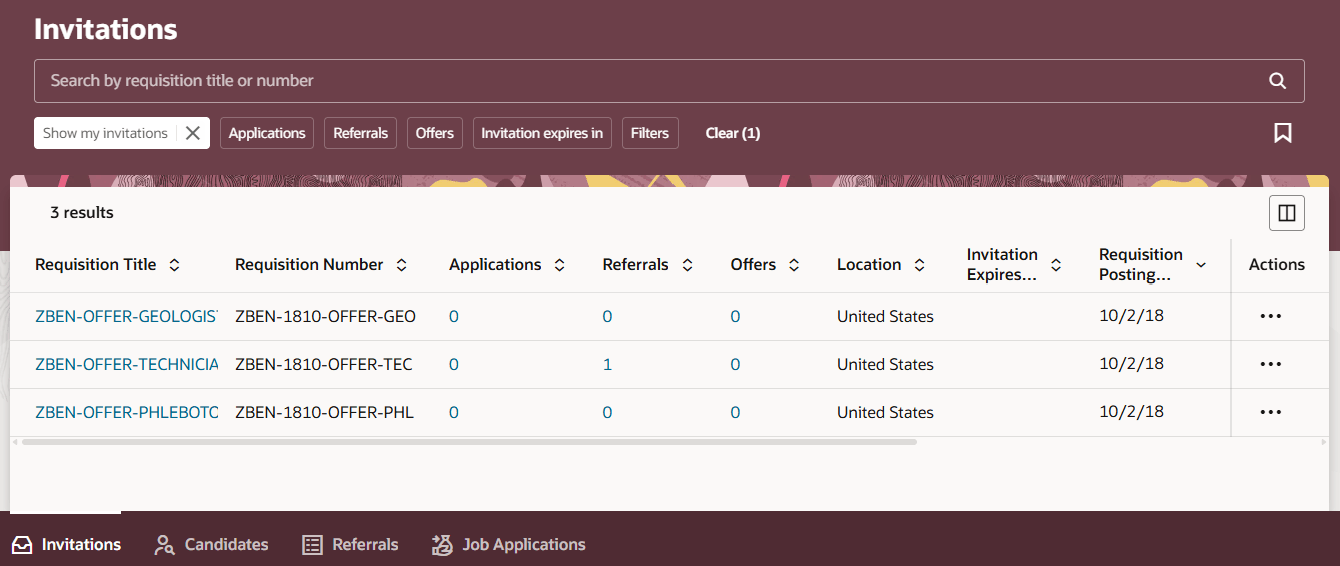
Agency Hiring Homepage
Invitations
This is where you view requisition details and submit your candidates. Once you submit a candidate, they become a referral and you can track their progress on the Referrals page.
Note: The My Invitations filter is enabled by default, you only see your job requisitions. To see all the requisitions shared with the agency you need to clear the filter.
Candidates
This is the list of your candidates. You can select an existing candidate to view and edit their candidate profile or create new candidates. Here you’ll see tabs for Details, Attachments, Activity and Interview. Drilling into these details allows you to get the full picture of your candidates and determine if you have anyone that’s a good fit to submit. You can also release a candidate from your pool of candidates here. Releasing a candidate ends their relationship with the agency but maintains them as a candidate in Hiring.
Referrals
Once you respond to your invitation by submitting a candidate you track their progress here in the Referrals tab. This is also where you can withdraw a referral.
Note: If you submit a job application on behalf of your candidate, you won’t see them here but rather on the Job Applications page.
Job Applications
If a candidate created a job application or you created it on their behalf, you’ll see it here. You can withdraw an application from here as well.
Business benefit: Broaden your candidate search by inviting agencies and their agents to refer candidates for job requisitions.
Steps to enable and configure
To use Redwood experience, you need to enable these profile options:
- ORA_IRC_RECRUITING_REDWOOD_ENABLED
- ORA_IRC_AGENCY_REDWOOD_ENABLED
For details, see How do I enable a profile option?
For details on enabling and customizing Redwood for HCM, see How do I adopt Redwood for HCM? and Extending Redwood Applications for HCM and SCM Using Visual Builder Studio
For privileges, see the Access Requirements section.
The Agency Hiring configuration is the same as in responsive UI. For details, see the Recruiting Agencies chapter in the Implementing Recruiting guide.
Access requirements
Users need this privilege:
- Create Candidate Job Application (IRC_CREATE_CANDIDATE_JOB_APPLICATION)