Redwood Experience: Changing the Theme for Employee Events
Employee event owners can now configure the theme displayed on tiles and banners while editing or creating events. (Me > Quick Actions > Communicate > Communications and Events Hub > Event Description tab)
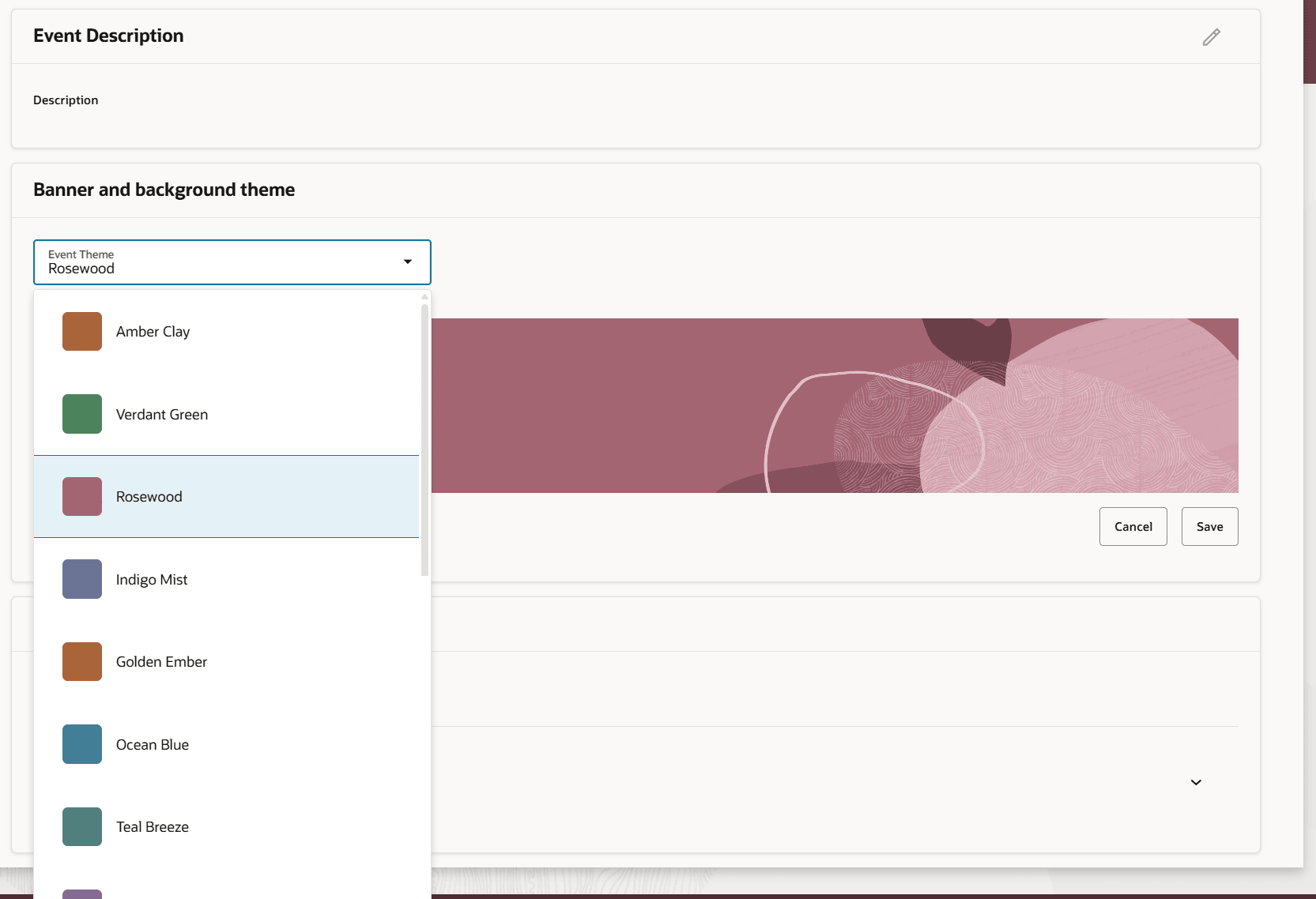
Select a Theme for Branding
They can select a new theme color, and view how it looks in Preview mode. They can select a different banner in Preview mode if they're in the creation flow. The preview button in this flow is labeled as Configure and Preview. Once saved, the theme is applied to the event details page.
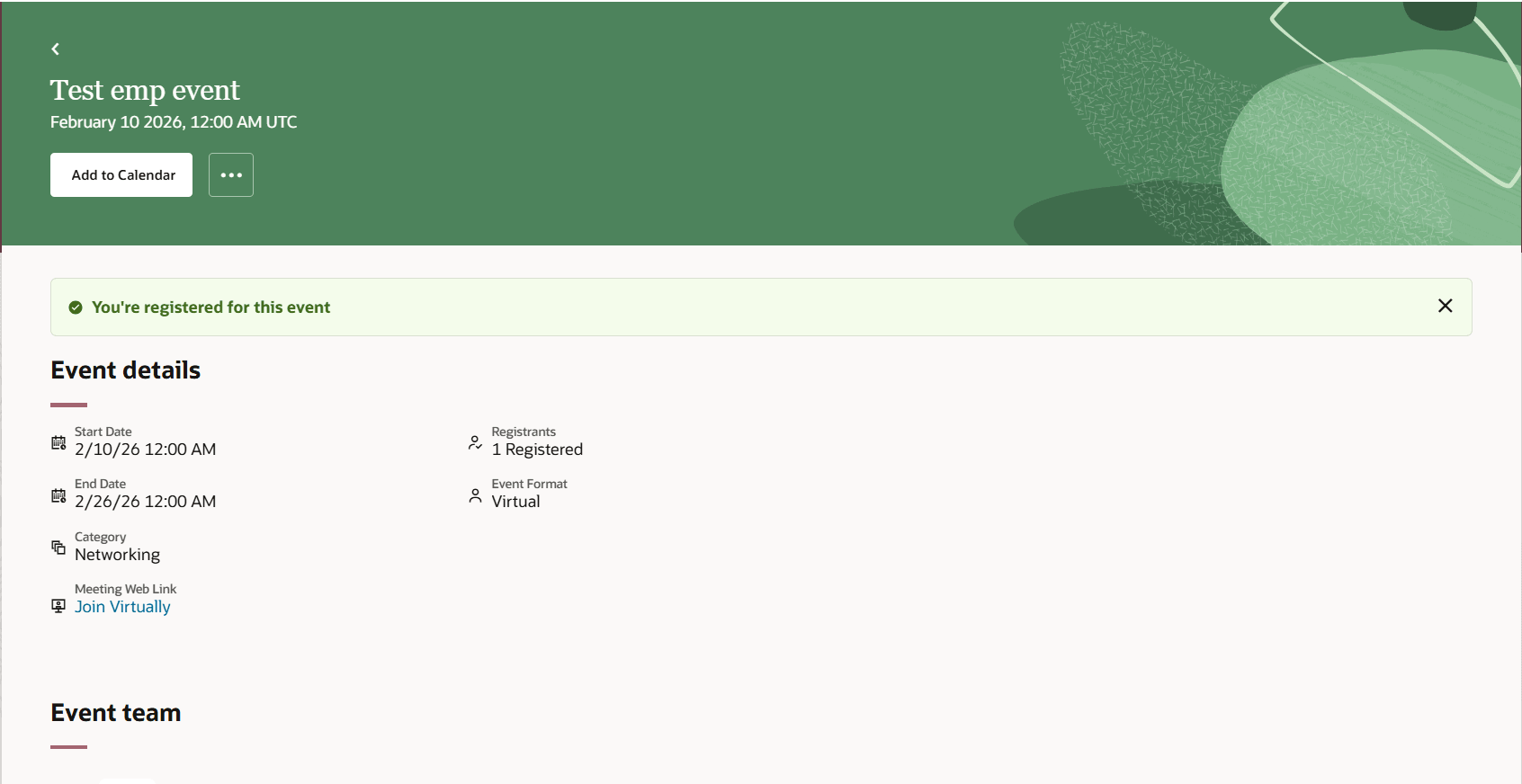
Selected Branding Theme Displays in the Event Details
The selected theme colors are also displayed on the Employee Event page.
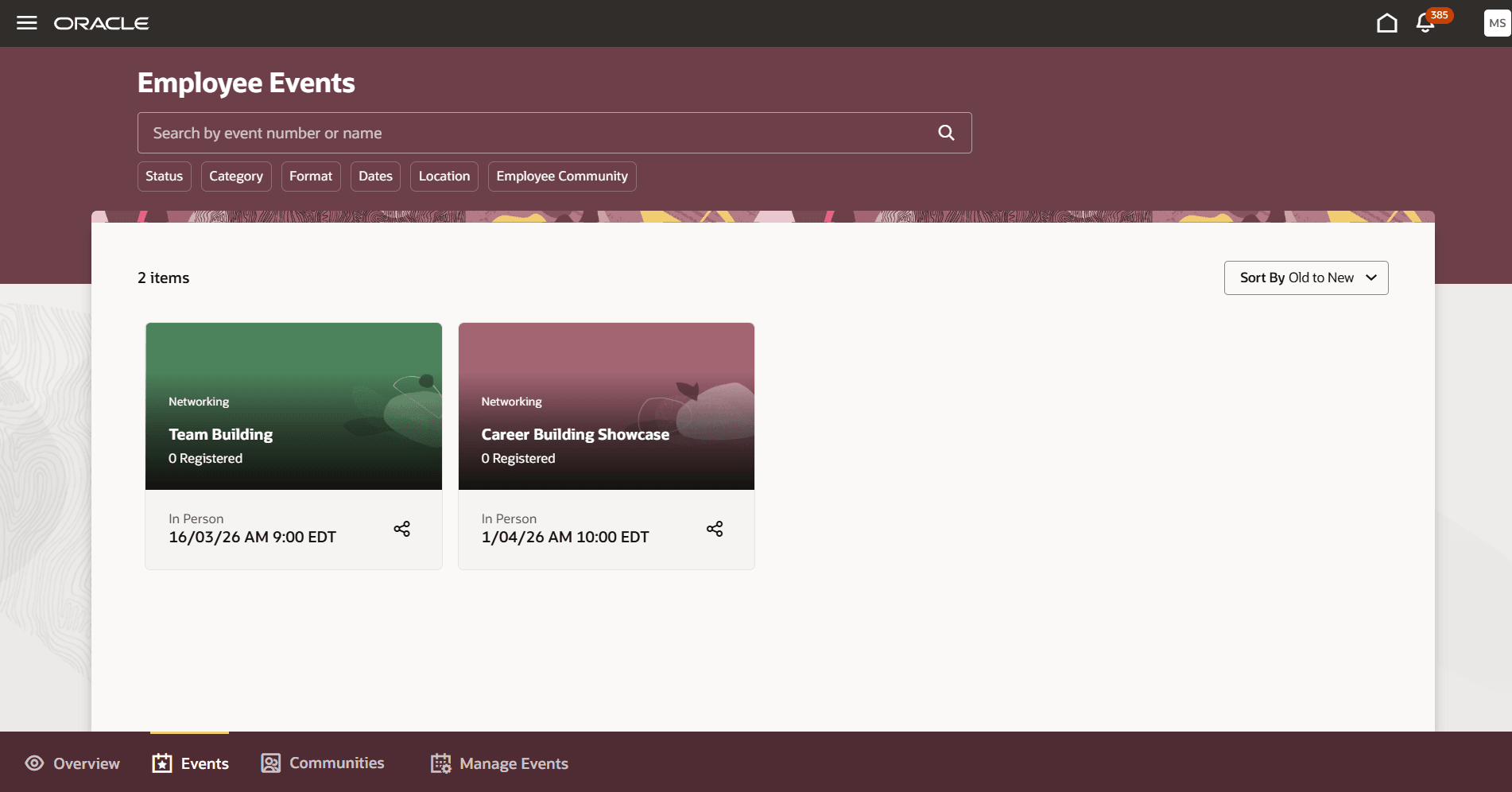
Employee Events Page
Business benefit: Pre-defined event themes enable quick customization of event details and list views, delivering a distinct look and feel for different event types.
Steps to enable and configure
For details see How do I change the branding for hiring events? (Draft emailed to Vinay on 2/10 for review.) (Draft resent on 2/18 via email.)
For privileges, see the Access Requirements section.
Key resources
For additional information, see Access Communications and Events in the Hub.
Access requirements
To see the Manage Events tab, users need this privilege: IRC_MANAGE_EMPLOYEE_EVENT_PRIV.