Expenses Agent for Cost Allocations and Additional Information
Use the Expenses Agent to split expenses across cost centers, projects, and tasks; monitor monthly and yearly spending limits; and support Flexible Key Flexfields (KFFs) by displaying selected accounting segments in the Redwood-themed Progressive Web App (PWA). In addition to the Redwood interface, employees can use email to provide Flexible KFF values and respond to monthly or yearly limit validations.These enhancements improve the accuracy of expense allocation and accounting.
- Expense splitting: Employees can split expenses across cost centers or assign them to projects and tasks.
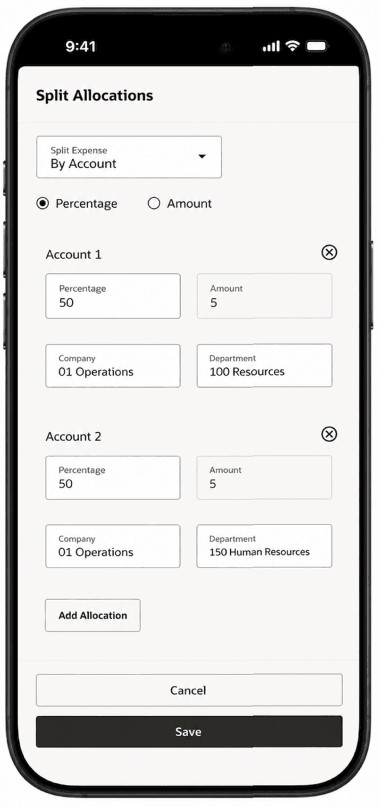
Splitting an expense across accounts.
Note: Splitting expenses to project and task will be available in 26C Cohort B.
- Flexible Key Flexfields: Employees can charge expenses to the accounting segments configured for their business.
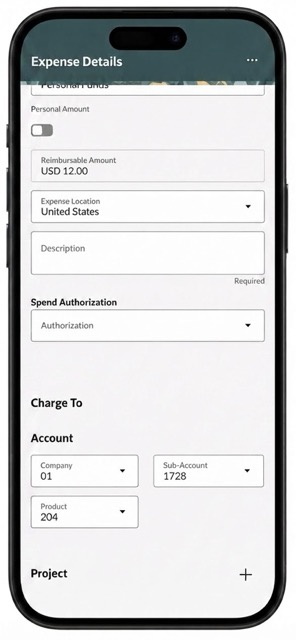
Charge to configured accounting segments.
Use email to update Flexible KFF values.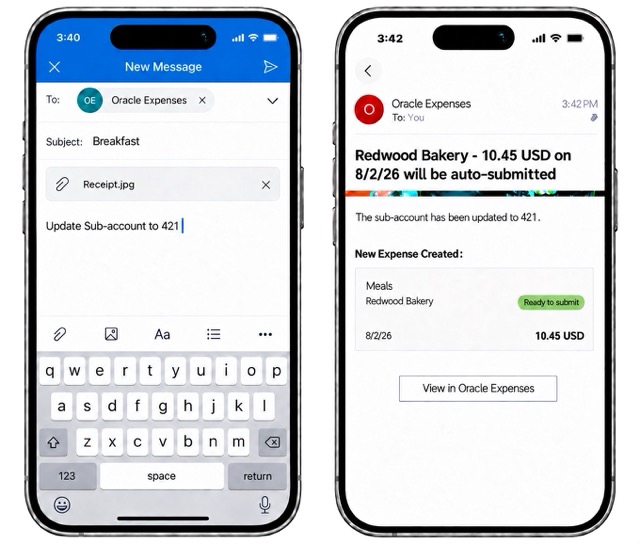
Provide Flexible KFF values through email and the response email from the Expenses Agent to indicate the KFF value is updated.
-
Monthly and Yearly Limits: Monthly and yearly spending limits for Entertainment and Miscellaneous expenses are now supported.
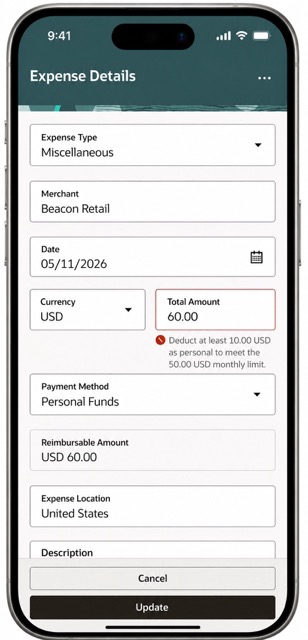
Monthly limit validation.
Use email to respond to monthly or yearly limit validations
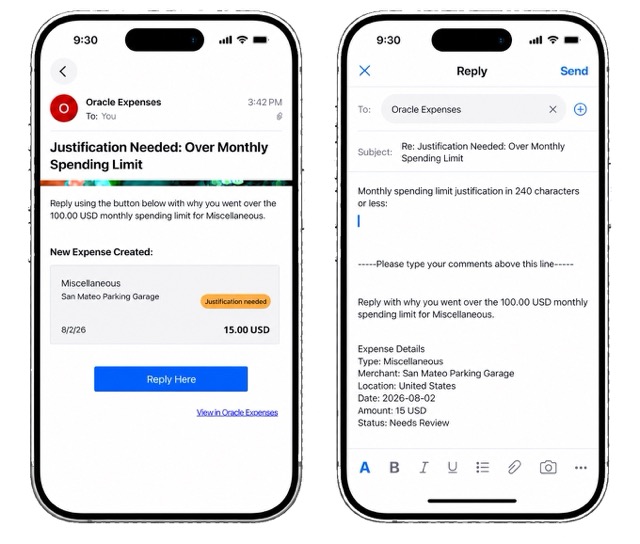
Expenses Agent requesting justification for monthly limit validation and the response template for user to reply.
Business benefits include:
- Split Allocation enables accurate distribution of expenses across accounts or across projects and tasks, improving cost tracking and increasing productivity.
- Flexible KFF improves the expense entry experience by allowing only relevant accounting segments to be displayed in the PWA UI or captured through email, reducing complexity and improving completion accuracy.
- Monthly and yearly limits help enforce spending policies by controlling expenses within defined thresholds, improving compliance with organizational expense policies.
Steps to enable and configure
To use these capabilities, first enable Expenses Agent as outlined in the Expenses Agent Detailed Adoption Guide.
Expense Splitting:
1. Enable lookup EXM_38971578
- Navigate to Setup and Maintenance.
- Search for and open Manage Standard Lookups.
- Search for lookup type ORA_ERP_CONTROLLED_CONFIG.
- In the Lookup Codes table, select Actions > New.
- Create and save a lookup code for EXM_38971578.
2. In the Setup and Maintenance work area, select these options:
- Navigate to Setup and Maintenance.
- Open the Manage Expenses System Options task.
- In the User Options for Expense Report section, set the value of the Enable Split Allocation field to Yes.
3. Refer to Access requirements section for the security configuration.
Flexible Key Flexfields:
1. Assign the Expense Override Segment label to the accounting segments you want employees to use in the Redwood interface.
-
Sign in as an Application Implementation Consultant.
-
Navigate to Setup and Maintenance.
-
Open the Manage Key Flexfields task.
-
Search for the General Ledger Key Flexfield with code GL#.
-
Click Manage Structures, then edit the applicable structure.
-
Select the required segment and click Edit.
-
Assign the required segment labels. Select Expense Override Segment where applicable.
-
Click Save and Close.
2. From the Manage Key Flexfields page, deploy the General Ledger Key Flexfield.
3. Enable lookup EXM_39687658.
-
Navigate to Setup and Maintenance.
-
Search for and open Manage Standard Lookups.
-
Search for lookup type ORA_ERP_CONTROLLED_CONFIG.
-
In Lookup Codes table, select Actions > New.
-
Create and save a lookup code for EXM_39687658.
4. Wait at least one hour before continuing to the next step.
5. From the Manage Key Flexfields page, deploy the General Ledger Key Flexfield again.
6. Enable lookup EXM_39339003.
-
Navigate to Setup and Maintenance.
-
Search for and open Manage Standard Lookups.
-
Search for lookup type ORA_ERP_CONTROLLED_CONFIG.
-
In Lookup Codes table, select Actions > New.
-
Create and save a lookup code for EXM_39339003.
7. Employees must be assigned the Override Expense Account Allocation privilege to override expense account details.
8. If segment value security is enabled, follow the steps in support note to enable the SAS policy for the required value sets and grant the appropriate permission groups and security views to the user's role. Refer to topic for more details on segment value security by business function.
Note: Segment value security by business function (SVSBF) isn't supported in Expenses Agent. If enabled, SVSBF security definitions are not enforced, and the configuration behaves as unsecured.
- Monthly/Yearly Limits:
- Monthly and yearly limits are applicable to the Miscellaneous and Entertainment expense type.
- Use the steps outlined in the Entertainment Expense Policy document to set up an entertainment expense with a yearly policy limit.
- Use the steps outlined in the Miscellaneous Expense Policy document to set up a miscellaneous expense with both monthly and yearly policy limits.
- Monthly and yearly limits are applicable to the Miscellaneous and Entertainment expense type.
Tips and considerations
- When Flexible KFF is configured, it takes precedence and displays the administrator-selected key flexfield segments in the Redwood experience.
- When Flexible KFF configuration isn’t enabled and the Full Account Override profile option (EXM_FULL_ACCOUNT_OVERRIDE) is enabled:
- Employees continue to use the Classic Expenses experience.
- Employees can’t split an expense across multiple account details or projects in the Redwood experience.
- Related Value Sets (RVS) isn't supported within Flexible KFF. For Partial KFF configurations, RVS is supported only when the relationship is defined between the following Accounting Flexfield segments and both segments need to be visible on the UI
- GL_BALANCING
- FA_COST_CTR
For Partial KFF, RVS relationships configured between any other segment pair aren't supported, including in Classic Expenses.
Key resources
Access requirements
To split expenses by account or project, users must have the appropriate privileges assigned to them.
- Split by account:
- Create a custom job role that contains the Override Expense Account Allocation privilege.
- Assign the new custom role to the user.
- Split by project:
- Create a custom job role that contains the Allocate Project Expense privilege.
- Assign the new custom role to the user.