Expense Completion Using Email with Any User Experience
Users can email receipts directly to the Expenses Agent to create and complete expenses without ever entering the application. This option is available regardless of the application user experience - Redwood theme Progressive Web App (PWA) or otherwise. Details for the Expenses Agent using the PWA user experience is available in the General Adoption Guide and Detailed Adoption Guide.
If required information is missing, such as attendee details, justifications, cost center, project, task, spend authorization, merchant, or dates, the Expenses Agent replies by email and asks the employee to provide the missing details. Employees can respond in natural language to the email request. The Expenses Agent uses the response to update the expense and continues processing it. When all required information is available, the expense is marked ready to submit. If an issue can’t be resolved through email, the employee is directed to complete the expense manually in the application.
Example:
An employee emails a receipt to the Expenses Agent with available expense details, such as attendee information.
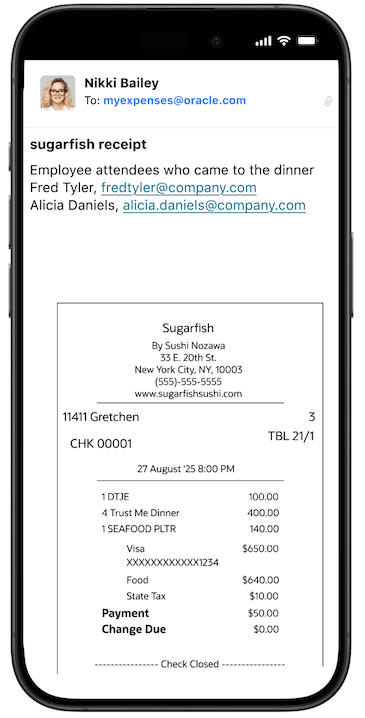
Employee emails a receipt with available expense details
If additional information is required, the Expenses Agent sends an email requesting the missing details. In this example, it asks for a justification because the expense exceeds the daily spending limit. The employee responds in natural language, and the Expenses Agent uses the response to update the expense.
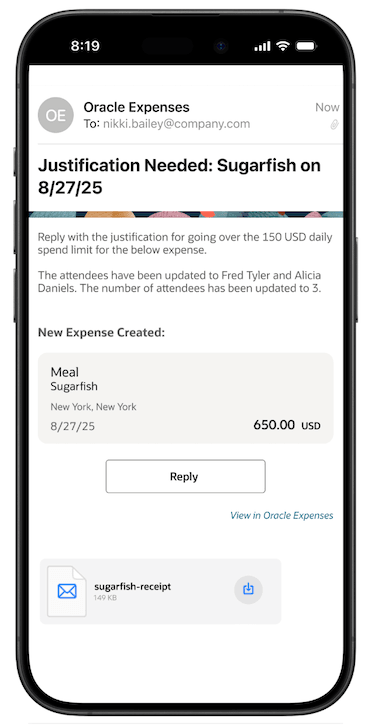
Expenses Agent requests missing information by email
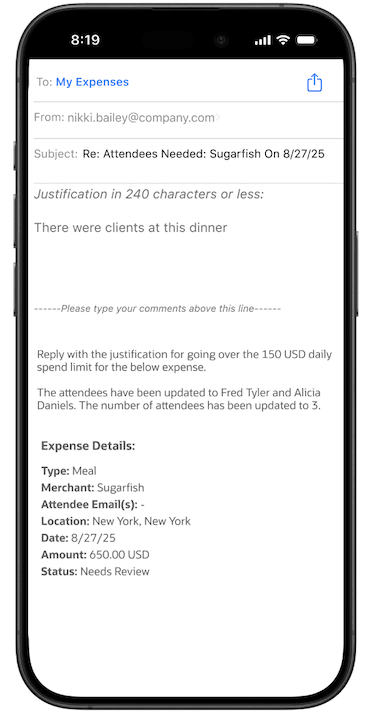
Employee responds in natural language
Business Benefit
Employees can now create and complete expenses directly from email, reducing manual data entry and helping capture missing information earlier in the process. This minimizes back-and-forth, improves expense completeness, and helps accelerate expense submission and reimbursement. For customers yet to transition to the PWA experience, this provides an easy way to start benefiting from AI-powered assistance while paving the way for a future transition to the newer UI experience, where even greater efficiency and automation can be achieved.
Steps to enable and configure
To enable email-based expense completion:
- Configure electronic receipt forwarding so employees can email receipts to the Expenses Agent.
- In Setup and Maintenance, navigate to Manage Auto Submission and Matching Options > Electronic Receipt Setup and set Enable Electronic Receipts Processing to Yes.
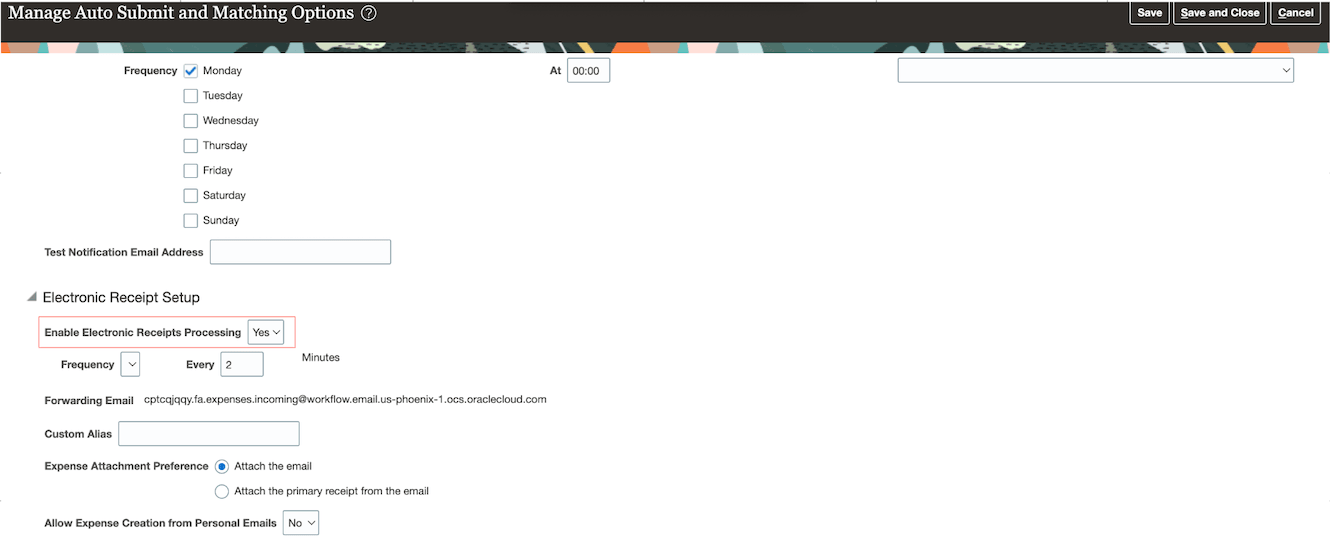
Manage Auto Submission and Matching Options page
- In Manage Expenses System Options, for the Business Unit, click on Corporate Options for Expense Report tab and set Enable Expense Completion Using Email for Classic Expenses to Yes.
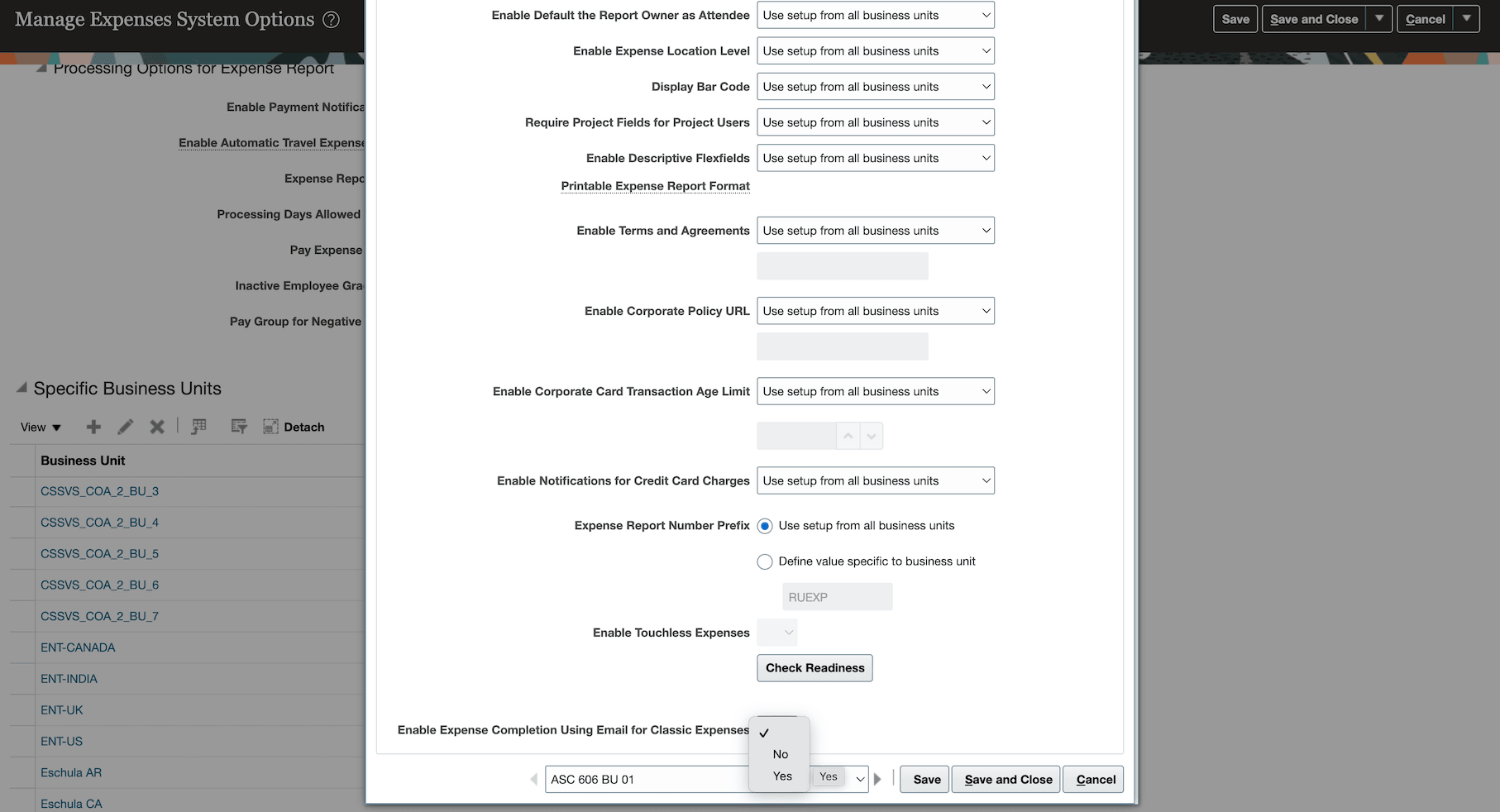
Corporate Options for Expense Report window
-
For a limited rollout using pilot users only:
- Complete the steps above and create and set the profile option EXM_AGENTIC_EMAIL_PROCESSING to Y in the Manage Administrator Profile Values page. Enable the profile value for specific pilot users as shown below.
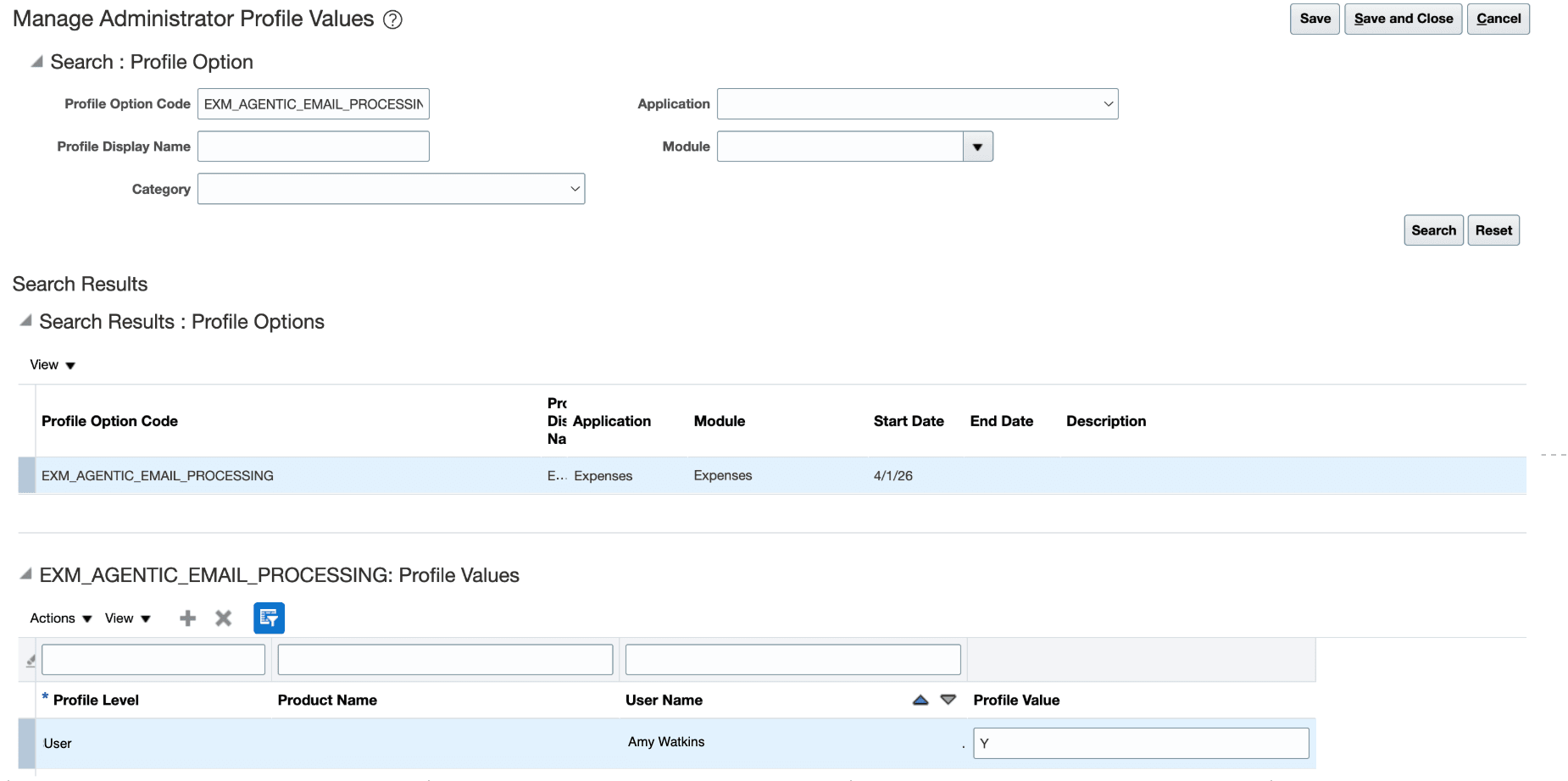
Manage Administrator Profile Values page
- Refer to the Access requirements section for security configuration.
Tips and considerations
- Receipts must be clear and attached in a supported format, such as JPEG, PNG, PDF or EML.
- For best results, users should put their expense instruction at the top of the email body, before signatures, disclaimers, or forwarded message chains, and use clear field-and-value wording such as “Set expense type to Meals” or “Update project to ABC Constructions and task number to 01”.
- Keep each receipt attachment under 4 MB. Text-only emails without a real receipt attachment aren’t a recommended way to create expenses.
- Expense policies and related validations must be configured so the company rules can be enforced.
- Errors such as invalid cost centers and missing mandatory fields result in one concise email prompting corrective action.
- If required information cannot be supplied using email such as tax code classification or if unable to resolve project or cost center or other information provided by the user, the agent will direct the employee to the UI for manual completion. If the agent directs the employee to Oracle Expenses, the employee should complete the expense in the application instead of continuing to reply to the email thread. Email-based guided completion supports a maximum of two guided reply turns.
- The email subject is taken as the default expense description if the user doesn't specify the expense description explicitly in the email body instructions.
Access requirements
Assign the Enterprise Resource Planning Self Service User role. If this role isn't assigned to the user, assign the ORA_DR_EXM_SELF_SERVICE_EXPENSES duty role.
Refer to the Provision Users (same as Expenses Agent for PWA) for detailed information.