Expenses Agent Enhancements for Receipt Capture and Matching
Employees can now view itemization details from corporate card data and accommodation receipts, assign spend authorization to expenses, and select any configured location format on the Expense Details page. These ongoing enhancements to the Expenses Agent drive productivity and strengthen compliance by empowering employees to complete expense reports quickly and accurately.
- Automatic Itemization: By default, accommodation expense emails now include a detailed breakdown of charges. In addition to this, if itemization is required, itemized lines are automatically created for the accommodation expense in the desktop application.
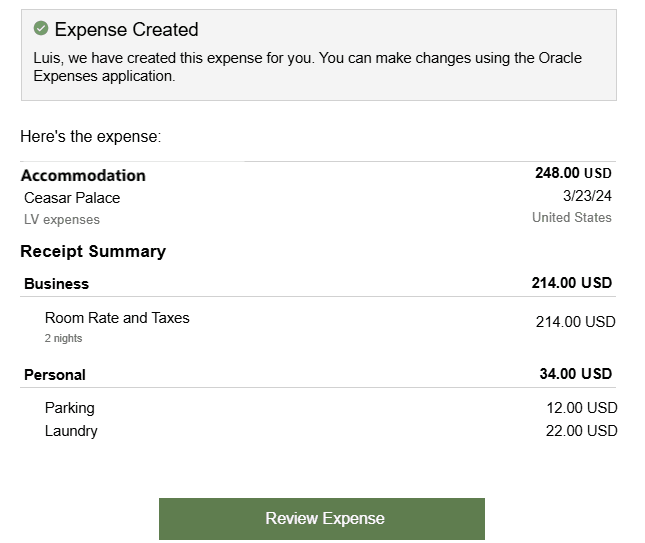
Receipt summary in email
- Spend Authorization: The Spend Authorization field allows employees to attach a preapproved spend authorization to an expense. To use this feature, Spend Authorizations must be enabled, and “Attach Authorizations” must be set up as Lines Only.
NOTE: Create spend authorizations in Standard Expenses.
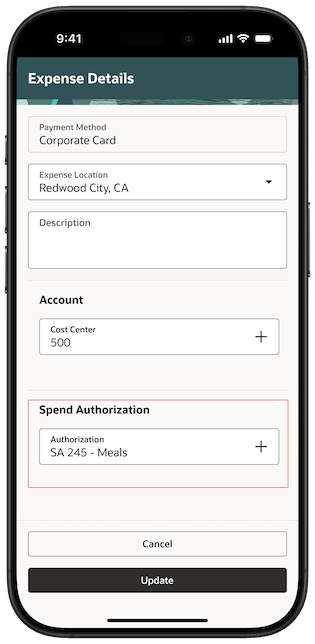
Associating a spend authorization to an expense
- Full Location: Provide country, state, and/or city, state, country on the Expense Details page, depending on configuration.
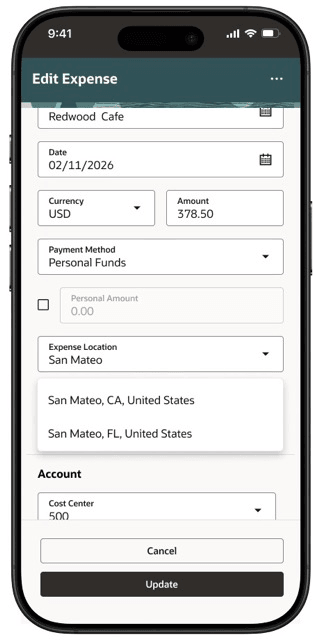
Selecting a location when the full location is configured.
Business benefits include:
- Automatic itemization provides a clear, line-by-line breakdown of expenses, reducing ambiguity and speeding approvals.
- Spend authorization ensures expenses are preapproved, helping to streamline compliance, control spending, and accelerate reimbursements.
- Location selection improves accuracy by capturing the right city/state/country for each expense, supporting correct policy application, reporting, and faster approvals.
Steps to enable and configure
- Spend authorization: To view the Spend Authorization field in the application, administrators must enable the following.
- In Manage Cash Advances and Authorization Policies, select the relevant business unit and set the Enable Authorizations field to Yes.
- Next, set the Attach Authorizations field to Lines Only.
- Configure the spend authorization Behavior as Optional or Required, based on your requirement.
- Full location support: To view the full expense location in the application, administrators must enable the following.
- In Manage Expenses System Options, select the relevant business unit.
- Set Enable Expense Location Level to one of the following:
- All Locations
- Country
- Country and State or Province
Key resources
- To use these capabilities, first enable Touchless Expenses as outlined in the Touchless Mobile Expenses (25D) feature.
- What's New in 26A
Access requirements
No new access requirements.