Creating a Task Manager Query
Creating a query is the first step in creating a custom report.
To create queries:
-
From the Home Page, click Application, and then click Task Manager.
- Select the Task Manager Reports tab on the left.
- On the Queries tab, click
 New.
New.
- On the New Query screen, enter a Name and an optional Description.
-
From Type, select an option:
-
Parameter Query: A Parameter Query type is used to present a list of options that you can specify for this parameter's value. Parameter Query allows you to present a list of options used when filling in a parameter's value for a Report Query, where the list of options is not a simple Attribute already defined, but is instead a complex query that you need to define.
This parameter query example provides a list of all Task Manager periods:
SELECT PERIOD_ID, PERIOD_NAME FROM
                                FCC_PERIODS
WHERE APP_ID=1 -
Report Query: Select the records to be included in the report. You can apply a security filter, so users see only the data that they are authorized to see based on their roles and the reports to which they are assigned. To apply a Security Filter to a report query, add the following syntax to the end of the query WHERE CLAUSE statement.
$FCC_SECURITY_CLAUSE$When using
$FCC_SECURITY_CLAUSE$in the query, theFCC_TASKSmust be aliased toTaskEOBecause many predefined queries included with Task Manager have the Security Filter applied, you can use them as examples when building your own.
For example, the following Report Query specifies scheduled tasks to display Task Code, Name, Assignee and Schedule for all High Priority tasks in the selected schedule.
SELECT TaskEO.TASK_CODEAS "$TASK_CODE$",TaskEO.TASK_NAMEAS "$NAME$" ,((SELECT CASE WHEN FIRST_NAME IS NULL AND LAST_NAME IS NULL THEN USER_LOGIN ELSE FIRST_NAME||' '||LAST_NAME END FROM FCM_USERS WHERE USER_ID = (coalesce(AssigneeEO.ACTIVE_USER_ID, AssigneeEO.USER_ID))))AS "$ASSIGNEE$" ,DeploymentEO.DEPLOYMENT_NAMEAS "$SCHEDULE$"FROM FCC_TASKS TaskEOLEFT OUTER JOIN FCC_ACCESS AssigneeEO ON (TaskEO.TASK_ID = AssigneeEO.SOURCE_ID AND AssigneeEO.ACCESS_TYPE = "AS")LEFT OUTER JOIN FCC_DEPLOYMENTS DeploymentEO ON (TaskEO.SOURCE_ID = DeploymentEO.DEPLOYMENT_ID)WHERE (TaskEO.SOURCE_TYPE = "DEPLOYMENT")AND ((((TaskEO.PRIORITY=3 )AND (TaskEO.SOURCE_ID=~SCHEDULE~ ))))
-
-
Click Generate Query to build the query from the New Query dialog. The dialog assists you in creating a query against the database by allowing you to select any existing attribute in the product to be queried and/or filtered against. The system then generates the SQL to match the specified attributes and filters, at which time you can modify and enhance it.
- On the Select Type screen, select options:
- From Query, select Template Tasks or Schedule Tasks.
- Optional: Select the Apply Security checkbox to automatically apply the user security filter to the generated query. This applies the Security token to the query, to be filled in with the correct SQL when the report is generated.
- Click Next.
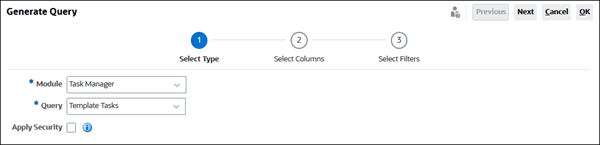
- On the Select Type screen, select options:
- From Select Columns, select the columns to display in the
query, and then click Next.
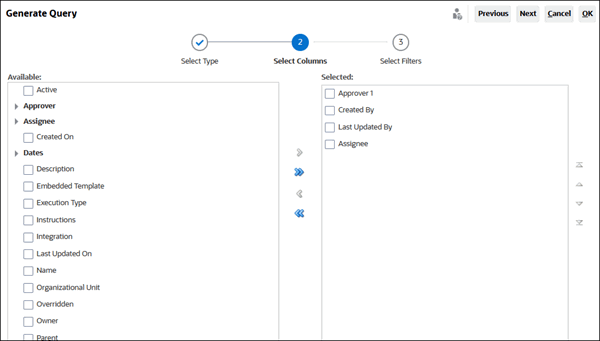
- From Select Filters, click Create
Condition or Create Condition Group and
select the conditions to create the filters to create the query.

- Click OK.
- Optional: If you want to use the report in the future, click Generate Sample XML.
- Click Save.
- To test the query for errors:
- Click Validate from the New Query dialog. You can
also select Validate from the drop-down list.

The query displays in the Queries tab.
Note:
You can easily delete a query, or duplicate a query using the Action menu. - Click Validate and Explain Plan from the drop-down to
validate the query and also generate the execution plan for this query. A
.txt file that uses the same name as the query is generated. You can view or
download the generated plan.
Open this file to view the generated plan which contains the sequence of steps that is performed to run this query. If the performance of a query is suboptimal, you can use this plan to understand the cause of the problem and determine the best way to improve the query performance.
Note:
By default generation of execution plans is available only for OCI (Gen 2) environments. To enable it for Classic environments, contact Oracle using a service request.
- Click Validate from the New Query dialog. You can
also select Validate from the drop-down list.
Using Date Parameters
When defining queries for task manager reports, you can define runtime parameters and
then pass these parameters to the report query. If your report query references a
database column that's defined as a date data type, you may need to
use the to_date function to make sure that the report parameter is
correctly interpreted when the system runs the report query.
In the following sample, the system captures a date from the user, and the
to_date function is used in the where clause to convert the
date to the correct format for the query. The where clause entry for the date field
is coded as
(TDATASEG.PERIODKEY)=to_date('~POVPERIOD~','YYYY-MM-DD') to
make sure that the date selected from the parameters is interpreted by the system in
the correct format.
The full query is:
SELECT ENTITY, ENTITYX, ACCOUNT, PERIODKEY, tPOVPartition.PartName AS Partitionkey,  tPOVCategory.CatKey,  tPOVCategory.CatName,  ACCOUNTX, UD1, UD1X, UD2, UD2X, UD3, UD3X, UD4, UD4X, UD5, UD5X, UD6, UD6X, UD7, UD7X, UD8, UD8X, UD9, UD9X, UD10, UD10X, UD11, UD11X, UD12, UD12X, UD13, UD13X, UD14, UD14X, UD15, UD15X, UD16, UD17X, UD18, UD18X, UD19, UD19X, UD20,UD20X,DESC1,DESC2,DATAVIEW,CURKEY,AMOUNT,AMOUNTX  from TDATASEG INNER JOIN tPOVCategory  ON tDataSeg.CatKey = tPOVCategory.CatKey  INNER JOIN tPOVPartition  ON tDataSeg.PartitionKey = tPOVPartition.PartitionKey
WHERE (((TDATASEG.PERIODKEY)=to_date('~POVPERIOD~','YYYY-MM-DD')) AND ((tPOVCategory.CatKey)=~POVCAT~) AND (~POVRULE~ is NULL or RULE_ID = ~POVRULE~) AND ((tPOVPartition.PartitionKey)=~POVLOC~ ))
The Period query is defined as:
select periodkey, perioddesc from TPOVPERIODModifying A Query
A system administrator can edit a Task Manager query.
-
From the Home Page, click Application, and then click Task Manager.
- Select the Task Manager Reports tab on the left.
-
Select the Queries tab if it's not already selected, and then Edit from
 next to the query you are editing.
Note:
If it is locked, ask the System Administrator to unlock.
-
Select Task Manager query.
- In Edit Query, edit the information as needed.
- After you are done with your changes, click Save and Close.