Drilling Through to Source Data
You can drill through from Predictive Cash Forecasting to Cloud ERP aggregate Analytical Views and detailed transactions to understand the actuals and forecast in detail and for deeper analysis.
The drill-through capability allows cash and treasury users to understand the forecast amount in detail in the context of additional business attributes. You can drill to web-based aggregate Analytical Views and further to detailed transactional views for Receivables, Payables, and Cash Management for the seeded cash flow sources. These transaction listings and their business attributes help you understand, analyze to make decisions for actions, and gain confidence of the forecast outcomes.
Drill-through is available for line items that are forecast using the Smart Driver method. You can also drill through on actuals data. You can export the drill-through data to Excel.
Drill-through is available for daily and weekly forecasts.
Drill-through only displays data the user has access to.
Before beginning cash forecasting, make sure you or your administrator has run the Daily/Periodic Process Actuals and Daily/Periodic Process Forecast rules. If you are using multiple currencies, there are additional rules the administrator must run.
To drill through to aggregate forecast data in ERP:
-
From the Home page, click Daily Cash Forecast or Periodic Cash Forecast. If you are a Cash Manager, then click Daily Rolling Forecast or Periodic Rolling Forecast from the vertical tabs.
- Click the Rolling Forecast form.
- Select the slice of data you want to analyze, then right-click a line item category
you're interested in, and then click View by Forecast Method.
For example, right-click Customer Receipts and then click
View by Forecast Method.
A blue triangle in the upper right corner of a cell indicates that drill-through is available.
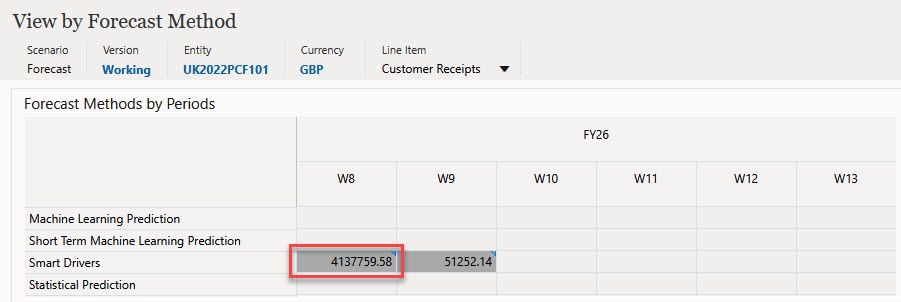
- Right-click a cell with the drill-through indicator and then click Drill
Through to source.
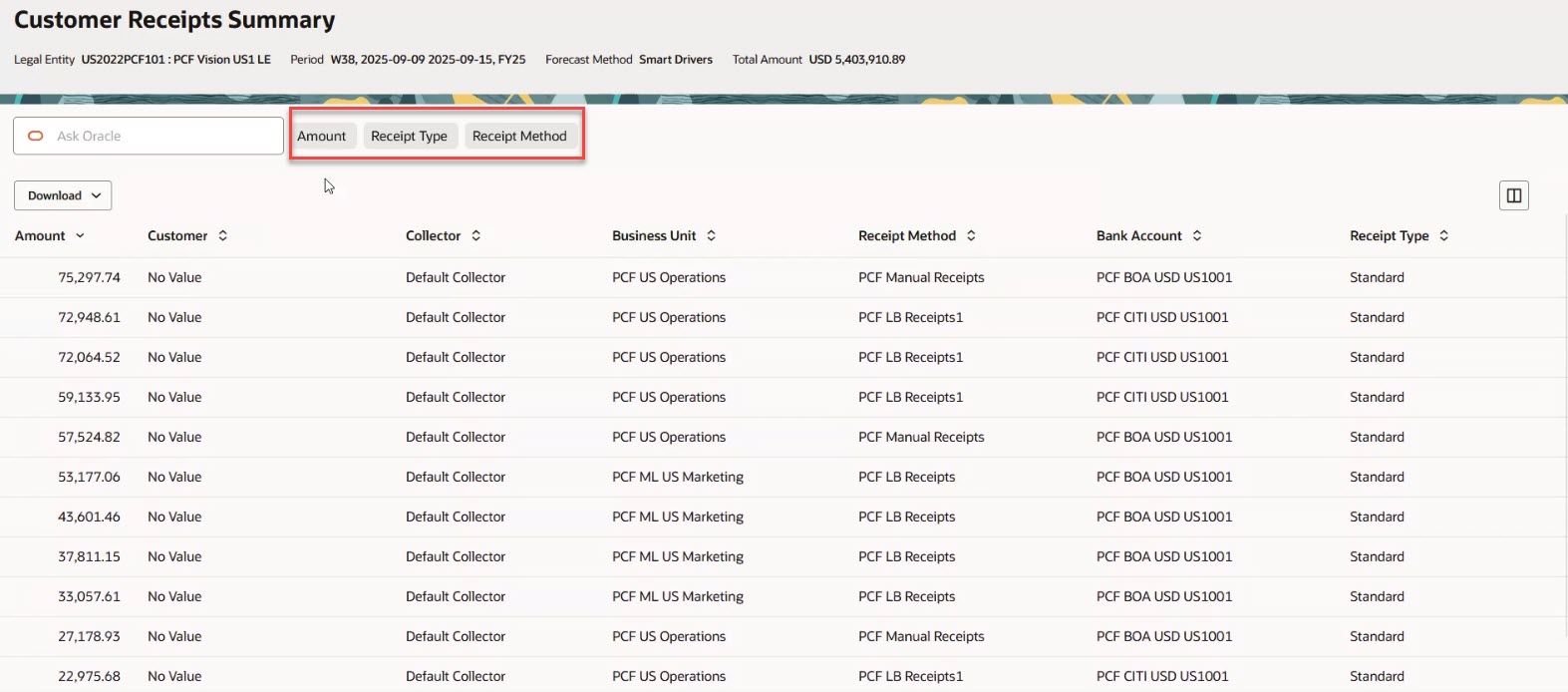
A new tab opens in your browser with the detailed data for the selected line item.
Note:
Make sure pop-ups are allowed in your browser for your server URL. - To filter the displayed data:
- Click a filter chip and then select or enter filter values to filter the
data.

The filter options vary depending on the line item category.
- Enter search text in the text box.
- Click a filter chip and then select or enter filter values to filter the
data.
- To download the data to a
.CSVfile, click Download and then select from the following:- All Aggregate Transactions—Exports the aggregated data from the current POV and combination of currency and date. The exported data is not filtered if any filters have been applied.
- All Transactions—Exports all the detailed transactions that make up the total aggregates from the current POV and combination of currency and date.
-
To drill through on another line item category, return to the View by Forecast Method form and select a line item category from the Line Item list.
To drill through to aggregate actuals data in ERP:
-
From the Home page, click Daily Cash Forecast or Periodic Cash Forecast. If you are a Cash Manager, then click Daily Rolling Forecast or Periodic Rolling Forecast from the vertical tabs.
- Click the Rolling Forecast form.
- Right-click a cell and then click View Actuals.
- From the Line Item list, select any line item that has actuals.
- Right-click a cell with the drill-through indicator and then click Drill
Through to source.
A new tab opens in your browser with the detailed data for the selected line item.
Note:
Make sure pop-ups are allowed in your browser for your server URL. - You can filter and download data just as you can for forecasted data.