Troubleshooting Price Rules in Advanced Pricing
If a price rule price looks wrong, the cause is often a delayed update to a dynamic item collection or saved search-based dynamic customer group. Use the steps below to diagnose what's happening and fix it.
Before You Start
This article applies when:
-
Your price rule uses an item collection or customer group that's based on a saved search.
-
You recently changed the saved search, and pricing hasn't updated yet.
The following graphic illustrates the process for troubleshooting price rules in Advanced Pricing:
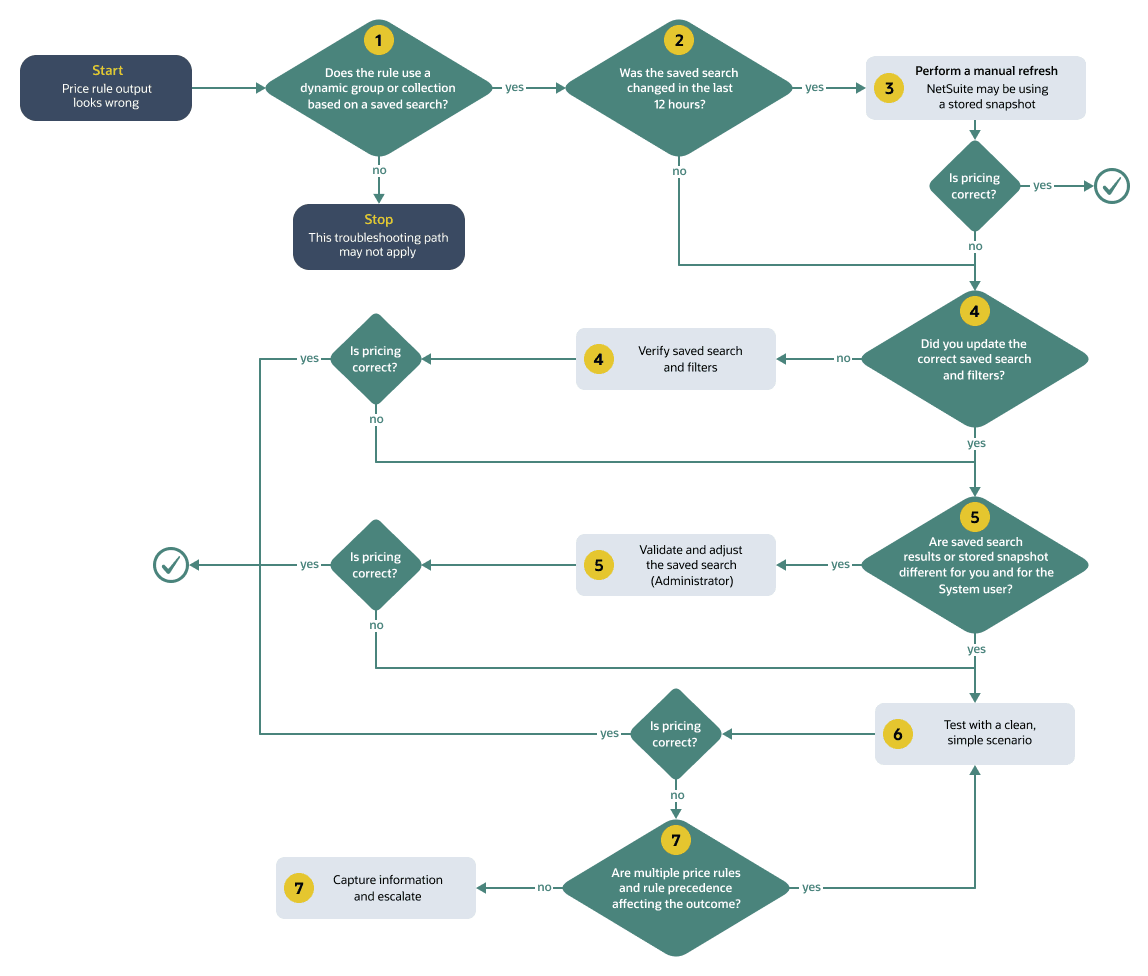
Step 1: Check whether a Dynamic Group or Collection is involved
If the rule is based on a saved search, open the price rule, then:
-
Identify the item collection or customer group referenced by the rule.
-
Confirm whether each one is dynamic (based on a saved search).
Step 2: Consider timing
NetSuite determines membership for dynamic item collections and customer groups used by price rules. That membership is stored as a snapshot for faster pricing evaluation.
Use of the snapshot creates the following limitations:
-
Changes to the underlying saved search may not affect pricing immediately.
-
NetSuite checks hourly and refreshes snapshots that are older than 12 hours.
If you changed the saved search recently, you may still be within the refresh window.
Step 3: Force an immediate refresh (recommended first fix)
If you need pricing to reflect saved search changes right away, you can trigger a manual refresh.
To trigger a manual refresh:
-
Open the item collection or customer group record.
-
Edit the record (a small change is fine).
-
Click Save.
Saving triggers immediate refresh and updates the stored membership snapshot.
-
Retest pricing.
Step 4: Confirm you updated the right saved search and filters
If pricing still doesn't match, validate the saved search definition. Confirm the item collection or customer group points to the saved search you edited.
Recheck key filters such as:
-
Subsidiary
-
Currency
-
Active or Inactive status
-
Effective dates
-
Item or customer status fields you might not expect (for example, 'Available for Sale')
Small filter changes can have a large effect on group membership.
Step 5: Watch for differences caused by System user access.
Materialization runs the saved search as the System user, not as the role you're currently using.
Running as the System user can cause a common 'pricing looks wrong' situation:
-
You run the saved search and don't see an item or customer (because your role has limited access).
-
Pricing still applies to that item or customer (because the System user snapshot includes it).
What you can do:
-
Validate saved search results using the Administrator role.
-
Adjust saved search criteria so the results match your intended business logic, not a user's limited visibility.
Step 6: Retest with a clean, simple scenario
When you retest, try to remove variables.
-
Test with one item and one customer that clearly should be included (or excluded).
-
Confirm the price rule conditions match your test case.
-
If multiple rules could apply, test with a case where only one rule should qualify.
Removing variables makes it easier to confirm whether the issue is membership refresh or rule logic.
Step 7: What to do if the issue continues
If pricing still doesn't match after a manual refresh, check whether multiple price rules could apply and whether rule precedence affects the outcome.
Capture:
-
The price rule name
-
The item collection or customer group name
-
The saved search used
-
The item, customer, and transaction type you tested
-
The time you last updated the saved search and the time you last saved the group or collection record
Then escalate to your NetSuite support or internal system administration team with those details.