Using the PCM Agent Performance Assistant to Help Idendity and Resolve Calculation Performane Issues
To help identify and resolve performance issues when running calculations, you can use the PCM Agent Performance Assistant to summarize calculation performance bottlenecks and best practices. The Performance Assistant uses Generative AI (GenAI) to provide a detailed overview of the factors influencing the performance of calculation jobs, focusing on both individual assessments and comparative analyses. The AI examines various elements that contribute to performance issues, all of which can significantly affect processing efficiency. The insights provided aim to enhance the understanding of performance dynamics and inform the development of optimization strategies for calculations.
The recommendations and suggestions will provide you with valuable information that can help you to identify performance bottlenecks before reaching out to Oracle Support.
Note:
The Performance Assistant uses generative AI (GenAI). Output from GenAI may not always be factual or accurate. You are responsible for reviewing and using GenAI output at your discretion.Suggestions and recommendations to improve calculation performance are provided in the following areas:
| Suggestion | What it Shows | Example Recommendation |
|---|---|---|
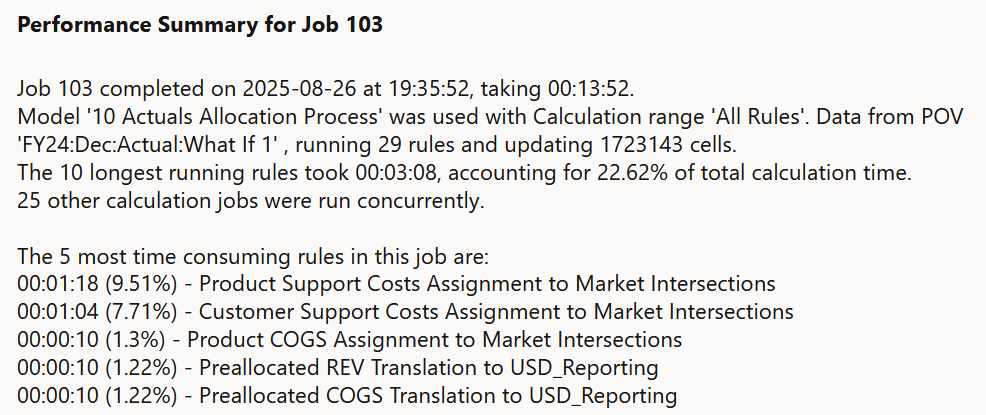
| Performance Summary for Job |
Summarizes the key performance results of a job to help you identify potential problem areas that may be slowing down calculation performance. |
 |
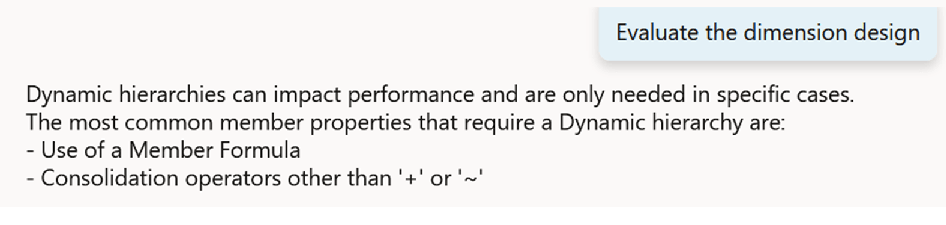
| Evaluate the Dimension Design |
Provides best practices on how to design the hierarchy type of your dimensions to improve calculation performance. |
 |
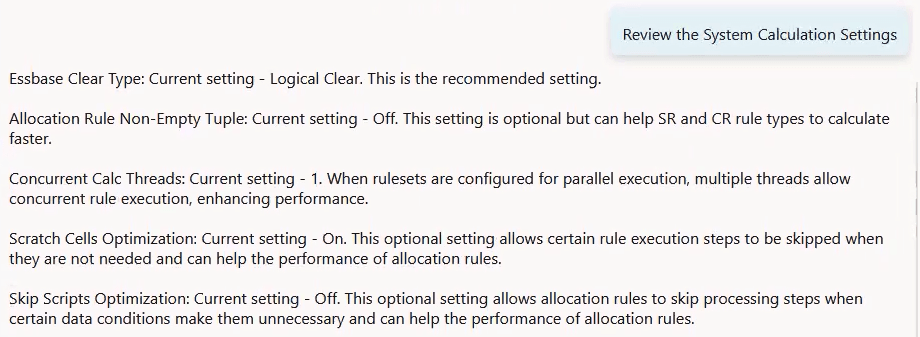
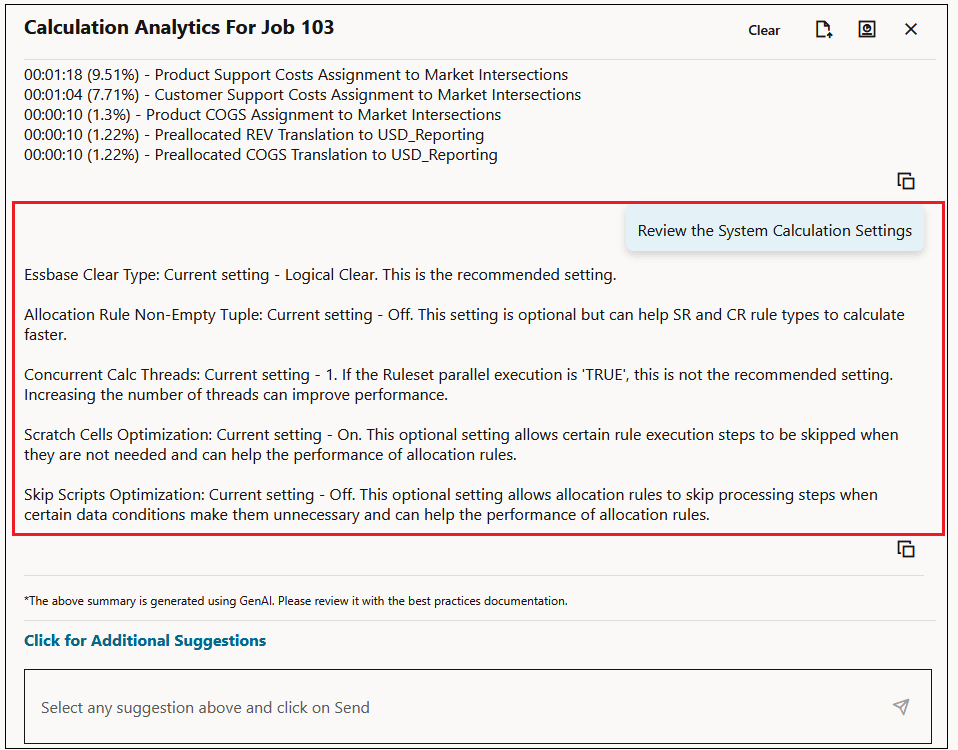
| Review the System Calculation Settings |
Displays the current settings for "Essbase Clear Type", "Allocation Rule Non-Empty Tuple", "Concurrent Calc Threads", "Scratch Cells Optimization", and "Skips Scripts Optimization" so you can see what may need to be changed to improve calculation performance. For more information on these settings, see Managing Application and System Settings. |
 |
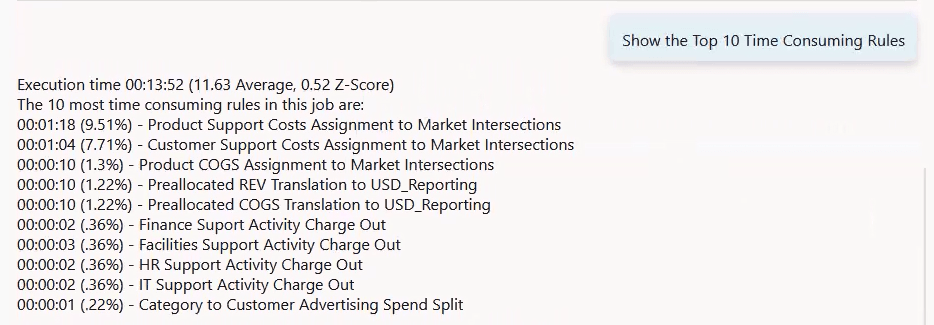
| Show the Top 10 Time Consuming Rules |
Shows the top 10 time consuming rules for the job. This allows you to focus on and fine-tune individual rules that are slowing down calculation performance. |
 |
| Compare Job with Similar Historical Jobs |
Compares the execution performance of a specific job with other recently-run jobs with the same settings in the same model. Information compared includes the average and Z-Score for the execution time, rule count, and cells updated for the specific job with the values for jobs with similar settings. This helps you to see if something has changed to make the job run slower. |
 |
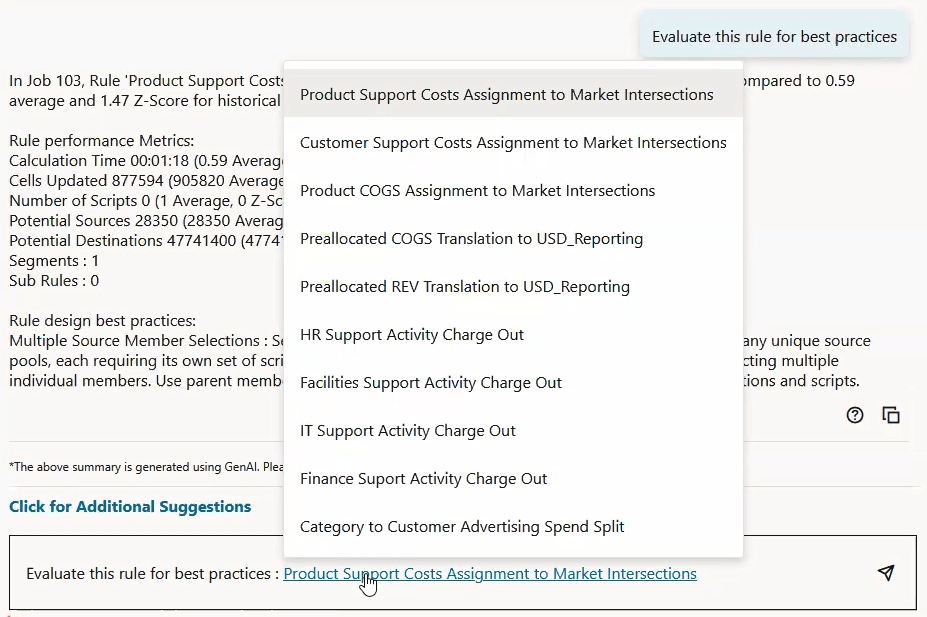
| Evaluate Rule for Best Practices |
Evaluates the rule to see if it is following best practices. Follow the best practices recommendations to make the rule run faster. You can review the top 10 most time consuming rules from here. The link for the longest running rule is initially displayed. Click on this rule to display the top 10 time consuming rules. You can select any of these rules to review the details about those rules, and make changes to enable the rule to run faster. |
 |
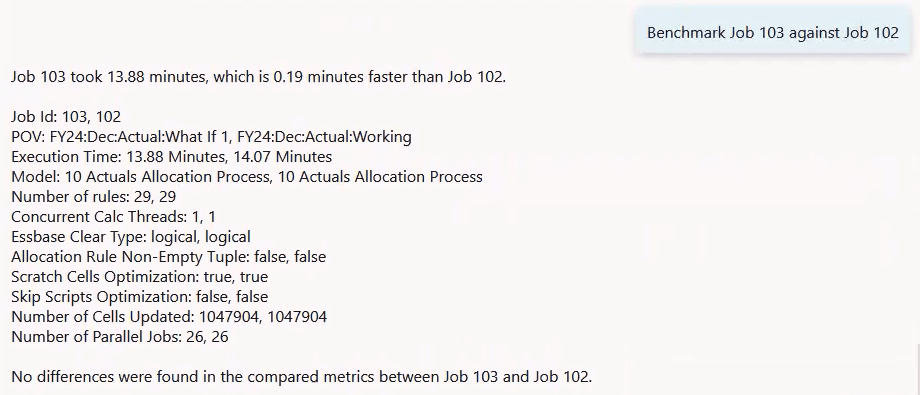
| Benchmark Job |
Compares two jobs. For example, if you have a job that used to be fast but now it is slow, you can benchmark the fast and slow jobs to see what changed. When comparing jobs, you must select a job to compare to the benchmark job. By default, all jobs with same processing type and model as the benchmark job are displayed. Select a comparison job by clicking on the hyperlink for the job. |
 |
To use the Performance Assistant:
-
From the Home page, select Modeling, and then Calculation Analysis.
-
From the Calculation Analysis page, select a calculation record.
-
Click Analyze Performance.
-
Click
 to view the Performance Assistant suggestions.
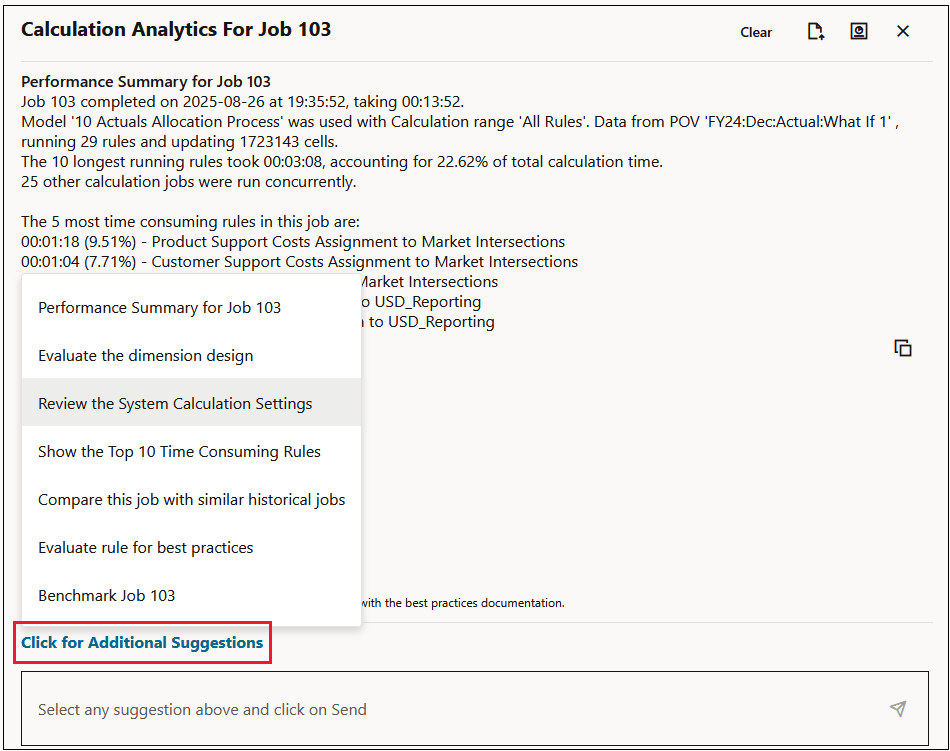
The initial information displayed is a performance summary for the selected job. Select Click for Additional Suggestions to display a drop-down where you can select additional suggestions.
Figure 12-1 Performance Assistant Suggestions
After you select a suggestion, click  (Send) to display the Performance Assistant
recommendation.
(Send) to display the Performance Assistant
recommendation.

Tip:
- To copy a specific recommendation, click
 next to the recommendation, and then paste the text in another program.
-
To export all the recommendations for which you have selected a suggestion, click
 . The recommendations are exported to a .txt file titled
appName_CalcAgent.txt. -
To create a Calculation Performance Analysis Summary, click
 . The summary provides the most useful details about your
calculations. The recommendations are exported to a .txt file titled
. The summary provides the most useful details about your
calculations. The recommendations are exported to a .txt file titled
appName_Calc_Performance_Analysis_Summary_jobId.txt.
Tip:
See the Analyzing Calculation Job Performance tutorial for detailed step-by-step instructions on using the Performance Assistant to help identify and troubleshoot calculation performance issues.