Using Substitution Variables in an Allocation Rule Driver
You can use substitution variables in an allocation rule driver. This is useful when driver data needs to be retrieved from a POV other than the current calculation POV. Using a substitution variable instead of selecting a value in the driver definition, makes it so you do not need to update the driver definition each month.
Note:
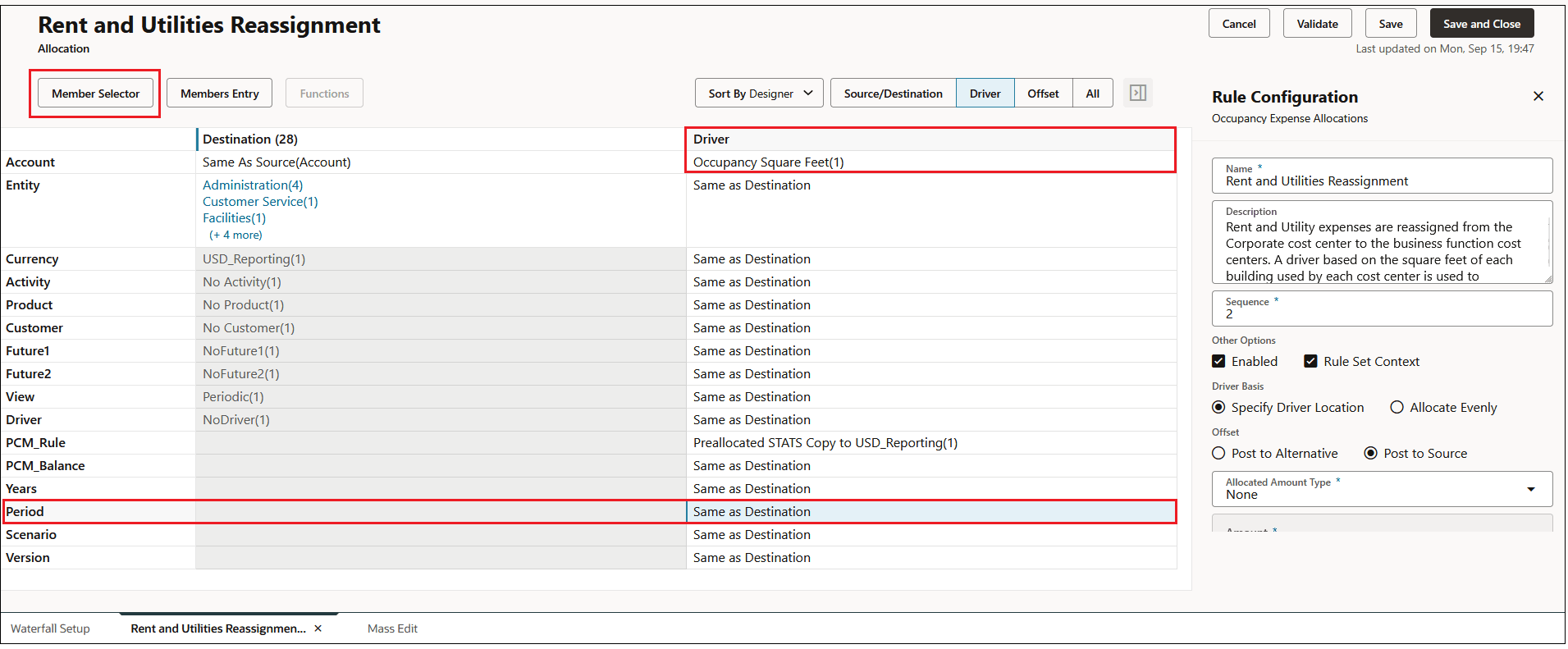
You can only use substitution variables in the POV dimensions (Year, Period, Scenario, and Version).For example, assume you are creating a driver for a Rent and Utilities Ressignment rule. In this example, you are allocating rent and need to know the value for occupancy square feet.
Assume that the occupancy square feet value never changes. As a result, you don't need to import the value every month. In this case, you can create a substitution varible for occupancy square feet and use the substitution variable in the allocation rule driver. To do this, we will add a substitution variable to the Period dimension as follows:
-
Click Same As Destination next to the Period dimension, and then click Member Selector.
-
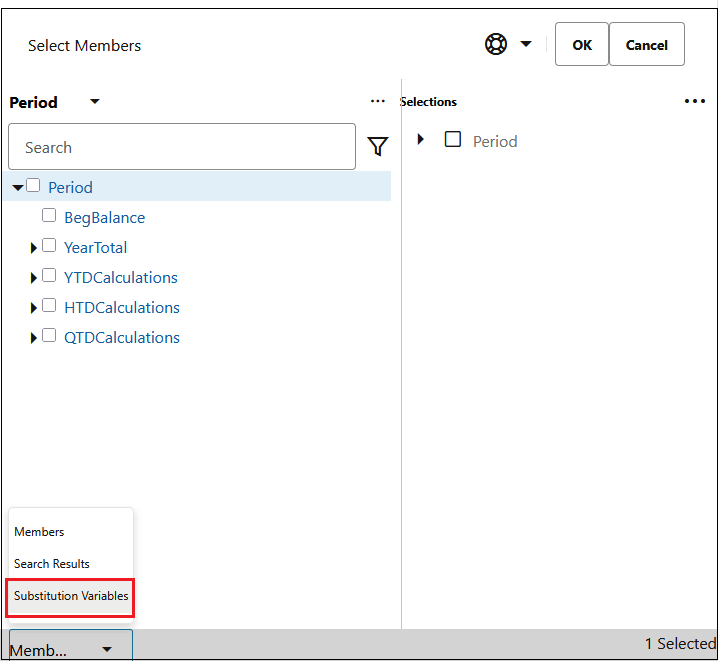
Click Members at the bottom of the Select Members dialog box, and select Substitution Variables.
The substitution variables that have been defined for Period are displayed. In this example, one substitution variable,
$CurrMonth, has been defined. Select the substitution variable, and click OK.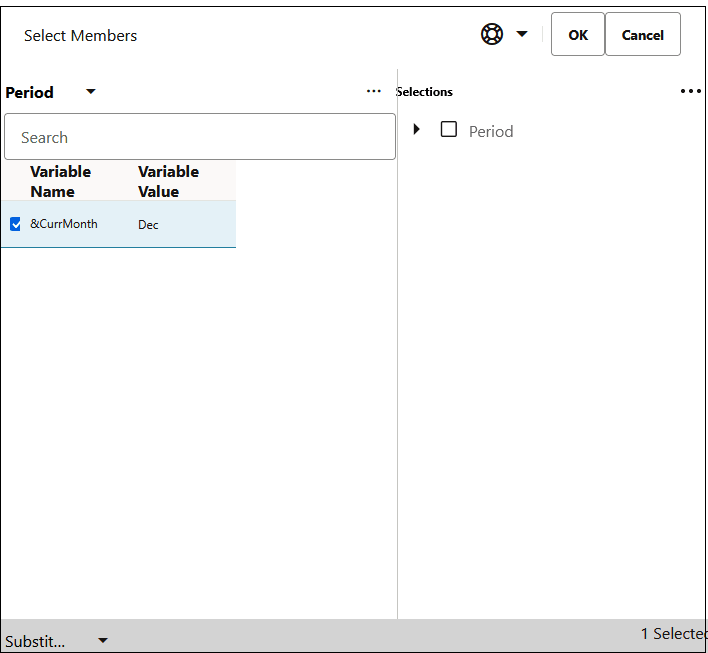
After you select the
$CurrMonthsubstitution variable, it is displayed as the value for the Period dimension in the allocation rule Driver tab.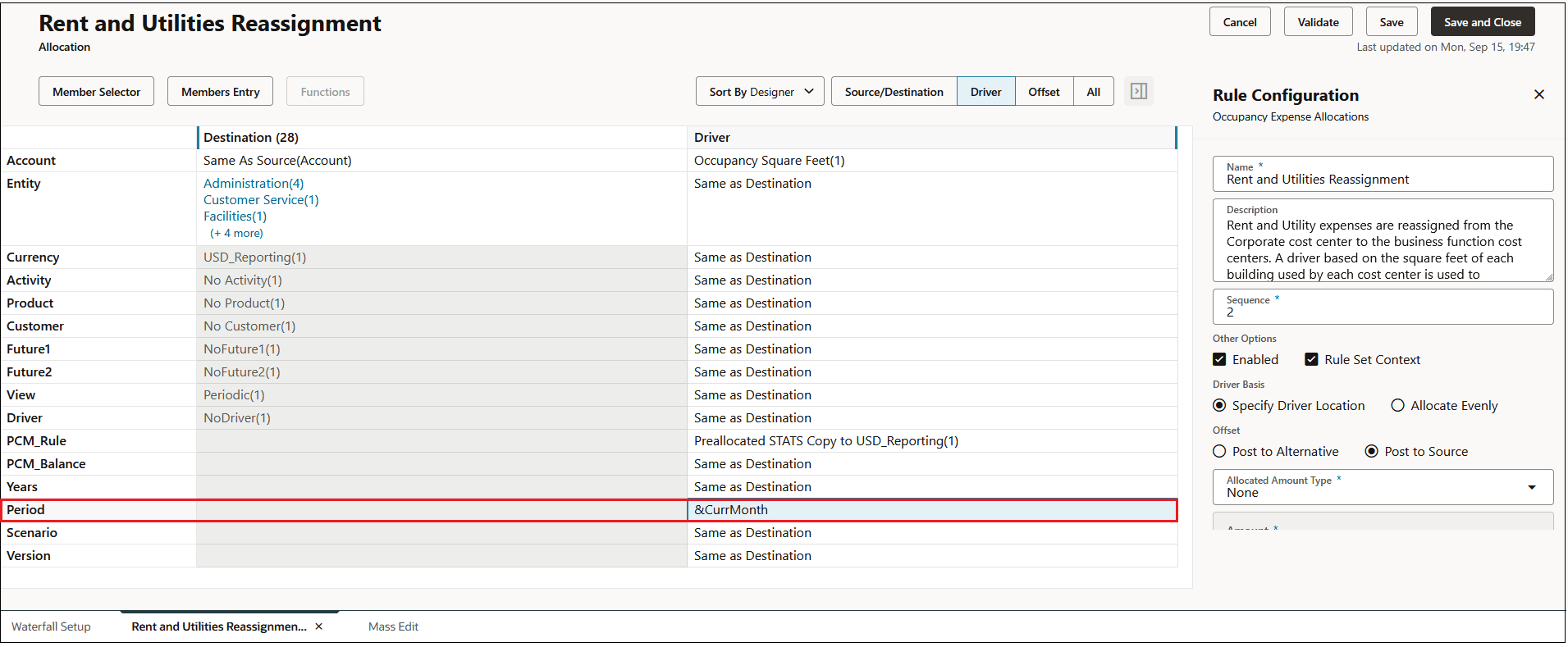
Note:
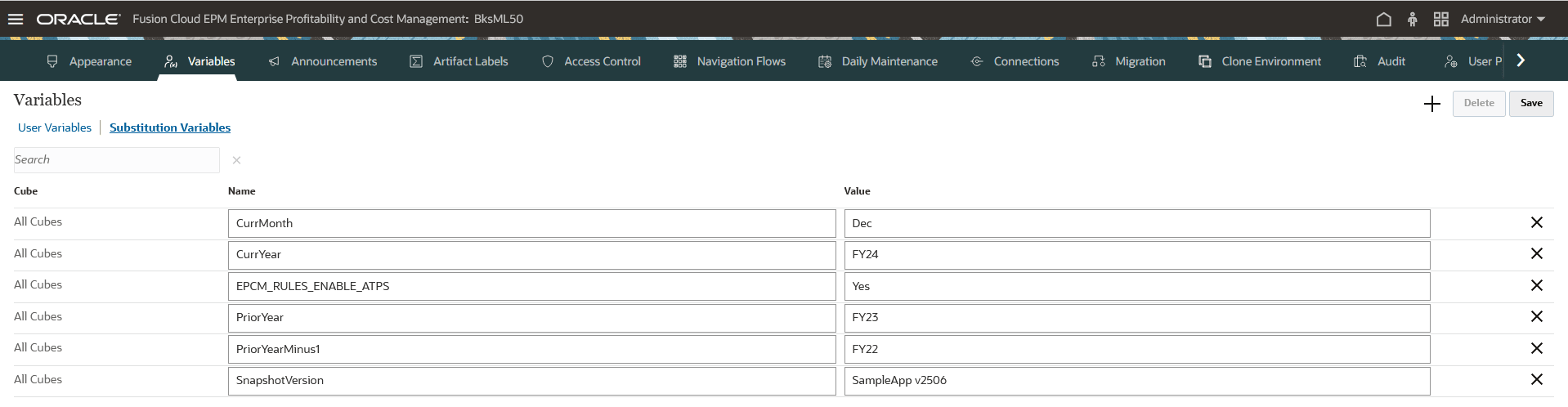
To define substitution variables:
-
From the Home screen, select Tools and then Variables.
-
On the Variables page, click Substitution Variables.