Rerunning Calculations
To re-run a calculation:
-
From the Home page, select Modeling, and then Calculation Analysis.
-
From the Calculation Analysis page, select the desired calculation record.
-
Click More Actions, and select Rerun Calculation.
-
In the Rerun Calculation dialog box, enter information about the calculation record:
-
Model: Click the drop-down and select a model.
-
Comment: Enter a note or comment about the Run Calculation job that will be displayed in the Job Details accessed from the Jobs console.
-
Processing Options: Select one or more processing options. The processing options you select will be applied to every rule in the processing range defined for the model.
-
Clear Calculated Data: Clears past results and replaces them with the results from this calculation. This is the default. Unless this is the first time you are calculating a model, you almost always want to clear the calculated data from previous calculation.
Note:
This option clears the calculated data only for the rules being executed. If a rule name has changed, then the data is not cleared from the old rule name. If you select to include "All Rules" in the calculation, this option clears the data for all rule members except "NoRule". This includes rule members from rules that have been renamed. See Renaming Rules.
-
Run Calculation: Calculates the rules that you select in the Processing Range.
-
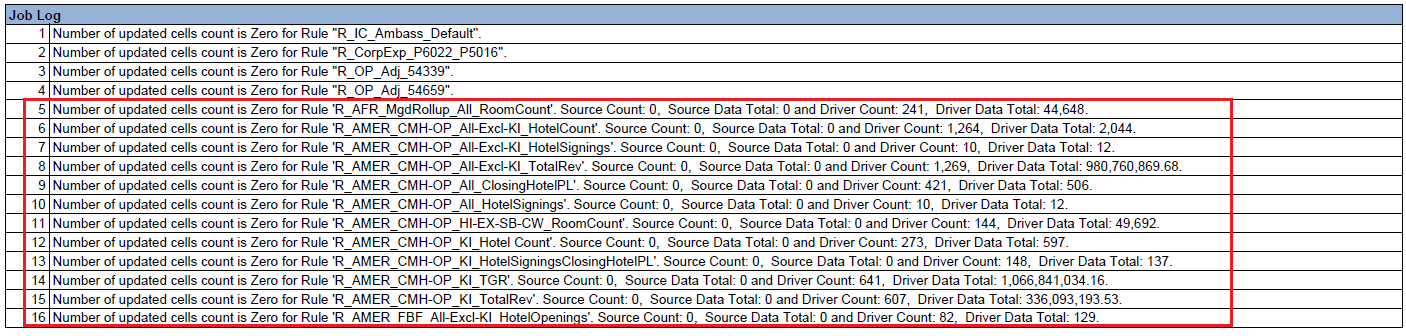
Capture Diagnostics Data: Captures diagnostics data that is displayed in the Job Log section of "Calculation Statistics" and "Calculation Statistics Comparison" reports when an allocation rule successfully executes but no cells are updated if no source or driver data is found. (See Generating a Calculation Statistics Summary Report and Generating a Calculation Statistics Diagnostics Report.) This information can help you find the cause of a lack of allocation results.
The following is an example of the diagnostics data in a "Calculation Statistics" report where no source or driver data was found:
-
Capture Debug Scripts: Captures a log of the specific instructions that Enterprise Profitability and Cost Management gave to Oracle Essbase in order to run this job.
When you select this option, a zip file is created that contains a text file for each rule that is run. Each text file contains the instructions sent to Essbase for that rule. The zip file can be downloaded from the Inbox/Outbox Explorer. (See Uploading and Downloading Files Using the Inbox/Outbox Explorer.)
You generally only capture Essbase debug scripts if Oracle support requests it.
-
Optimize for Reporting: Creates aggregate views in the PCM_CLC cube to improve query speed.
-
-
Processing Range: Click the drop-down and select the range of rules to include in the calculation.
-
All Rules: Calculates all the rules in the selected model.
-
All Rules - Start From Selected Rule: Runs the rules starting with the rule specified in the selected Rule Set. The rules are run to the end of the model, including any subsequent rule sets. If you select this option, click the drop-downs to select a Rule Set Name and a Rule Name.
-
All Rules - End After Selected Rule: Runs all rules from the start and ends after the rule specified in the selected Rule Set. If you select this option, click the drop-downs to select a Rule Set Name and a Rule Name.
-
Rule Set Range: Runs the rules between the sequence numbers specified. If you select this option, enter the First and Last Rule Set Sequence Numbers. Sequence numbers are specified when you create the rule set. See Creating a Rule Set.
-
Single Rule: Runs a single rule. If you select this option, click the drop-downs to select a Rule Set Name and a Rule Name.
Note:
Only enabled rules are included in the calculation. (You select whether to enable or disable rules on the Definition page for allocation or custom rules.)
-
-
-
Click Run.
-
Optional: Go to the Jobs console and verify that the job has completed successfully.
The Run Calculation job is displayed in the Jobs console with a "Completed" or "Completed with Errors" status. You can select the job to see details about the job and troubleshoot any errors that may have occurred. (See Viewing Run Calculation Jobs).
Note:
Re-running a calculation uses the current model definition, not the snapshot stored in the calculation record.