Defining an Allocation Rule Driver
The driver definition tells the system how to split the source data across the destinations.
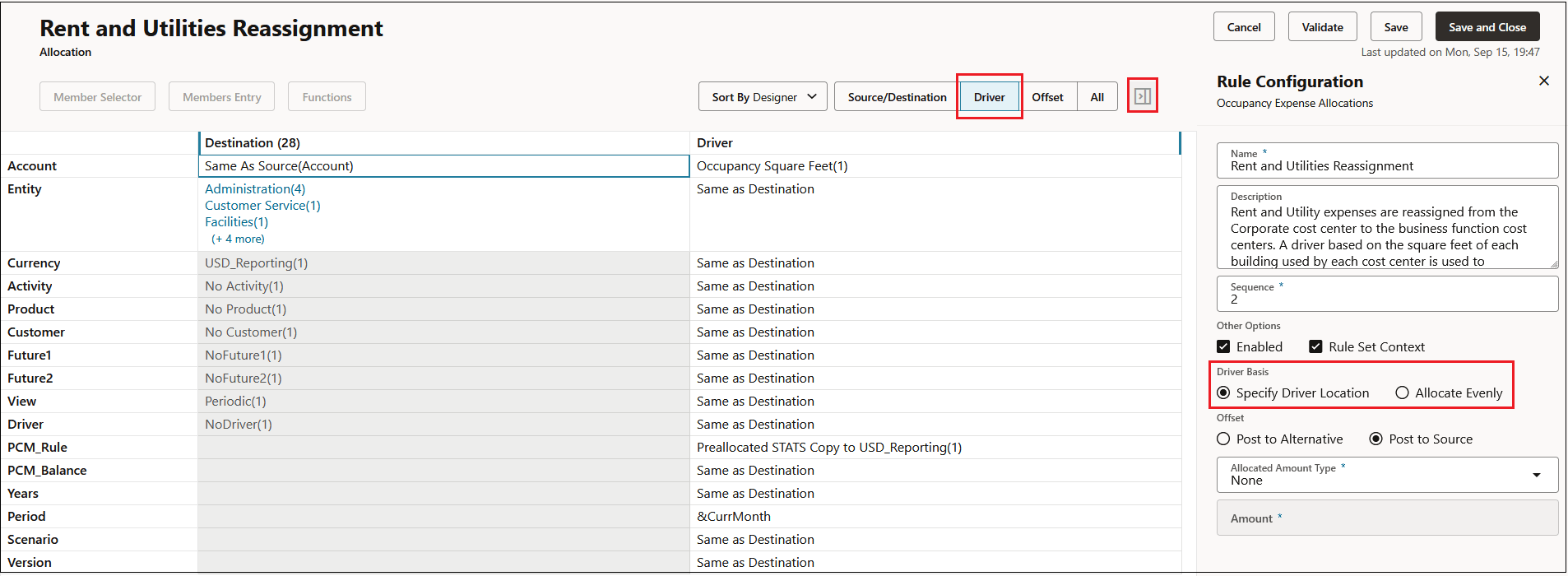
To define a driver, click  to open the Rule Configuration panel, and select an
option to specify how to allocate the data:
to open the Rule Configuration panel, and select an
option to specify how to allocate the data:
-
Specify Driver Location: Uses a driver to determine the percentages to allocate to each destination. If a destination has no driver value, then it receives no allocation.
-
Allocate Evenly: Allocates data evenly across all destinations.
If you choose to use a driver to determine the allocation proportions, note the following:
-
All of the dimensions in the database are available to use as a driver, regardless of whether a Rule Set Context or a Model Context has been enabled for the rule. (See Understanding Model and Rule Set Context.)
-
In addition to the Entity and Account dimensions, optional Currency dimension, and any custom dimensions required to create a rule, the Years, Period, Scenario, and Version POV dimensions and the PCM_Balance and PCM_Rule system dimensions are available for driver selection.
-
The POV dimensions enable you to use a data value from another POV for the driver.
-
The PCM_Rule dimension enables you to use a data value generated by a previous rule for the driver.
-
The PCM_Balance dimension is usually used in combination with the PCM_Rule dimension. When a rule runs, it writes the result to the intersection of the rule member and the Allocation In or Allocation Out balance members.
-
-
All of the dimensions, with the exception of the system dimensions, are initially set to Same As Destination. PCM_Rule is set to NoRule, and PCM_Balance is set to Input. These are the default settings. Leave the dimensions at their default values if you want the driver value to be referenced by the destination locations defined on the Source/Destination tab.
-
If you want the driver value to be referenced by a fixed member that is different than the destination location, you can have only one driver member selection per dimension, and it must be a single member. It can be either an upper-level member or a level-0 member, but you can have only one selection per dimension.
To change the driver location reference to a fixed member:
-
On the Driver tab, click Same As Destination in the Driver column next to a dimension, and then click Member Selector.
-
In the Select Members dialog box, select the dimension member that will be used to calculate the allocation. See Using the Member Selector.
You can select only one member per dimension for the driver. The member selected can be an upper-level member or a level-0 member.
You can optionally click Members Entry and enter the members to use as the driver in the Members Entry dialog box. The members will be added to the dimensions to which they were assigned when the dimensions were created. See Adding Members to a Dimension.