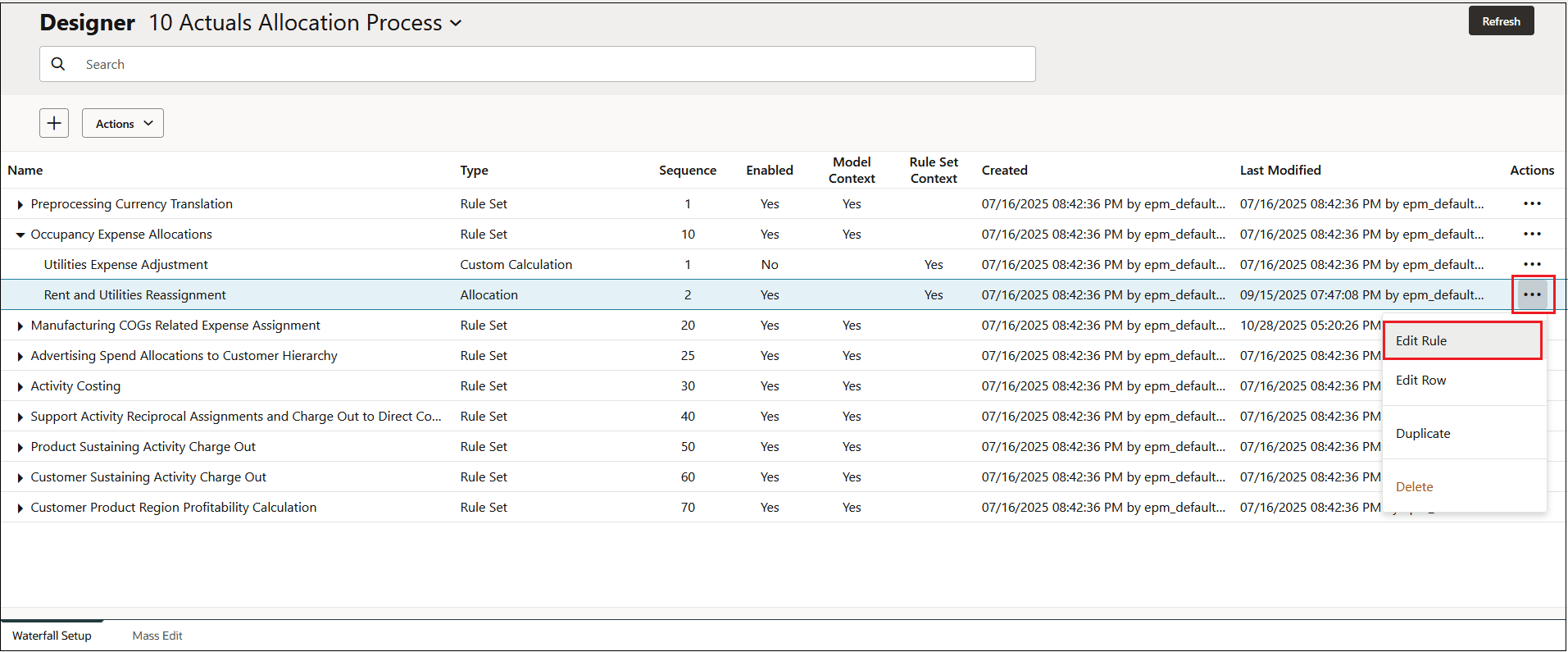
Creating an Allocation Rule Definition
An allocation rule definition is the outline of an allocation rule. You initially set up the rule with some basic information, and then you can edit the rule to add more details. You can set up rule definitions for several rules at one time, and then edit them later.
To create an allocaton rule definition:
-
From the Home page, select Modeling, and then Designer.
-
On the Waterfall Setup tab, click the drop-down next to Designer, and select a model.
-
Select the rule set to which you want to add the allocation rule, and do one of the following:
-
Click
 , and then select Rule, or
-
Click
 next to the rule set, and then select Add
Rule
next to the rule set, and then select Add
Rule
-
-
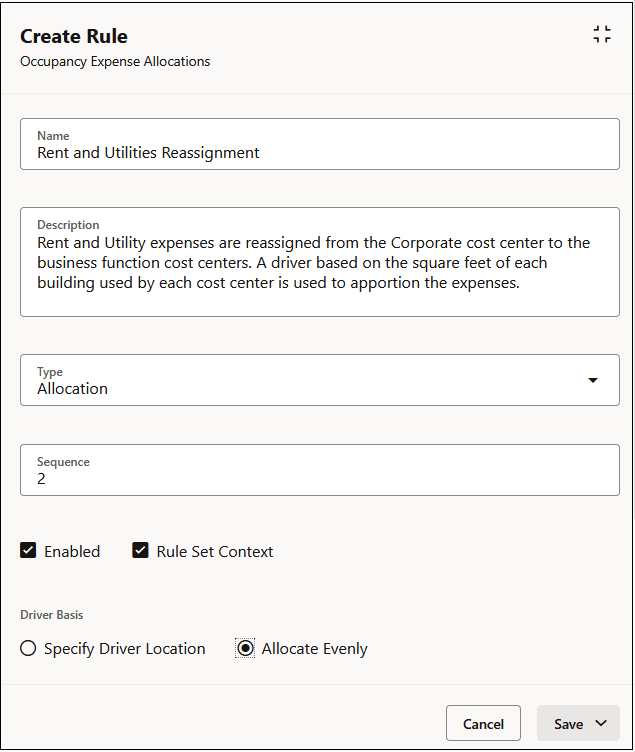
In the Create Rule panel, enter the following information:
-
Name: Enter a name for the rule.
For example, the "Occupancy Expense Allocations" rule set in the the BksML50 sample application provided with Enterprise Profitability and Cost Management, contains an allocation rule called "Rent and Utilities Reassignment" .
Rule names have the same restrictions as the member names in Oracle Essbase. See Naming Restrictions for Dimensions, Members, and Aliases.
-
Description: Enter a description for the rule.
The description you enter here will appear in the Model Documentation report. Enter a description that will make the information about the allocation rule informative for anyone reviewing the model logic in the future. See Generating a Model Documentation Report.
For example, you could say something like; "Rent and Utility expenses are reassigned from the Corporate cost center to the business function cost centers. A driver based on the square feet of each building used by each cost center is used to apportion the expenses."
-
Type: Select Allocation.
-
Sequence: Enter a number to determine the order in which the rule will run in the rule set.
The Sequence can be any whole number from 1 to 9999.
Rules with the same sequence number will run at the same time if parallel calculation is enabled for the parent rule set, and the number specified for Calculation Threads in the Applications Settings. (See "Step 5: Select a Rule Set Calculation Option" in Creating a Rule Set, and "Calculation Threads" in About Managing Application and System Settings.)
-
Enabled: If selected, the rule will be active when the calculation is performed.
-
Rule Set Context: If selected, the member selections done when the rule set was created will apply to this rule. If a Model Context has been enabled for the rule set, it will also be applied. See Understanding Model and Rule Set Context.
-
Driver Basis: Select a option to specify how to allocate the data:
- Specify Driver Location: Uses a driver to determine the percentages to allocate to each destination. If a destination has no driver value, then it receives no allocation.
- Allocate Evenly: Allocates data evenly across all destinations.
- Offset: Select an option to specify where to post the
offset. The offset tells the system how to balance out the allocated data.
- Post to Alternative: If you select this option, you specify a dimension target to calculate the offset values.
- Post to Source: If you select this option, the selected Source dimension members are used as the offset.
By default the offset is the same as the source location.
-
Allocated Amount Type: Limits how much of the source is allocated. Select an option:
-
None: This is the default option. If selected, all of the money in the source is allocated.
-
Currency: If selected, limits the amount allocated from each source intersection by the currency value entered in the Amount field. For example, an amount of 1000 would limit the allocation from each cell to 1000 of whatever currency is used.
-
Percentage: If selected, limits the amount allocated from each source intersection by the percentage entered in the Amount field. For example, 50 would limit the allocation from each cell to 50%.
-
-
-
When you are finished entering the information in the Create Rule panel, click Save, and then select either:
-
Save and Close to return to the Waterfall Setup tab, or
-
Save and Next to continue adding rule definitions for additional rules
-
In the following example, the Rent and Utilites Reassignment rule is defined as an Allocation rule and will be the second rule run in the Occupancy Expense Allocations rule set. It will be enabled by default, use a previously-defined Rule Set Context, and the data will be allocated evenly across all destinations.
Tip:
Use the scroll bar on the right of the Create Rule panel to see additional information about the rule.The rules defined in the Create Rule panel are displayed in the
Waterfall Setup tab. Click next to a rule, and select Edit Rule to enter additional
information about the source and destination, driver, and offset for the allocation
rule.