Allocating to Parent/Siblings
The Allocate to Parent and Allocate to Siblings destination options create a source to destination relationship for every member selection in the source, and target its value to either the member's parent or siblings. Members are allocated by specific member selection and/or by the result of a filter.
These destination options eliminate the need to create individual rules for every unique source and destination combination when trying to express this kind of relationship. With the Allocate to Parent destination options, you can define multiple such relationships in a single rule, resulting in decreased maintenance and more easily understandable trace results.
The allocation process when allocating to parents or siblings is as follows:
-
Source member selections are resolved
-
Explicit member selections (Parent or Level 0)
-
Resolution of member selections returned from a filter
-
- Member-based destinations options are applied
To allocate members in the source to a parent or siblings in the destination:
-
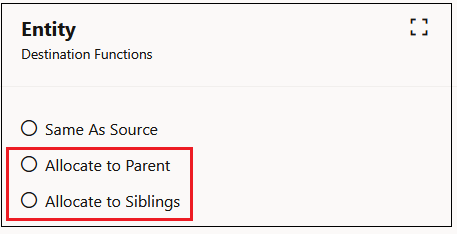
Click in the Destination column next to a dimension, and then click Functions.
-
Select Allocate to Parent or Allocate to Siblings.
Allocate to Parent/Siblings Example
As an example, assume you have an advertising budget and want to allocate money through Channel categories to Customer Groups and down to Customer Locations.
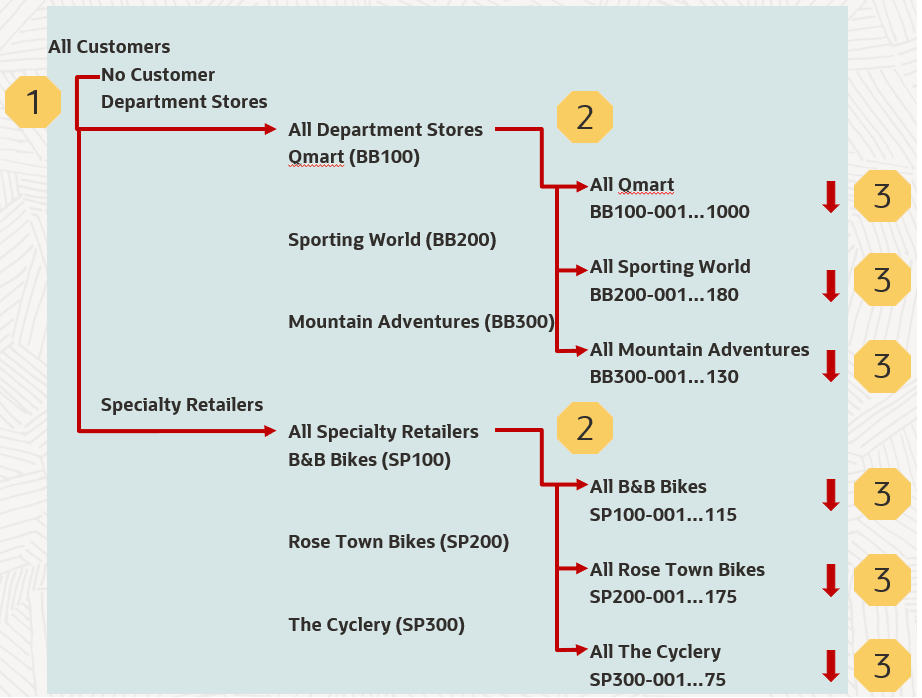
In this example:
-
1: Advertising is allocated to Channel categories [All Department Stores, All Speciality Retailers]
-
2: Channel categories are allocated to Customer Groups [All Qmart, All Sporting World, All Mountain Adventures, All B&B Bikes, All Rose Town Bikes, All the Cyclery]
-
3: Customer Groups are allocated to Customer Locations [1000 Qmart, 180 Sporting World, 130 Mountain Adventures, 115 B&B Bikes, 175 Rose Town Bikes, 75 The Cyclery]
Now assume you select All Department Stores. The results differ depending on whether you choose Allocate to Parent or Allocate to Siblings.
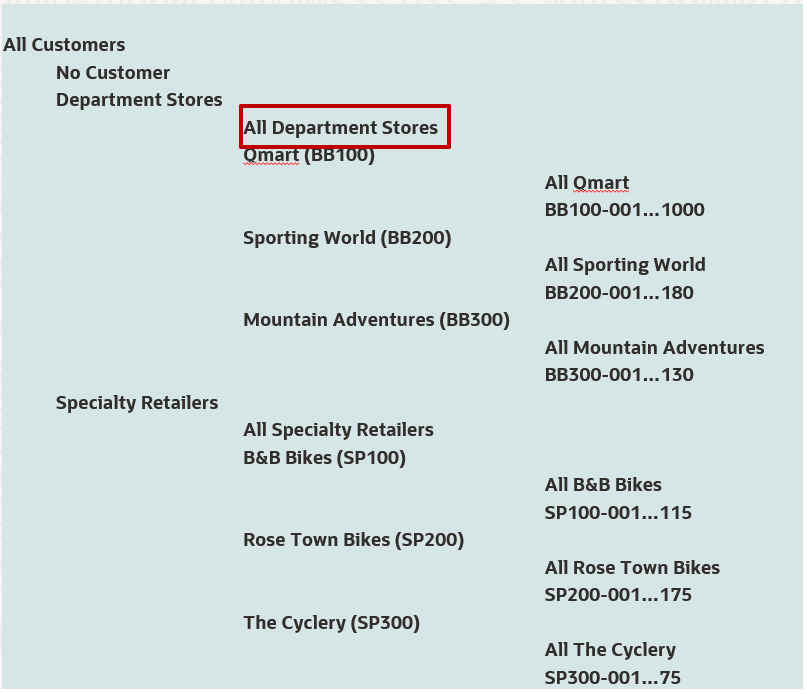
All Department Stores - Allocate to Parent
With this option, the source Level 0 descendants of All Department Stores are allocated to the following destination:
-
Level 0 Descendants of All Department Stores
-
(including All Department Stores)
All Department Stores - Allocate to Siblings
With this option, the source Level 0 descendants of All Department Stores are allocated to the following destination:
-
Level 0 descendants of Qmart
-
Level 0 descendants of Sporting World
-
Level 0 descendants of Mountain Adventures
-
(and not All Department Stores)
Note:
In this example, All Department Stores is a "Shadow Parent Member". See Using Shadow Parent Members in Hierarchy Allocation for more information.