Assigning Role Access Security to Report Groups
Shows how to assign role level security to report groups.
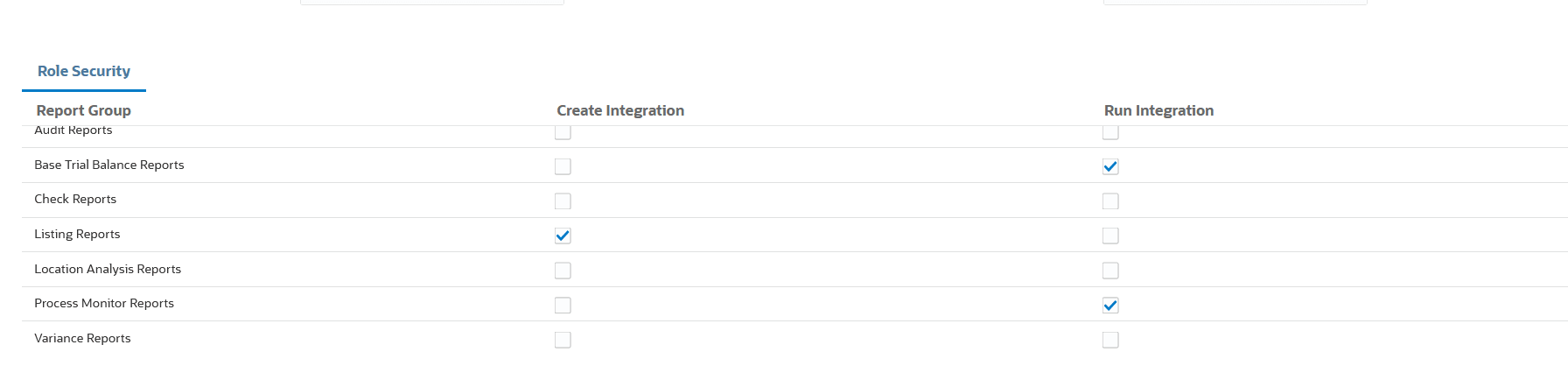
Data Integration security enables service administrators and power users to customize user access to report groups using the concept of roles. Roles are permissions that grant user access to reports. In Data Integration, default roles are assigned to functions that aggregate and tailor specific requirements. After the reports are assigned to a role, the corresponding role is mapped to users when provisioning users in Access Control. The process of granting roles to users is described in Assigning a User to Many Groups in Administering Access Control for Oracle Enterprise Performance Management Cloud .
To add role level security to report groups:
-
On the Security Setting page, select the
Report Group function and the role to assign to the
report group.
Available roles:
-
Data Integration - Administrator—Performs all functional activities in Data Integration. Users with this role can create, perform, and run:
- Integrations between source and target systems
- Pipeline activities
- Extraction and transformation of data and metadata from on-premises sources using the EPM Integration Agent
Included in this predefined role is the Service Administrator
-
Data Integration - Create—Uses Data Integration to create mappings to integrate data between source and target systems. This role can define data rules with various run time options.
Included in this predefined role is the Power User.
-
Data Integration - Dill Through—Drills through to the source system of the data.
Included in this predefined role are the Power User and User.
-
Data Integration - Run Integration—Users with this role use Data Integration to run an integration between the source and target.
If this is the only role assigned to the user, and if they are not a Power User or Service Administrator, they can also view the integration details, but are not able to make any changes.
Included in this predefined role is the Power User.
-