Registering ERP Applications
You can extract non-General ledger data from Oracle Cloud ERP data sources and load it to the Oracle Fusion Cloud Enterprise Performance Management. These types of data sources let you define an Oracle Business Intelligence Publisher report extract that is referenced by Data Integration to pull data directly from ERP sources like payables, receivables, fixed assets, and supply chain.
Data Integration provides prepackaged queries to the ERP sources including:
- ERP (Payable Transactions)
- ERP (Receivable Transactions)
- ERP (Trial Balance - Average)
- ERP (Trial Balance)
In addition, you can create and run a custom query against a BI Publisher data extract. In this case, use an ERP (Custom) data source adapter in Data Integration to import the source CSV file from BI Publisher, and then set the report parameters to use.
Note:
An integration with the ERP requires that you have the privileges or user role and data access to all ERP ledgers. For more information, see Security Role Requirements for ERP Integrations.You must register source system for the Data Integration data sources using the system type Oracle ERP Cloud and specify your user credentials. This step includes specifying the connection details and testing the connection. For more information, see Configuring an ERP Connection.
To register an ERP application:
-
From the Data Integration home page, and then from the Actions menu, then from the Setup actions drop-down, select Applications.
-
On the Applications page, click
 (Add icon).
-
From Category, select Data Source.
-
From Type, select the type of prepackaged ERP query.
Available ERP types:
- ERP (Payable Transactions)
- ERP (Receivable Transactions)
- ERP (Trial Balance - Average)
- ERP (Trial Balance)
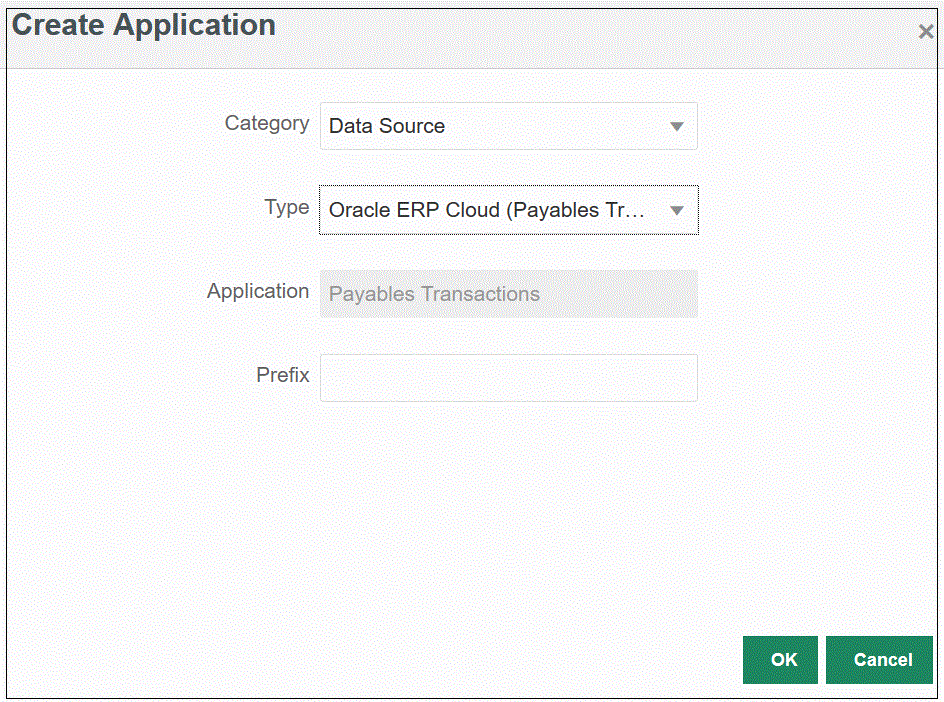
The name of the prepackaged application that displays in the Application depends on the type of prepackaged ERP query selected in this field.
-
Optional: In Prefix, specify a prefix to make the application name unique.
The prefix is concatenated with the application name to form a unique application name. For example, if you want to name an application with the same name as an existing one, you can assign your initials as the prefix. -
Click OK.