Registering the ERP Source System
When integrating Planning Budget Revisions with the Budget Adjustment Request, first create a source system with the type: Oracle ERP Cloud and then specify the connection information.
To add Oracle Cloud ERP as a source system type:
-
From the Home page, click
 (Application cluster).
-
Click
 (Data Exchange icon), and then select the Data Integration tab.
Optionally, you can launch Data Integration by clicking
 , and then from Application, select
  .
.
-
From the Data Integration home page, and then from the Actions menu, then from the Setup actions drop-down, select Applications.
-
On the Applications page, click
 (Configure Connections icon).
-
Click
 (Add drop-down icon) drop-down, select Oracle ERP
Cloud.
(Add drop-down icon) drop-down, select Oracle ERP
Cloud.
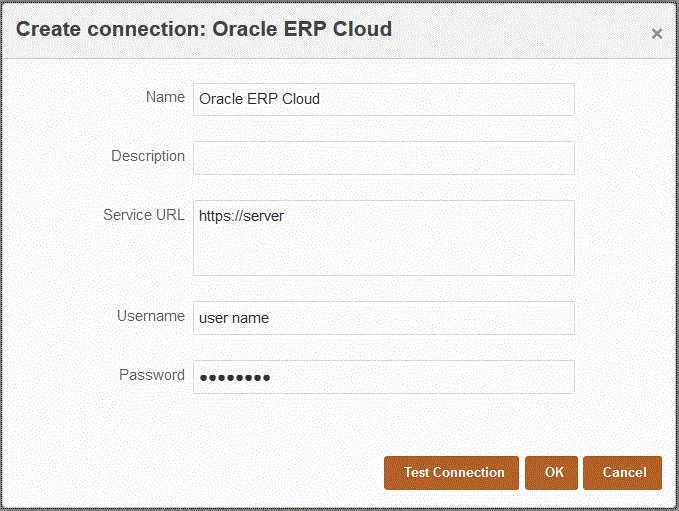
-
In Name, enter the source system name.
-
In Description, enter a description of the source system.
-
In Service URL, enter the server information for the web services.
For example, enter:
https://server. -
In Username, enter the Budgetary Control user name.
Enter the name of the ERP user who launches the process requests to send information between Oracle Enterprise Performance Management Cloud and the ERP. This user must have an assigned a "Budget Manager" job role.
-
In Password, enter the ERP password.
You must update this password anytime you change your ERP password.
-
Click Test Connection.
When the connection has been tested correctly, the information message "Connection to [source system name] successful" is displayed.
-
Click OK.