Show or Hide an Action Chain in the Flow Diagram
By default, action chains created via a Flow Diagram show all action nodes and the event listeners that they are bound to. If you want a simpler view, you can change this setting so that a flow shows only its pages and their navigational relationships.
To show or hide an action chain in the Flow Diagram:
- Select an application’s flow to open it the Flow Diagram view (
 ).
). - Double-click the page containing the action chain you want to show or hide.
- When the page opens in the Page Designer, switch to the Action Chains tab and select an action chain to open it in the Action Chains editor.
- In the action chain’s Properties pane, look for Show in Flow Diagram:
- Select Navigation Only to show only the navigational relationships for the page associated with the action chain.
- Select Full to show all action chain details, including actions and associated event listeners.
-
Return to the Flow Diagram. Here’s an example showing the two views:
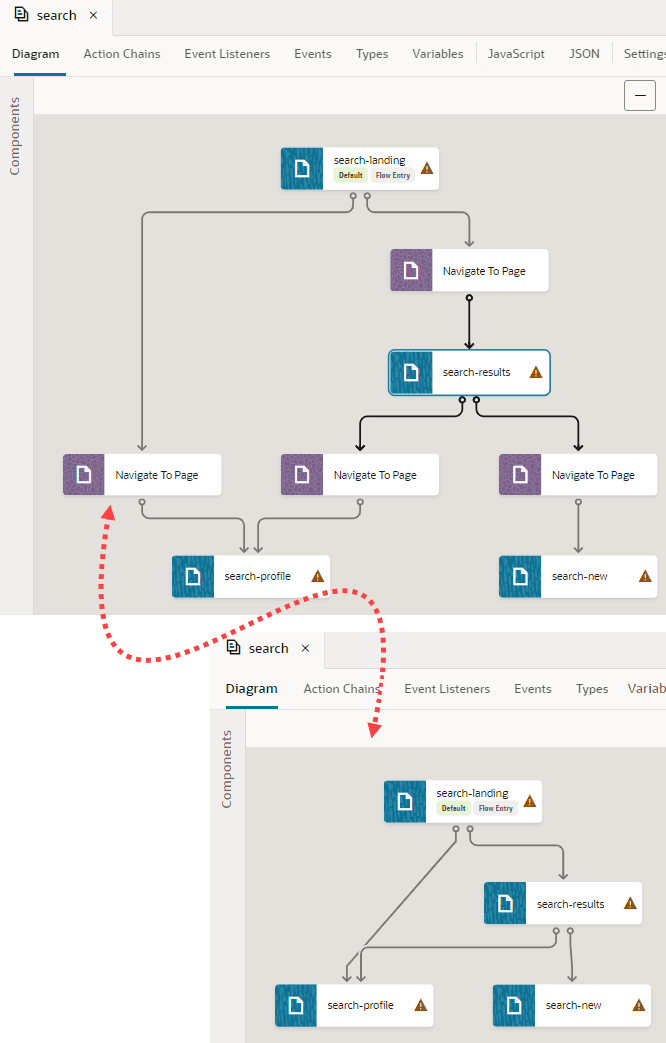
Description of the illustration diagramview-flow-navonly-full.png
On the left is a flow’s Full view, showing action chains (and their event listeners) configured for a set of pages. On the right is the Navigation Only view for the same set of pages, where only pages and their navigation show.