Extend a Container in a Fragment
When a page in a dependency contains a fragment with a dynamic container, you need to open the fragment in the Fragment Designer and customize the container. You won’t be able to edit the container’s cases and sections defined in the dependency, but you can extend the container to add new cases and sections to add components and functionality to the container, just as you would when extending a container in a page.
To extend a container in a fragment:
-
Open the page containing the container you want to customize, then select the dynamic container.
If the fragment developer has made the container extendable, it will be listed in the Structure view and in the Components tab in the Properties pane.
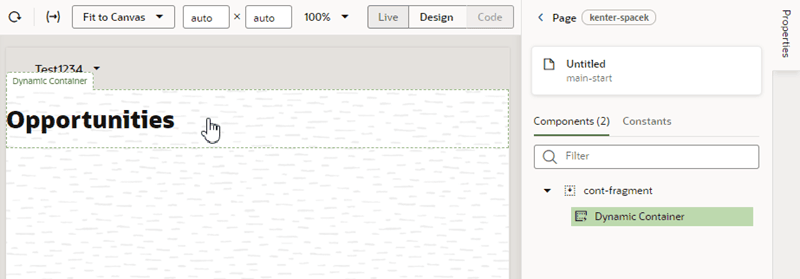
Description of the illustration dynamic-container-fragment1.png
-
In the Properties pane, click the link to open the fragment in the Fragment Designer.
The Properties pane contains a pane with information about the container, and a link to open the fragment in the Fragment Designer. In this example, the fragment is named
cont-fragment: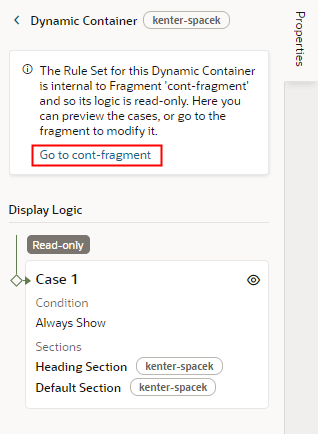
Description of the illustration dynamic-container-properties-fragment1.png
The container’s Properties pane also displays the container’s Display Logic, but it’s read-only in the Page Designer so you can’t customize it. You can use the Layout Preview in the Display Logic to preview cases, so you don’t need to open the fragment in the Fragment Designer just to select a case to see how it looks in the page.
-
Select the dynamic container in the Fragment Designer.
You can select the container on the canvas, in the Structure view, or in the Components tab in the Properties pane.
The Fragment Designer, and all the fragment editor tabs, displays a warning at the top to remind you that you’re extending a fragment, and that any changes you make to the fragment will impact the fragment wherever it appears:
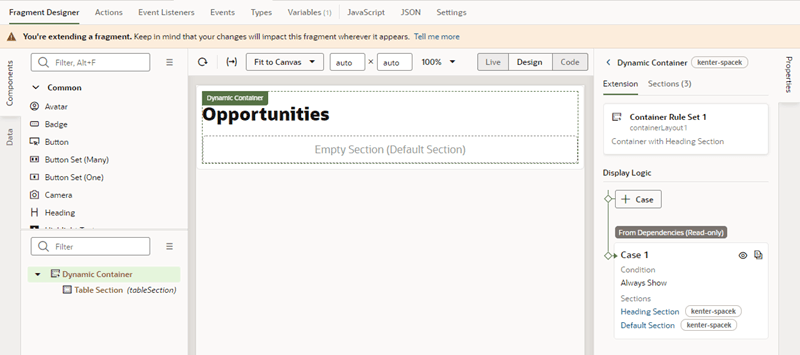
Description of the illustration fragment-dynamic-container.png
-
Customize the container in the Fragment Designer.
You can customize the dynamic container in the fragment like you would customize it in a page. In this example, a new case and section has been added to the container, and Layout Preview has been enabled for the new case:
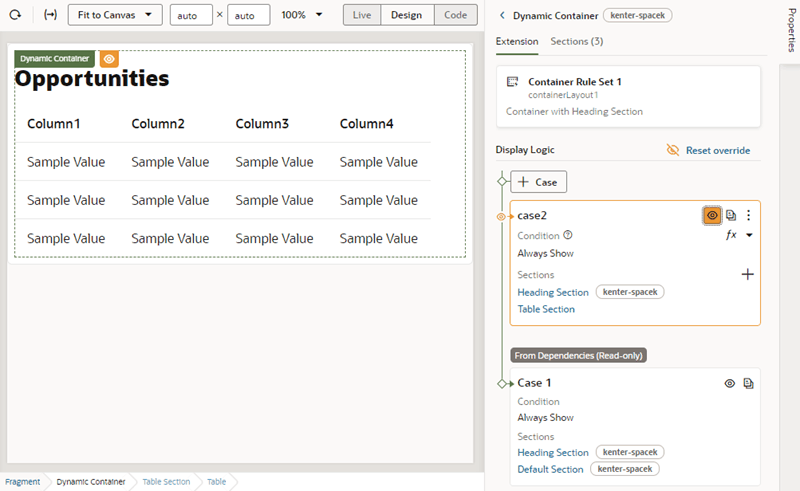
Description of the illustration fragment-container-extended1.png
You can add other components and elements as needed. For example, you might want to create new variables and add events and action chains to add functionality.