Apply a Template to a Field
Once you’ve defined a field template, you can apply it to a field in a dynamic form or table’s layout, making it the default template applied to that field in every layout in that rule set.
To apply a template to a field in a layout:
-
In the rule set editor, click the name of the layout name you want to work on.
The center pane of the layout editor lists the fields that will be displayed in the layout and any templates that are applied to them (as shown in the image for the
phoneNumberfield). If you duplicated an existing layout, your new layout might already list some fields, or have templates already applied to fields.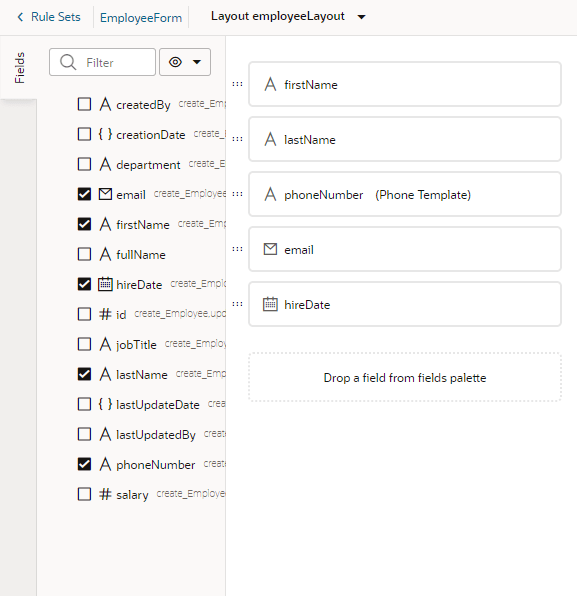
- Select the field you want to apply a template to.
-
In the field’s Properties pane, select a template from the Template drop-down list.
If no template has been applied to the field, you can select a template in the list (as in this image):
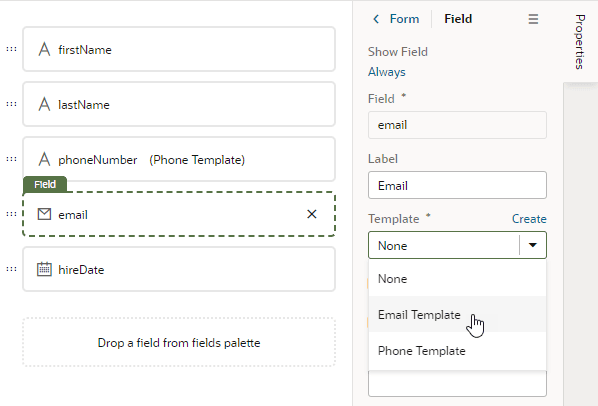
Description of the illustration template-field-apply-template.png
If the field already has a field template applied to it (you’ll see the template name next to the field name), you’ll see a notification in the Properties pane that a default template has been defined for the field:
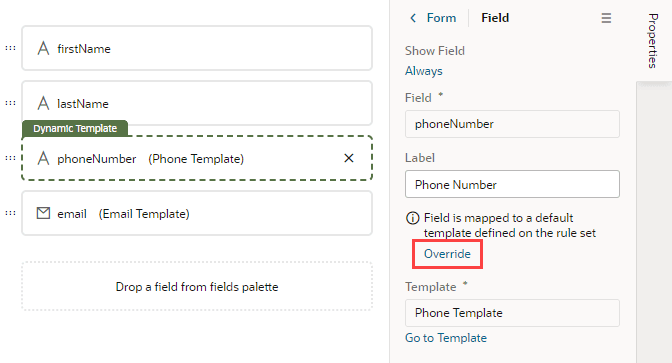
Description of the illustration template-field-default.png
If you want to change the field’s template only in the current layout, click Override in the Properties pane, then select another template from the drop-down list. Or, click Create to define a new template. If you don’t want a template applied to the field, select None in the drop-down list.
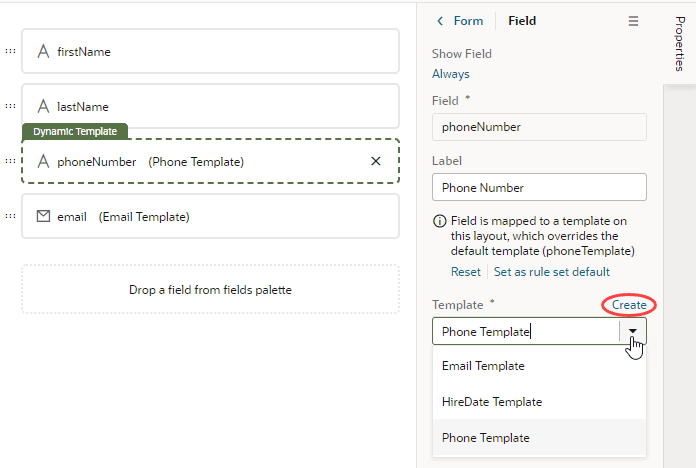
Description of the illustration template-field-default-override.png
If you want the changed template applied to the field in every layout in the rule set, click Set as rule set default in the Properties pane. You can click Reset at any time to re-apply the default template.