Add Server Variables for Backends
When creating or editing a backend, you can add server variables to the instance URL on the Servers tab for an in-source server. Server variables are not available for local servers.
When you enter a valid URI template expression, such as {version}, in an instance URL, a server variable will be created automatically and displayed in the Server editor’s Server Variables section. You can also create, edit, or reorder a list of variables. A default value must be set for each server variable.
Let’s take a look at how this works, using https://restcountries.com/v3.1/lang/german as an example:
-
The server instance URL can be represented as
https://restcountries.com/{version}/lang.Here, there’s just one server variable,
{version}, which has a default value ofv3.1, as shown in the server of a backend called countryBackend: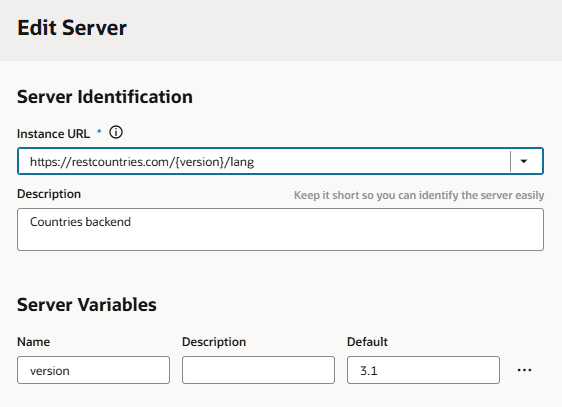
-
The endpoint is
/{language}.We define the service connection on the countryBackend by defining the endpoint and adding
/{language}to the URL path.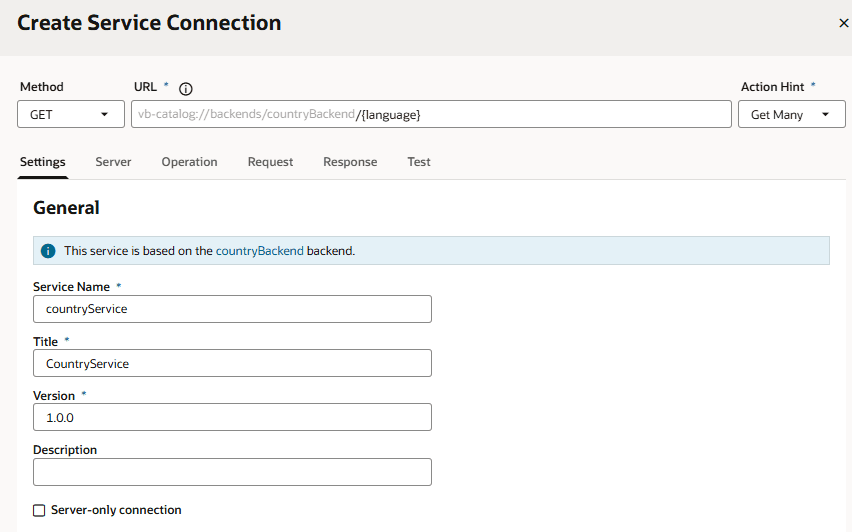
Description of the illustration service-connection-add-variable1.png
In this example,
languageis a path parameter, because it’s a part of the endpoint path. It can’t be a server variable, in this example, because it’s outside the instance URL. Its default value isgermanand its type is string.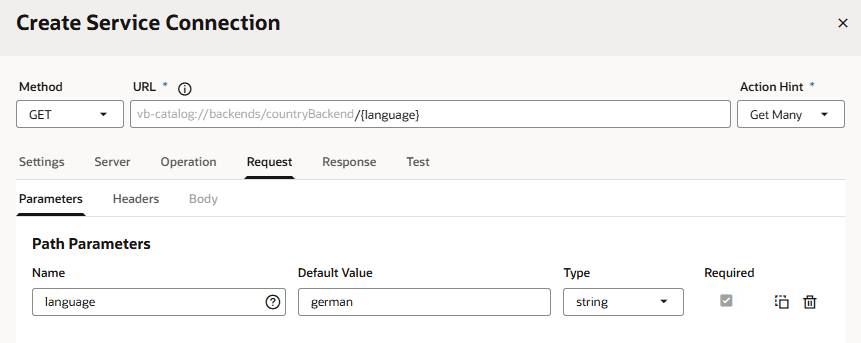
Description of the illustration service-connection-path-parameter.png
-
The full URL becomes
https://restcountries.com/{version}/lang/{language}.After substituting (
v3.1for the server variable{version}andgermanfor thelanguagepath parameter), this represents the instance URL we started with,https://restcountries.com/v3.1/lang/german.
Here’s how you can add or change a variable (or multiple variables) in a server URL:
- Open the Servers tab of the backend.
-
Click Edit
 to the right of the server instance to which you want to add a new server variable (or modify an existing one) to the instance URL.
The Edit Server dialog is displayed.
-
In the Instance URL field, add a variable where one is needed.
For example, you may want to replace a version number in the URL, such as “1.2” with the variable {version}. After you do this, you’ll see the variable you added to the URL displayed in Server Variables, below the instance URL’s Description field. The variable you added is shown in the Name field.
-
Enter a description in the Description field and set the default value in the Default field.
Click Done if you are finished or click + Add Value to add another value. To create a list with multiple values, click Menu
 and select Create Value List. Then, after adding values, use the
  or
or  controls to set the default value or reorder the list of values. The default value will be the one at the top of the list. You can use Delete
  to discard values you don’t need.
 -
Add another variable in the URL, if needed.
Note that you must set a value for each variable you define. If you don’t, you’ll see a message indicating that a value is required. Enter the default value and click Done.
- Click Save.