Add a Custom JavaScript Function
To add a custom JavaScript function, you define the function within the Module class provided in the JavaScript editor for your page, flow, or App UI. You can also do this for layouts and fragments.
-
Open the artifact for which you want to add a JavaScript function, then select the JavaScript tab.
For example, to use a JavaScript function in multiple pages, you can define the function at the app level or at the flow level for those pages. To define the function at the App UI level, select the App UI node, then click the JavaScript tab:
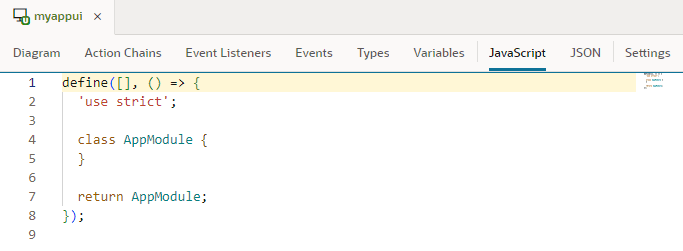
Description of the illustration page-functions-editor1.png
JavaScript functions are defined in different files based on the artifact’s scope. An App UI uses the
app.jsfile, a flow uses*`flow-name`*-flow.js, and a page uses*`page-name`*-page.js. Additionally, a layout useslayout.jsand a fragment uses*`fragment-name`*-fragment.js. -
Define your JavaScript function within the Module class (
AppModule,FlowModule, orPageModule) provided in the JavaScript editor. If you’re working with a fragment or layout, you’d useFragmentModuleorLayoutModule.To define an app-level function, for example, define your function within the
AppModuleclass:define([], () => { 'use strict'; class AppModule { // write your function here } return AppModule; });Here’s an example of an
AppModulefunction that takes a string, appends some text to it, then returns that string:define([], () => { 'use strict'; class AppModule { // Code for a custom AppModule method myAppModuleMethod(s) { return s + " has visited my AppModule method"; } } return AppModule; });If any function within the class needs to access the application context, make sure you create a constructor for the class and include the context as an input parameter:
constructor(context){}Here’s another example where two functions have been created in the
PageModuleclass: a constructor and a module function. When the page is opened, the corresponding instance of thePageModuleclass (shown below) is created for the page. Also, the instance’s constructor is automatically called and the application context passed to the constructor:define([], () => { 'use strict'; class PageModule { constructor(context) { this.eventHelper = context.getEventHelper(); } fireSomeCustomPageEvent() { this.eventHelper.fireNotificationEvent( {summary: 'Summary here', message: 'Message here,'}); } } return PageModule; });As you write your code in the JavaScript editor, take advantage of suggestions that provide code-completion capabilities. This includes code snippets for common JavaScript structures, such as “for” and “while” loops and conditional statements. For example, typing
forin the editor will show you various “for” loop structures: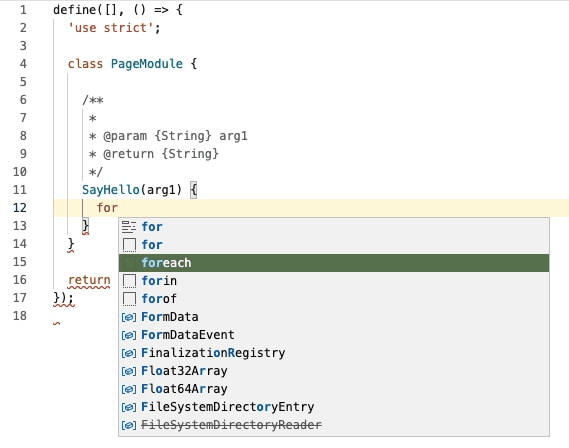
Description of the illustration js-code-complete-example.png
Selecting a structure will let you easily switch the variables in the structure.
-
Watch for syntax errors in your code. Lines with syntax issues are flagged in the right margin, which you can then resolve from the Audits pane. A light bulb icon in the left margin indicates a hint that you can use to correct invalid code.
For help with JavaScript syntax, see https://developer.mozilla.org/en-US/docs/Web/JavaScript#reference. These additional resources can be helpful as well:
After you’ve defined your custom JavaScript functions, you can call them in action chains as well as UI components:
-
In an action chain, select the function in the Call Function action.
Let’s say your UI requires you to enter some text in an input component, then click a button to call a function that passes that text, modifies it, and binds it to an output component. The input component is bound to an InputVariable and the output component is bound to an OutputVariable. You now build an action chain that’s triggered when the button is clicked, where a Call Function action calls the custom function and maps its input parameter to the InputVariable, followed by an Assign Variable action that assigns the output of the function to the OutputVariable:
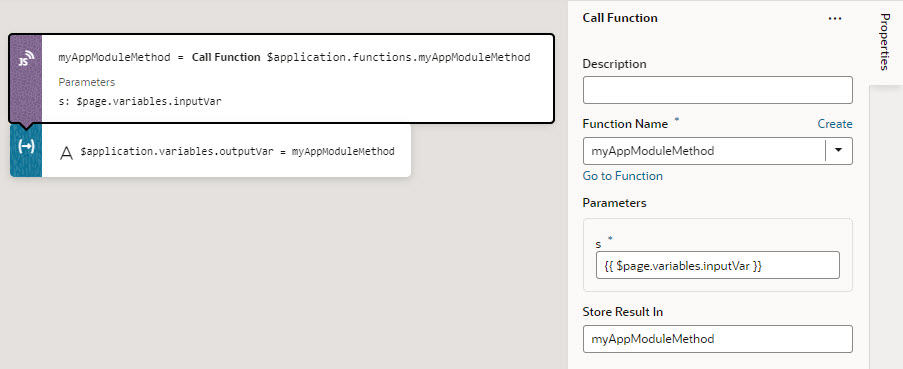
-
In a component’s Properties pane, select the function in the Expression editor or Variables picker of a property.
Let’s say your UI fetches data from a REST service and you want to convert some values shown in an Input Date Time component. By adding a converter function that uses the IntlDateTimeConverter API, you can select your custom function in the Variables picker to convert the value to a suitable date-time format:
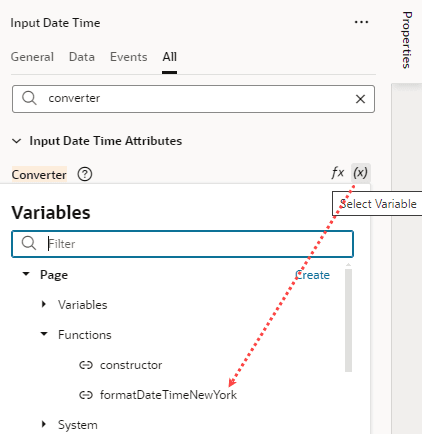
Description of the illustration js-functions-variablepicker.png
To write efficient expressions that handle situations where a referenced field might not be available or the field’s value could be null, see How To Write Expressions If a Referenced Field Might Not Be Available Or Its Value Could Be Null