Enable A2A Server
To enable or disable the A2A server for an Autonomous AI Database instance, add a free-form tag on the Autonomous AI Database resource in the OCI Console.
To enable the A2A server:
-
Go to the Autonomous AI Database details page in the OCI Console.
-
Open the Tags tab, and click Add.
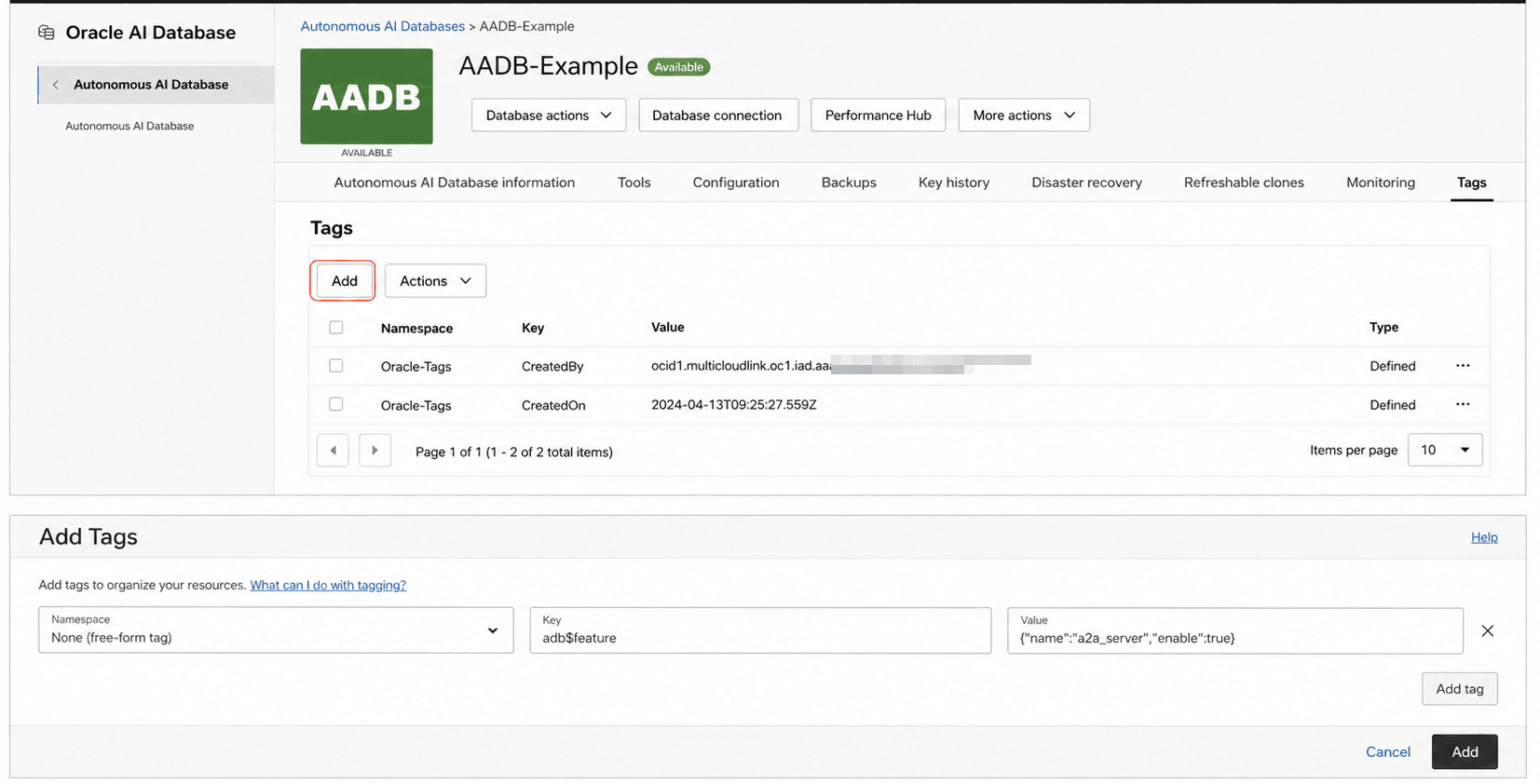
Description of the illustration adbs_enable-a2a-server-tag.png
-
In Namespace, select
None(free-form tag). -
In Key, enter
adb$feature. -
In Value, enter
{"name":"a2a_server","enable":true}. -
Click Add tag, and then click Add to save the tag.
Tag Name: adb$feature Tag Value: {"name":"a2a_server","enable":true}Note:
Use one name and value pair for each freeform tag. Do not provide multiple values for the same tag (for example, as an array to enable both MCP Server and A2A Server in a single request). The tag signals the back-end which feature to enable.
Enable MCP Server and A2A Server independently. Enabling or disabling one does not affect the other. The tag value reflects the most recent action performed for a given tag name.
To disable the A2A server:
Set the following free-form tag:
Tag Name: adb$feature Tag Value: {"name":"a2a_server","enable":false}