Schedule Start and Stop Times for an Autonomous AI Database Instance
Describes the steps to schedule daily start and stop times for an Autonomous AI Database instance.
When you enable Auto Start/Stop Schedule on an Autonomous AI Database instance, the instance automatically starts and stops according to the schedule you specify. This allows you to reduce costs by scheduling shutdown periods for times when a system is not in use.
Perform the following prerequisite steps as necessary:
-
Open the Oracle Cloud Infrastructure Console by clicking the
 next to Cloud.
 -
From the Oracle Cloud Infrastructure left navigation menu click Oracle AI Database and then click Autonomous AI Database.
-
On the Autonomous AI Databases page select an Autonomous AI Database from the links under the Display name column.
To set the Auto Start/Stop Schedule, do the following:
-
On the Details page, from the More actions drop-down list, select Auto start/stop schedule.
-
For each day you want to schedule, select a start time and a stop time.
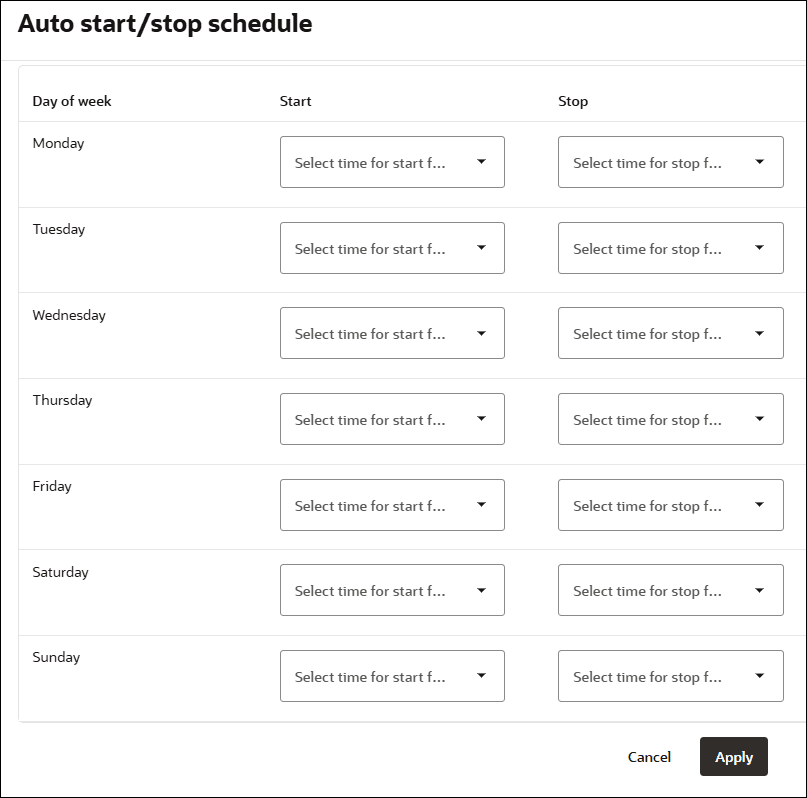
Description of the illustration adb_auto_stop_schedule.png
The drop-down list allows you to schedule start times and stop times hourly, on the hour, specified in Coordinated Universal Time (UTC).
Selecting both a start time and a stop time is not required. You can select just a start time or just a stop time.
-
Click Apply to apply the schedule.
-
In the schedule confirmation, click Apply.
While the system applies the Auto Start/Stop Schedule, the lifecycle state changes to Updating. When the operation completes the lifecycle state shows Available.
The Auto start/stop schedule field under General Information on the Autonomous AI Database details page lists the days with an Auto Start/Stop Schedule enabled, and includes an Edit link that you can click to view the details or make changes.
To remove start and stop times for a day from an Auto Start/Stop Schedule, edit the schedule and choose the Select time (UTC) value for either the start or the stop time for that day.
Notes for Autonomous AI Database Auto Start/Stop Schedule
-
A scheduled stop works the same way as a manual stop; when the scheduled stop occurs, any running database sessions are stopped.
-
You can perform a manual start for a database, if necessary, after a database has stopped due to a scheduled stop.
See Start Autonomous AI Database for more information.
-
You can perform a manual stop for a database, if necessary, after a database has started due to a scheduled start.
See Stop Autonomous AI Database for more information.
-
The Lifecycle state must be Available to view or to edit the Auto Start/Stop Schedule.
-
Always Free Autonomous AI Database does not support Auto Start/Stop Scheduling.
-
A database that has been scheduled stopped, remains stopped until the next scheduled start time or until you start the database. Likewise, a database that has been scheduled started, remains running until the next scheduled stop time or until you stop the database.
-
When an Autonomous AI Database remains stopped for over 7 days it may take a few minutes or longer to start up, depending on the size of the database. To avoid this extra startup time, Oracle recommends starting your Autonomous AI Database instance once every 7 days.