Request a Service Limit Increase
Before creating an Exadata Infrastructure resource, you are recommended to check the available service limits and request a service limit increase from the Oracle Cloud Infrastructure console if required.
You need to have a minimum number of Exadata Database Servers and Exadata Storage Servers available in your tenancy to provision an Exadata Infrastructure. These service limits are determined by the Exadata System Shape that you choose to provision your Exadata Infrastructure.
The Exadata System Database Server Count and Storage Server Count limits are defined as counts per availability domain.
If you try to create a resource for which a limit has been met, you’re prompted to submit a limit increase request.
To Request a Service Limit Increase for a New Exadata Infrastructure Resource
If you do not have the required service limits to provision an Exadata Infrastructure using the Exadata System Shape of your choice, you can submit a request to increase your service limits using the Oracle Cloud Infrastructure console to add Exadata Infrastructure resources - Database Servers and Storage Servers to the tenancy.
Note: This procedure applies to requests for service limit increases. For details about the subscribed region limit and how to request an increase to that limit, see Subscribed Region Limits.
To request a service limit increase:
-
From the OCI Console, Open the Help menu
 . Under Targeted help, select Request a limit increase. The Request limit increase window opens.
 - Under General Information, Enter the following values:
- Request name: User-friendly name for the limit request.
- Reason for request: The reason for the request. If the request is urgent or unusual, then provide details here. Avoid entering confidential information.
Tags: If you have permissions to create a resource, then you also have permissions to apply free-form tags to that resource. To apply a defined tag, you must have permissions to use the tag namespace. If you’re not sure whether to apply tags, skip this option or ask an administrator. You can apply tags later. Select Next.
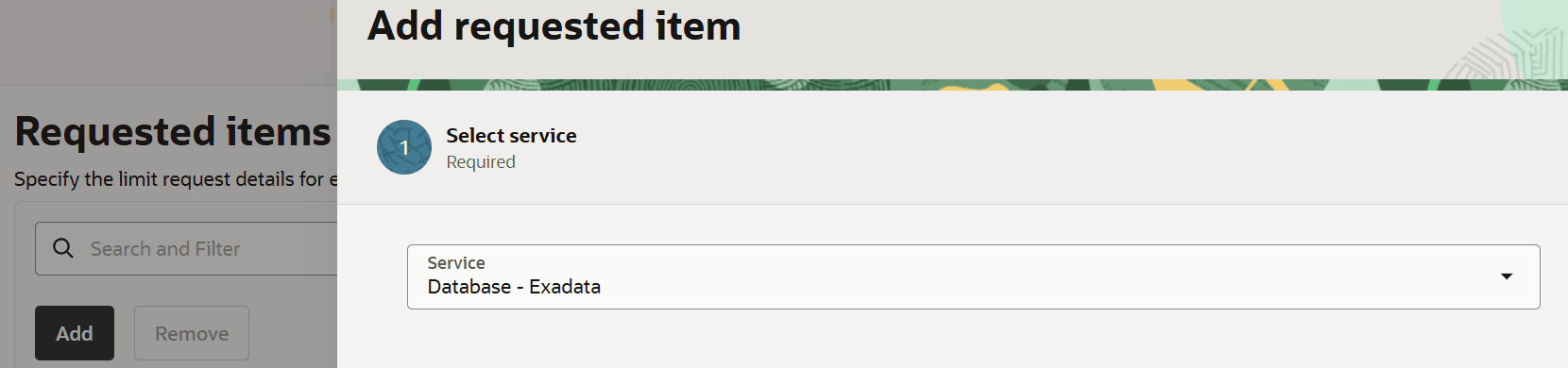
- Click Add. In the Add requested item window, enter the following values.
- Service: Select Database - Exadata. Click Next.
- Select limit: Select New infrastructure. The Availability Domain (AD) is automatically populated in the select AD field if the region has only one AD. In regions with multiple ADs, you must manually select the desired AD.
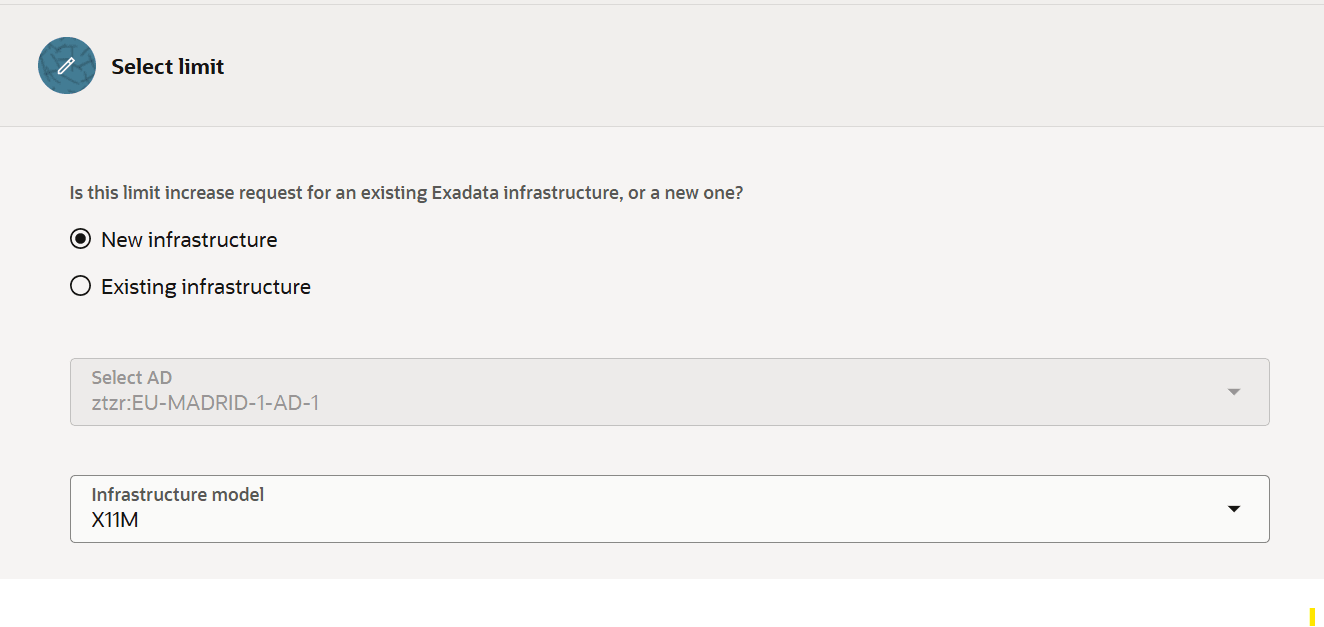
- Infrastructure Model : Select X11M.
- The Database server limit name is automatically populated. Choose a value for Database server limit value. The minimum value is 2.
- The Storage server limit name is automatically populated. Choose a value for Storage server limit value. The minimum value is 3.
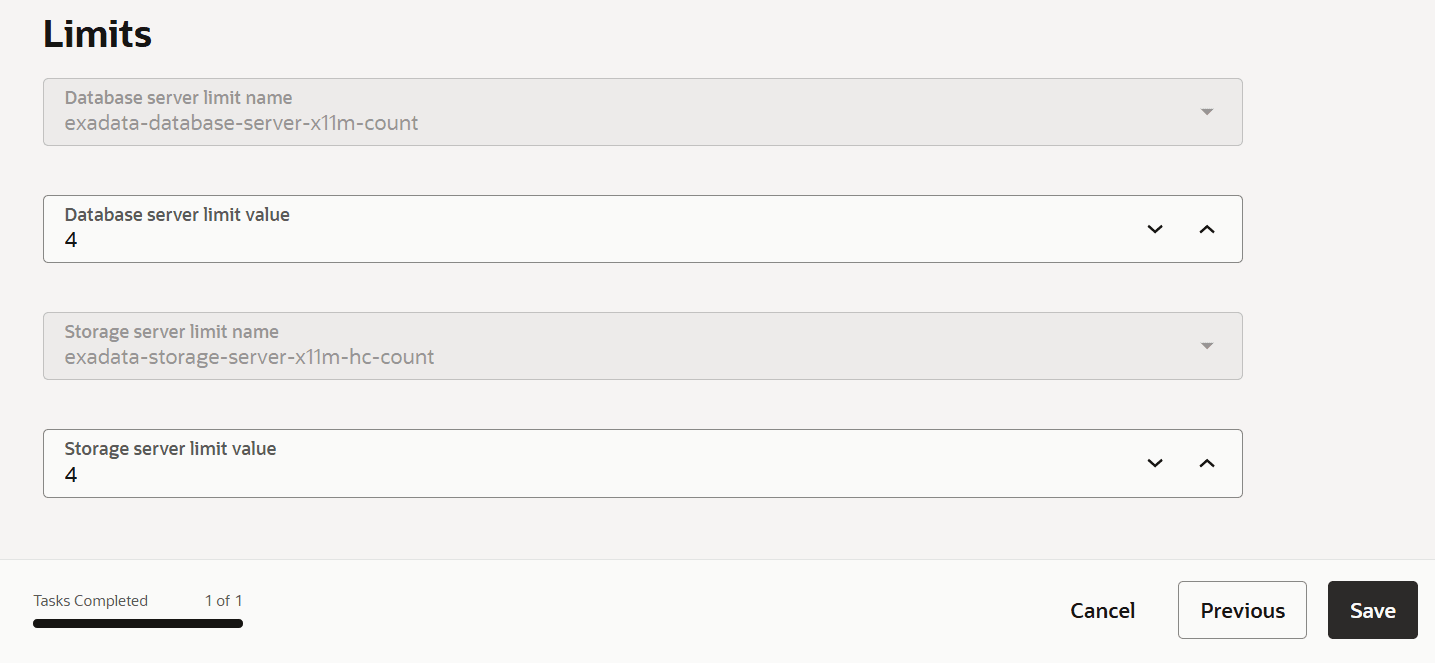
- Click Save. Select Next. Review the limit request, tags, and other details before submitting.
- Service: Select Database - Exadata. Click Next.
The requested service limits are usually allocated within 1 business day, but may take longer depending on the availability and the quantity requested.
To Request a Service Limit Increase for an Existing Exadata Infrastructure Resource
If you want to increase the service limits of an existing Exadata Infrastructure resource, you can submit a request to increase your service limits using the Oracle Cloud Infrastructure console to add Exadata Infrastructure resources - Database Servers and Storage Servers to the tenancy.
To view the current service limits and request a service limit increase:
-
From the OCI Console, Open the Help menu
. Under Targeted help, select Request a limit increase. The Request limit increase window opens. - Under General Information, Enter the following values:
- Request name: User-friendly name for the limit request.
- Reason for request: The reason for the request. If the request is urgent or unusual, then provide details here. Avoid entering confidential information.
Tags: If you have permissions to create a resource, then you also have permissions to apply free-form tags to that resource. To apply a defined tag, you must have permissions to use the tag namespace. If you’re not sure whether to apply tags, skip this option or ask an administrator. You can apply tags later. Select Next.
- Click Add. In the Add requested item window, enter the following values.
- Service: Select Database - Exadata. Click Next.
- Select limit: Select Existing infrastructure. Choose the existing Exadata Infrastructure resource whose limits need to be increased. The Availability domain and Infrastructure model is automatically populated in the corresponding fields.
- The Database server limit name is automatically populated. Choose a value for Database server limit value. The minimum value is 2.
- The Storage server limit name is automatically populated. Choose a value for Storage server limit value. The minimum value is 3.
- Click Save. Select Next. Review the limit request, tags, and other details before submitting.
The requested service limits are usually allocated within 1 business day, but may take longer depending on the availability and the quantity requested.